


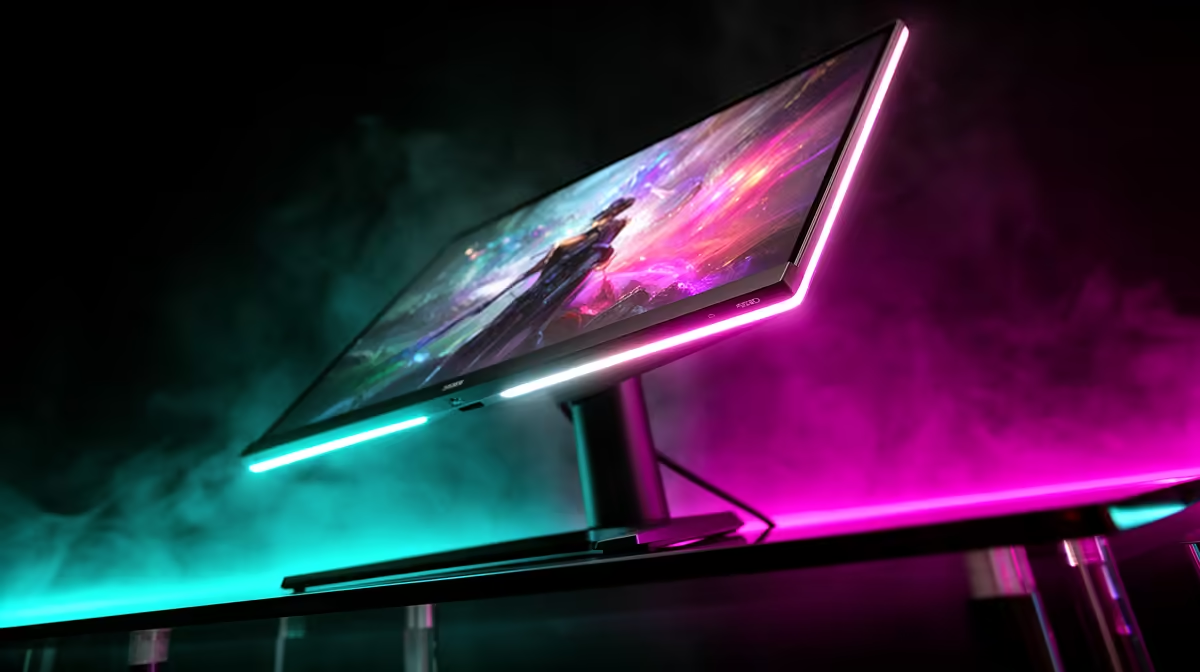
So, you’ve dropped some serious ZAR on a beastly new graphics card. Your rig is ready to tear through the latest titles, but when you load into a game... something’s off. The colours look washed out, movement feels blurry, or worse, you’re seeing that dreaded screen tearing. The culprit? It’s probably not your PC. It's time to dial in the best gaming monitor settings to unlock the performance you paid for. 🚀
The Foundation: Critical Gaming Monitor Settings
Before you even touch the colour calibration, you need to get the basics right. These settings are the bedrock of a smooth, responsive gaming experience. Think of your screen as a key part of your setup, just like any other PC monitor that needs proper configuration for peak performance.
Refresh Rate (Hz): Go High or Go Home
Your monitor's refresh rate is how many times per second the image on the screen is updated. A 144Hz monitor can display 144 frames per second (fps). Running it at the default 60Hz is like putting a speed limiter on a Ferrari.
How to fix it: In Windows 10/11, right-click your desktop > Display settings > Advanced display. Under "Choose a refresh rate," select the highest number available. If you don't see the advertised rate, you might need to use a DisplayPort cable instead of HDMI.
Response Time (ms): Banishing Ghosting
Response time is how quickly a pixel can change from one colour to another. A slow response time creates "ghosting" or motion blur, which is a massive disadvantage in fast-paced games. Most gaming monitors have an "Overdrive" or "Trace Free" setting to control this. Start with the middle setting (e.g., "Normal" or "Fast") as the highest setting can sometimes cause "inverse ghosting," which looks like a bright trail. Finding the optimal setting for your monitor is key.
Resolution: Clarity is King
Always run your monitor at its native resolution for the sharpest image. Running a 1440p monitor at 1080p will make everything look soft and blurry. This setting ensures you're getting the pixel density you paid for, whether you're aiming for 1080p high-refresh or stepping up to glorious 5K & 4K monitors for incredible detail.
Optimising Your Visuals: Colour, Contrast, and Brightness
Now for the fun part: making your games look stunning. Factory settings are often too bright and have inaccurate colours. The goal is to find a balance that makes your games pop, and many of the latest gaming monitors offer extensive controls to help you achieve this.
Start by selecting a "Standard" or "User" picture mode. Avoid "Cinema" or "Eco" modes, which often alter the image too much. Adjust brightness so that it’s comfortable for your room's lighting—too bright causes eye strain, too dim hides details. Then, tweak the contrast to make the whites bright and the blacks deep, without losing detail in either.
Calibration Pro Tip 🔧
For a more scientific approach, use free online tools like the Lagom LCD monitor test pages. These simple test patterns help you correctly set your brightness, contrast, black levels, and gamma far more accurately than just eyeballing it in-game. It’s a quick step that makes a massive difference.
Advanced Settings for the Competitive Edge ⚡
Once the basics are dialled in, these advanced features are what separate a good experience from a great one. Getting these gaming monitor settings right will give you a tangible advantage.
G-Sync and FreeSync: The Tearing Terminators
Screen tearing happens when your GPU's frame rate isn't synchronised with your monitor's refresh rate. NVIDIA's G-Sync and AMD's FreeSync (also known as Adaptive Sync) solve this by allowing the monitor to adjust its refresh rate on the fly to match the GPU's output. This results in incredibly smooth gameplay with no tearing or stutter. Make sure it’s enabled in both your monitor's on-screen display (OSD) and your GPU's control panel. This tech is especially immersive on curved monitors, which wrap the action around your field of view.
Black Equalizer / Shadow Boost
Struggling to spot enemies lurking in dark corners in Valorant or Warzone? This setting is for you. It brightens the dark areas of an image without overexposing the bright parts. It feels a bit like cheating, but it’s a standard feature on most gaming displays. A little boost here can make a huge difference in your situational awareness.
Beyond the Pixels: Your Physical Setup Matters
Perfecting your on-screen image is only half the battle. Your physical environment plays a huge role in performance. Ensure your monitor is at eye level to prevent neck strain. Consider your ambient lighting; playing in a pitch-black room can increase eye fatigue. Even having a secondary screen, like one of these handy portable monitors, for Discord or stream controls can be part of optimising your setup. Ultimately, proper positioning with VESA mounts and other monitor accessories can reduce distractions and improve focus during those long gaming sessions. ✨
Ready to See the Difference? Optimising your settings is one thing, but starting with the right panel is crucial. For the best refresh rates, response times, and colour accuracy in South Africa, a great gaming monitor is non-negotiable. Explore our massive range of PC gaming gear and find the perfect screen to dominate your world.









