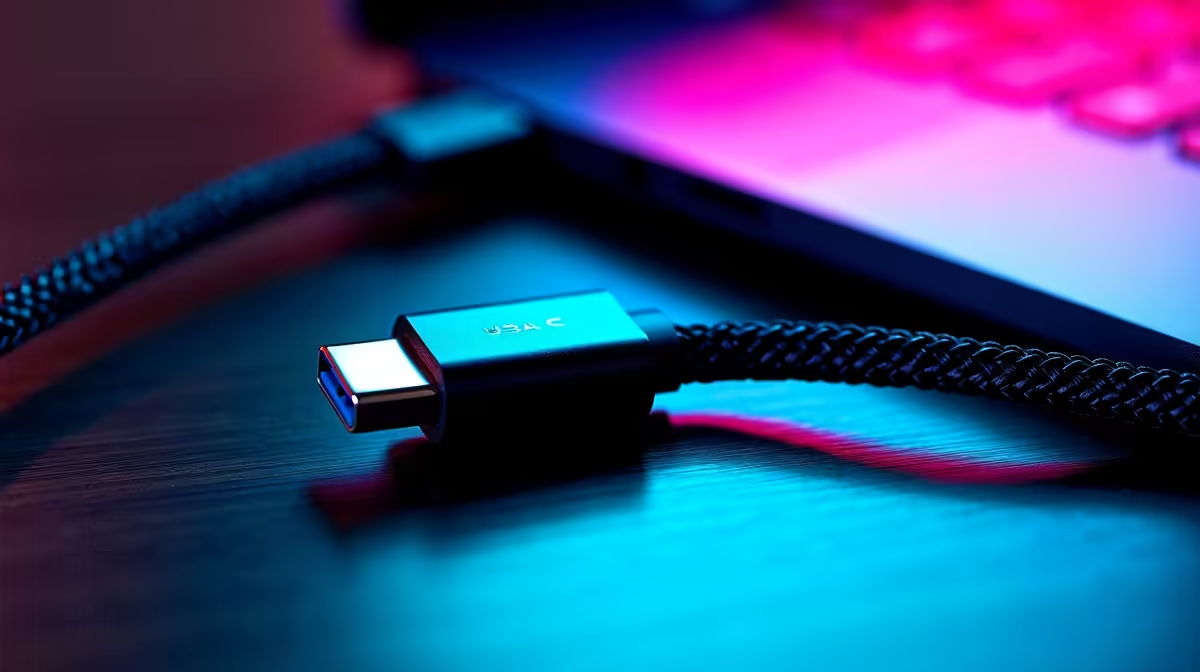
Common USB-C cable problems include slow charging, no video, low transfer speed and intermittent disconnects. The connector shape looks universal, but cables support different power, data and display capabilities. A cable that charges a phone may not carry a monitor signal or fast external storage.
Identify the failed function
Test charging, data and video separately with known-compatible devices. Check the computer and peripheral manuals for required standards and power. Inspect both connectors for debris, looseness or damage, then clean only according to the device maker’s safe guidance.
No USB-C cable SKU or verified cable price appears in the supplied product facts. Before purchasing elsewhere, confirm rated charging power, data speed, video support, length, certification, warranty and whether an electronically marked cable is required for the intended power level. Avoid vague listings that mention only fast charging.
The Promate TransHub-Lite USB-C hub is listed at R305, but the facts do not establish its cable or port capabilities. Verify the complete laptop, hub, charger and display chain before purchase.
Replace a cable with bent contacts, exposed conductors, unusual heat or repeated dropouts. Do not hold a loose connection at an angle. Label proven cables by function and test again after operating-system or firmware updates. Repeat each function test after changing charger or device.
Simplifying a USB-C desk? > Compare Evetech hubs by ports, display support and power delivery.