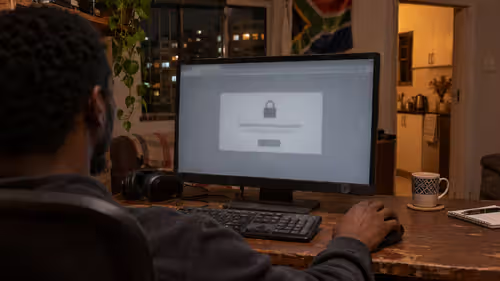
A laptop HDMI port that looks dead is more often a cable, an input setting or a display mode than a broken port. HDMI is forgiving in some ways and fussy in others, and a TV showing "no signal" tells you nothing about which of the three parts failed. To fix hdmi port laptop problems quickly, press Windows+P, choose Duplicate, and swap the cable before blaming the hardware.
Quick Answer
Switch the TV to the matching HDMI input, press Windows+P and pick Duplicate, then try a different HDMI cable. Cables cost around R60 to R250 and fail more often than ports do. If a second cable and a second screen both fail, reinstall the graphics driver. Only then suspect a damaged port, which needs a technician.
📺 The Three-Part Test
HDMI has three parts in the chain: the laptop port, the cable and the display. A fault in any one looks identical, so test by swapping one part at a time.
- Check the TV or monitor input. TVs have several HDMI inputs, and the source must match. Use the Input or Source key on the remote and choose the HDMI number that matches the socket you plugged into.
- Try another cable. A cable that worked last year can fail inside the sleeve, especially if it has been bent behind a TV stand. Test with a second one, ideally a short, known-good lead.
- Try another input or screen. Plug into a different HDMI port on the TV, or connect the laptop to a different screen entirely.
- Power cycle everything. Switch off the TV, unplug it for a minute, plug it back in and select the input before connecting the laptop.
If the laptop works on another screen and the TV works with another source, you have narrowed the fault to the cable or the combination of the two.
⌨️ Make Windows Send A Picture
Sometimes the port is fine and Windows is simply not projecting. Press Windows+P and look at the four choices.
- PC screen only turns the external display off.
- Duplicate shows the same picture on both screens.
- Extend treats the TV as a second desktop.
- Second screen only blanks the laptop and shows only the TV.
Choose Duplicate first, since it is the simplest. If the TV still stays blank, go to the Display page in System settings and press Detect under Multiple displays. A recognised screen will appear in the list.
You can also lower the refresh rate. Under Display, Advanced display, set the screen to 60Hz, as some older TVs reject higher rates and go blank.
🧩 Drivers And Start-Up Order
A broken or outdated graphics driver can stop HDMI output without affecting the laptop screen at all. Download a fresh graphics driver from the laptop brand, or from the graphics chip maker for your model. Restart afterwards and test with the cable connected.
Start-up order matters on some machines. If the TV is not detected, try this sequence: turn the TV on and select the HDMI input, then plug in the cable, then wake the laptop. Or restart the laptop with the cable already connected, so Windows finds the display during boot.
Laptops with two graphics chips, one built in and one dedicated, sometimes route HDMI through only one of them. Updating both drivers usually clears this up. A BIOS update from the maker can also fix detection problems on some models, but only apply one that is listed for your exact laptop.
🔌 Physical Damage And Workarounds
Look closely at the port with a torch. Warning signs:
- Bent or missing pins inside the port.
- A plug that wobbles or only works at one angle.
- Burn marks or a smell of electronics.
- Metal housing that moves when you touch the cable.
HDMI ports on laptops are soldered to the mainboard, so repeated plugging and pulling can loosen the joints over time. A technician can often resolder a loose port, and cost depends on the model, so ask for a quote first. On an older machine, weigh that cost against the value of the laptop.
The easy workaround is USB-C. If your laptop has a USB-C or Thunderbolt port that supports video output, a USB-C to HDMI adapter or a small dock gives you a second route to the TV. Many USB-C sockets carry data only, so look for a small DisplayPort or lightning-bolt symbol beside yours. A decent adapter costs around R200 to R600.
If the whole laptop is ageing and its ports are failing, the Intel laptops on special page lets you compare newer machines, and the laptop best sellers list shows popular everyday options. Laptops start at around R8,000. A newer model usually has HDMI 2.0 or better, which handles 4K at smooth refresh rates.
Frequently Asked Questions
Why does my TV say no signal over HDMI?
The TV may be on the wrong input, the cable may be faulty or Windows may not be projecting. Select the matching HDMI input, then press Windows+P and choose Duplicate.
How do I test the cable and the port?
Swap in another HDMI lead and another TV input. Then test the laptop on another screen, so you can tell which of the three parts is failing.
Is the graphics driver behind a dead HDMI port?
It can be. A broken driver may stop video output while the laptop screen works normally. Reinstall it and restart before testing again.
Could the port be physically damaged?
Look for bent pins, a loose port or a cable that works only at an angle. Constant plugging and unplugging wears the solder joints over time.
Is a USB-C to HDMI adapter a workaround?
If your laptop's USB-C port supports video output, yes. Check for a DisplayPort symbol, because not every USB-C port can carry a picture.
Does the laptop need a restart with the TV on?
Sometimes. Turn the TV on and pick the input first, then connect the laptop, or restart it with the cable already plugged in so Windows detects the display.
Ready to put your laptop on the big screen again?
If the ports on your current laptop are giving up, Evetech's laptop range has newer models with solid video output.