PS Remote Play keeps crashing. If the window disappears on your PC before the stream begins, check the Windows app installation first. A picture freezing while the window stays open is a different symptom.
Quick Answer
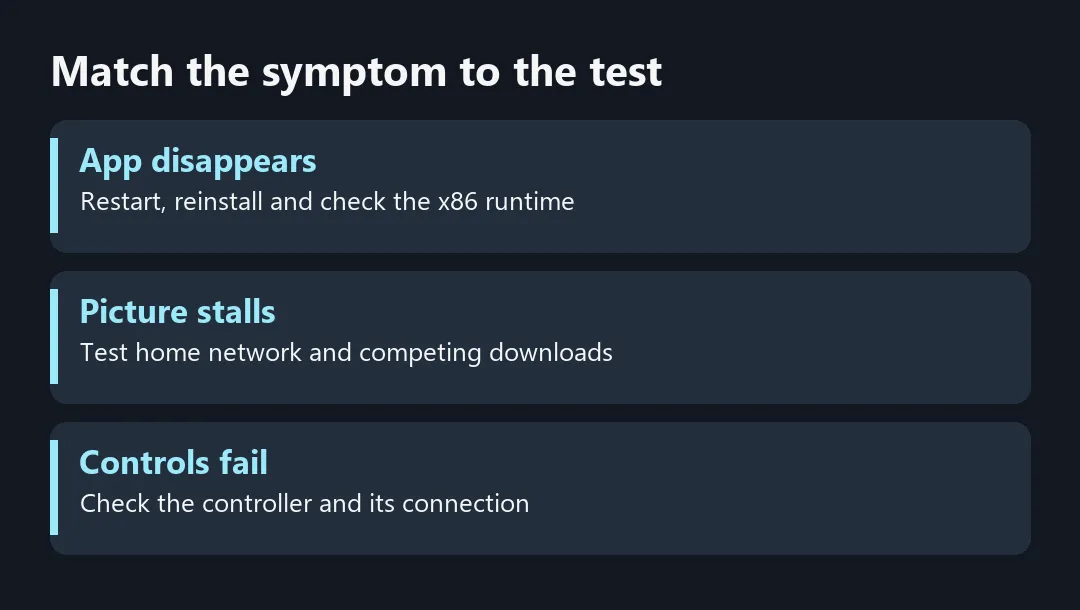
When PS Remote Play keeps crashing on Windows, restart the PC and retest the app. If it still closes, reinstall Remote Play and check the supported x86 Visual C++ runtime. Those checks cost R0.
🕹️ Watch which part stops
Open Remote Play and note when it closes. It may stop before sign-in, while connecting, or only after a game has run for a while. Restart Windows and test again without starting a second capture or voice app. If it still vanishes while idle, write down the time and step. Repeat the same step after each change.
When the app remains open but the video freezes or disconnects, follow the connection checks for your console and client. Check whether other devices are downloading and compare with a wired connection if you can. Keep the crash and network outcomes separate.
🧰 Work through the app installation
PlayStation lists a reinstall for persistent PC crashes and identifies the local PS Remote Play AppData folder as part of its clean reinstall guidance. Close the app first. Follow the support page for your Windows client, confirm the exact app folder and keep any settings you need before removing local app data. Reinstall from the official download source.
If support asks you to reinstall Visual C++, Microsoft distributes x86 separately from x64. Pick the x86 version PlayStation specifies, even if your Windows install is 64-bit. Restart and run the same short test so you can tell whether the change matters.
🏠 Compare on your home network
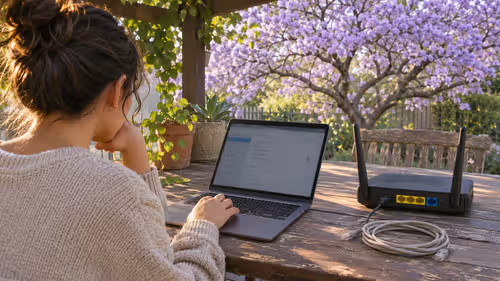
After the app stays open, test while the console and PC are on the same home network. Confirm that you use the same account and that Remote Play is enabled on the console. Try one small session before spending an evening playing away from home. The console and PC each need a stable connection.
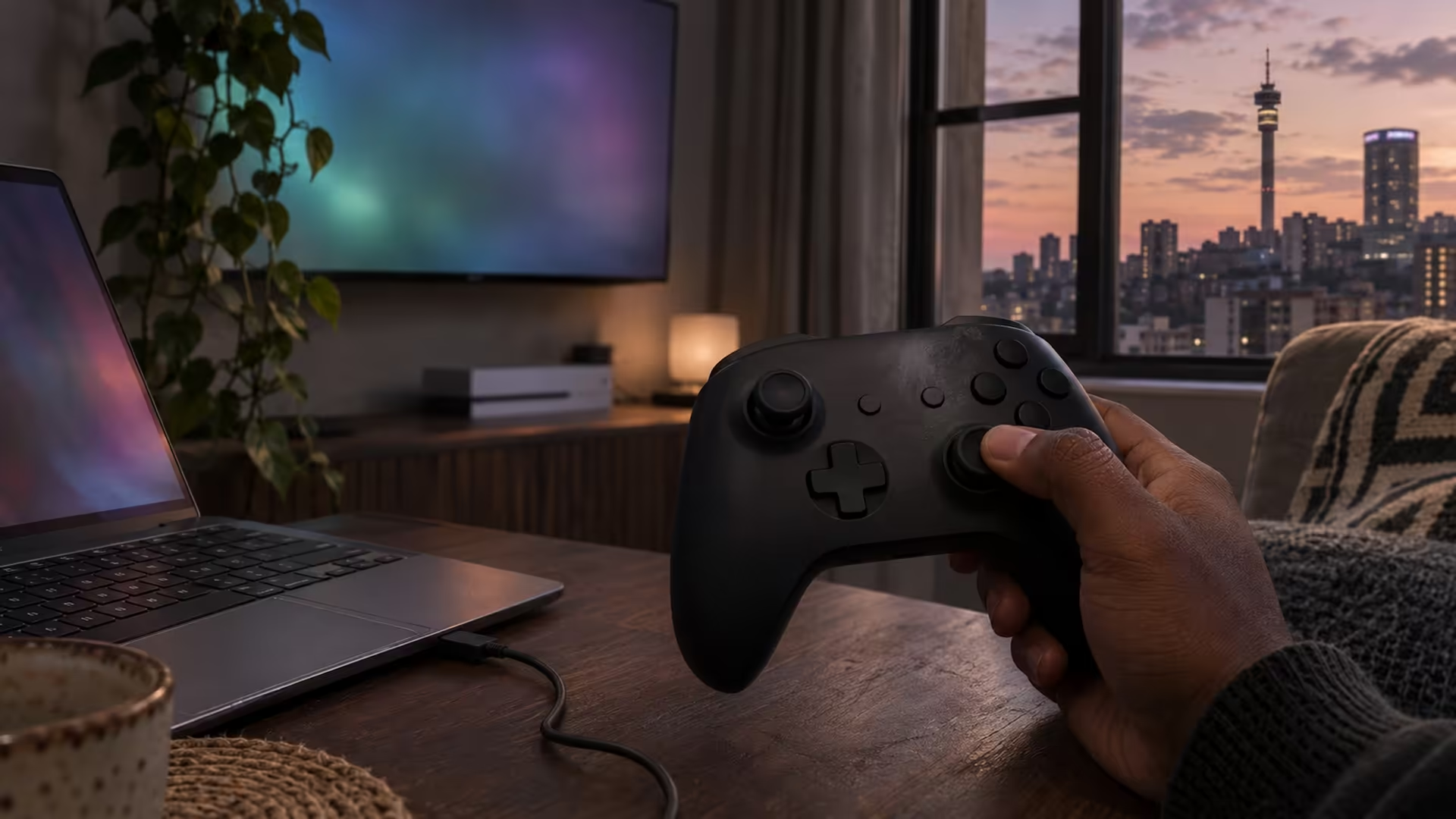
If you have a cable you trust, test it before comparing Network Cables for a permanent link. If the picture works and input does not, check your own controller and cable, and look through Gaming Controllers only after you know which connection mode your setup needs.
Frequently Asked Questions
What should I do first if the app closes?
Restart the PC and note whether Remote Play closes at the same step.
Will a faster internet line stop the app closing?
Start with app troubleshooting if it closes before a stream begins.
Which Visual C++ installer does PlayStation mention?
PlayStation points PC users to the latest supported x86 version.
Does 64-bit Windows rule out an x86 runtime?
No. Match the runtime requested by the application support instructions.
Do I need the same account?
Use the same PlayStation account on your console and Remote Play device.
What if the stream freezes but the app stays open?
Follow network troubleshooting and test on your home network with fewer competing downloads.
Match the symptom to the test
Test an actual Windows crash before pricing networking hardware for a stream issue. Compare compatible options at Evetech.