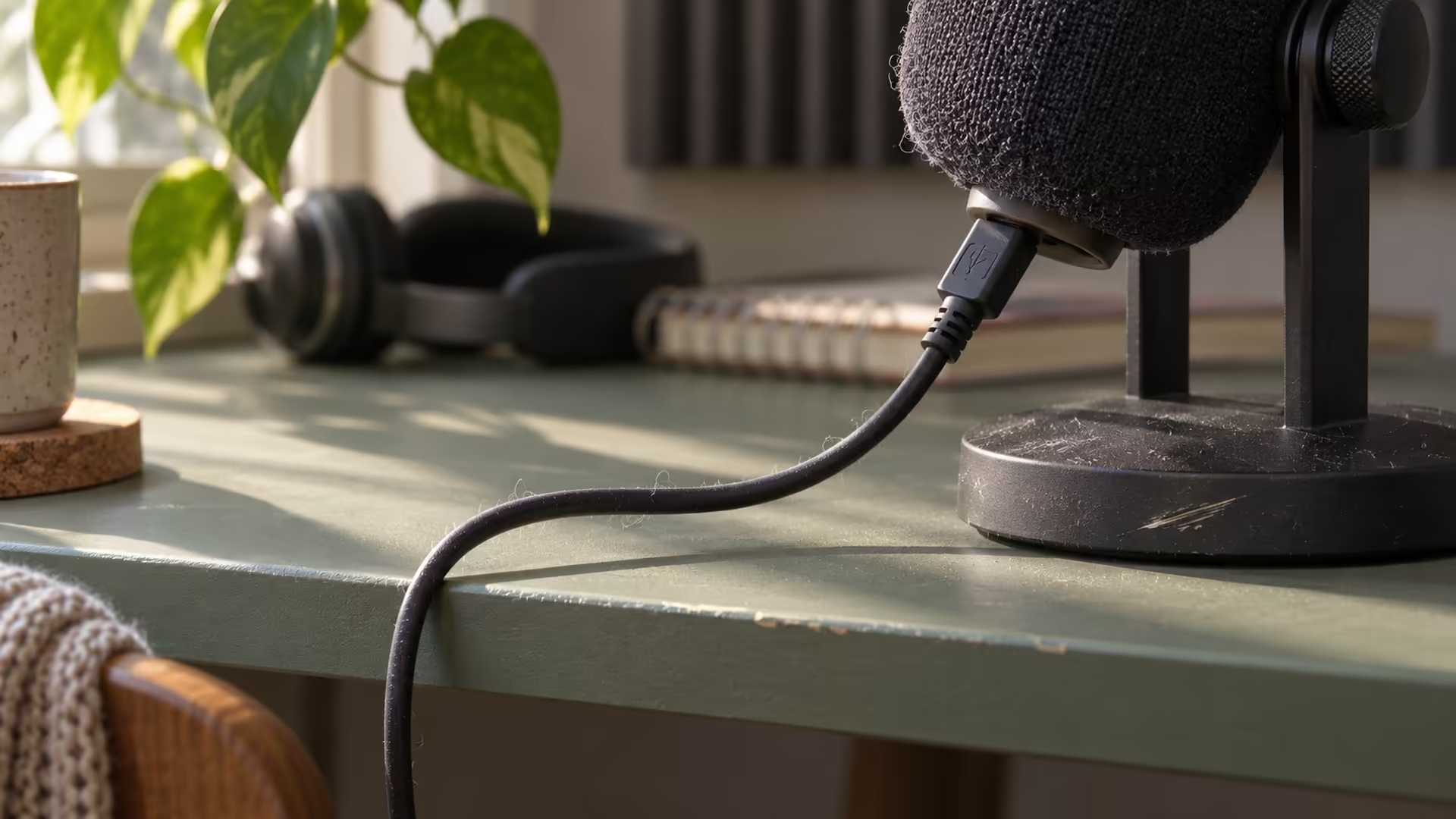
USB microphone exclusive mode. Your mic works when you record alone but drops out when a second app opens. Find out whether the apps can hear the same input before replacing the microphone.
Quick Answer
Test USB microphone exclusive mode by closing audio apps and testing the input in Windows Sound, then starting the apps one at a time. The test costs R0. If one app takes exclusive control, a second app can lose access to that endpoint.
🎙️ Start with the Windows input
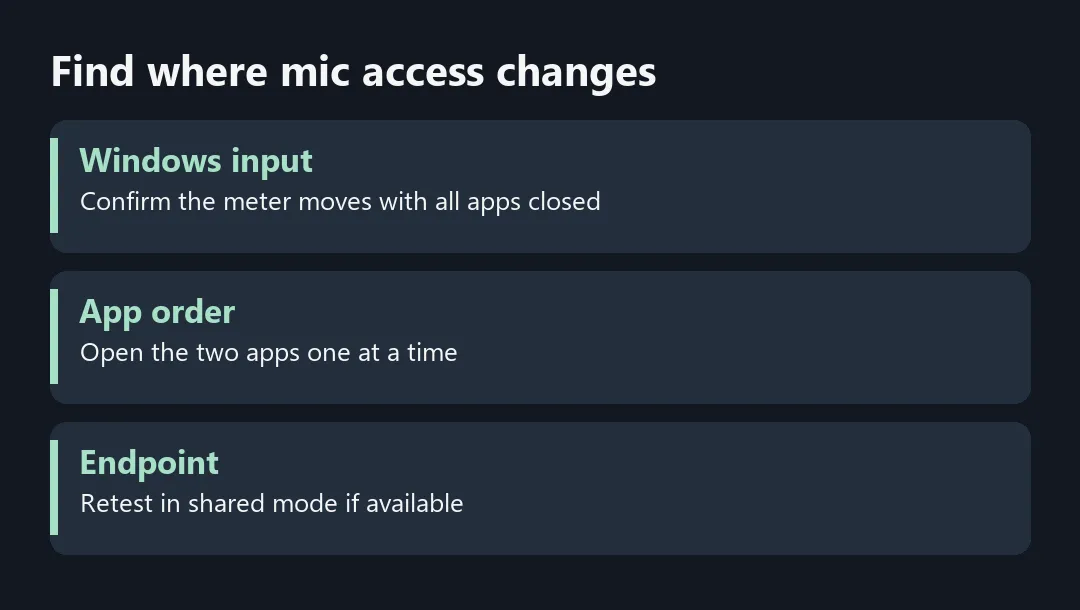
Close voice chat and your recording software. In Windows Sound, select the microphone by its name. Run the input test at normal speaking distance and listen to the result if Windows offers playback. If nothing registers here, check the cable, mute switch and input permission before doing an exclusive-mode test.
Next, open your first audio app and choose the same input in its device settings if you can. Record a short sample. Apps can remember a previous device when the default changes, so verify the selected mic again if you unplugged a headset recently. Write down which app works on its own.
🧪 Recreate the conflict in both orders
With one app talking to the mic, start the other. Test the same phrase in each. Close both and reverse their order. If the second app fails only when the first already uses the device, check whether either app requests exclusive access. The result gives you a more precise question than simply reporting that the microphone loses sound.
Note the current exclusive-mode setting for that endpoint if Windows exposes it. If your software supports a shared-mode option, try it and repeat the test. Some recording workflows use exclusive streams intentionally. Keep the original values in case your usual setup needs them.
🎧 Confirm before replacing hardware
If Windows Sound still shows input but a second app does not, stay with the software tests. Check that its chosen mic and permissions are correct. If Windows loses the input even with all apps closed, try a known working direct USB connection and check whether the failure follows the mic to a second machine.
Compare Gaming Headsets if you want an all-in-one alternative once you know what failed. Check the selected input again after you plug in the headset. If you compare options in Microphone, check which controls you can reach while recording and give the new endpoint a clear name in your notes.
Frequently Asked Questions
What is an exclusive audio stream?
One application takes sole use of the audio endpoint under that stream mode.
Where can I test the mic without opening a game?
Use the microphone test under Sound input settings in Windows.
Does a visible meter rule out app problems?
No. An app can select another input or have its own permissions or mode.
Should I test both app orders?
Yes. That can show whether the second app fails only while the first owns the input.
Does a headset fix exclusive access?
Resolve the app or endpoint setting before buying replacement hardware.
Can I keep exclusive mode for recording?
Keep it if your workflow needs it. Close competing apps or use a separate input where appropriate.
Find where mic access changes
Isolate a recording app conflict before swapping a working microphone. Compare compatible options at Evetech.