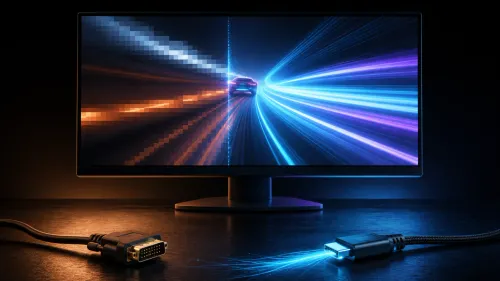
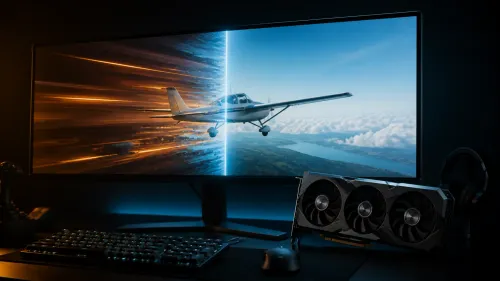
A horizontal split during a camera turn points to timing, not slow pixels. Fixing screen tearing at 240Hz means matching the monitor's refresh behaviour to the graphics card's completed frames, then confirming the game uses the intended display mode. The R10,999 ASUS XG27AQDMG supports both FreeSync Premium and G-Sync Compatible.
Quick Answer
Set the XG27AQDMG to 2560x1440 at 240Hz, enable adaptive sync on the monitor and activate the matching AMD or NVIDIA route in graphics controls. At R10,999, its 0.03ms WOLED response keeps transitions quick, while FreeSync Premium or G-Sync Compatible addresses the separate cause of tearing.
🧱 Identify tearing accurately
Tearing appears as a horizontal discontinuity where different portions of the screen show frames from different moments. It becomes obvious during steady side-to-side camera movement and can occur even on a fast panel when frame presentation is not coordinated.
Do not confuse it with stutter, motion blur or network delay. Stutter is an interruption in pacing, while blur concerns moving-image clarity. Network behaviour changes the game state but does not create the physical split in a display scan.
The gaming monitor range provides useful context for refresh and sync support during diagnosis.
🔧 Verify the complete display mode
Open advanced display settings and confirm 2560x1440 at 240Hz. Check the game's own resolution, refresh and screen mode because exclusive full-screen and borderless output can follow different rules.
Use a direct connection suitable for the desired signal. If the mode changed after a driver update or new second monitor, reselect the XG27AQDMG as the test display and restart the title.
🔄 Enable one adaptive-sync path
For supported AMD graphics, choose FreeSync Premium. For supported NVIDIA graphics, choose G-Sync Compatible. Turn on the monitor option first, then the corresponding graphics setting, and avoid stacking several frame-timing controls during the first test.
Run a scene that moves through different rendering loads. Adaptive sync should follow changing frame completion within its operating range. It cannot add missing frames or remove a pause caused by the game itself.
The OLED monitor catalogue is useful when tearing control must sit alongside deep black levels and quick response.
🎯 Control the upper boundary
If tearing appears near the top of the refresh range, test a deliberate frame cap just below the ceiling and keep the adaptive-sync path active. Change only one value before repeating the same camera movement.
Traditional synchronisation and adaptive refresh affect timing differently. Do not assume every game's default is identical. Save the stable per-title combination so it can be restored after an update.
Screen shape has no direct role in tearing, but it influences the larger buying decision. Evetech's curved display options can be compared once timing requirements are clear.
Recheck frame pacing after the split disappears
A tear-free image can still feel uneven if frame times swing sharply. Use a frame-time view or repeat a demanding route to see whether the computer is delivering consistently. Lower one costly graphics control if necessary, then verify that both pacing and sync remain stable.
Document the driver version, game display mode, refresh, sync route and frame cap. This turns a later recurrence into a short comparison rather than another full diagnosis.
Test the boundaries of the variable range
Start with a moderate scene where frame rate moves gradually, then test the busiest area you can reproduce. If presentation is clean through the first route but breaks during a sharp performance drop, the graphics workload needs attention as well as the sync setting.
Reduce one demanding visual option and repeat the same movement. A lower but consistent render load can keep the title inside a useful adaptive range more often. This is different from lowering resolution immediately, which changes image detail and introduces another variable.
If the game offers a built-in frame limiter, compare it with the graphics-control option rather than enabling both. Use whichever produces the most even frame-time pattern on that system. Keep the result written beside the display mode so another title can have a different deliberate choice.
Multi-monitor systems deserve one additional check. Confirm the game is opening on the XG27AQDMG and that background video on another screen is not changing presentation behaviour. Temporarily test with the second display idle, then restore the normal arrangement once the main path is stable.
Frequently Asked Questions
What causes the horizontal split associated with screen tearing?
The display scans while the source changes to another frame, so different portions show different moments. Adaptive refresh coordinates that timing.
Which adaptive-sync mode should an AMD user select?
Use FreeSync Premium with a compatible AMD graphics route, enabled at both monitor and graphics-control level.
What option is available for compatible NVIDIA graphics?
The XG27AQDMG supports G-Sync Compatible for supported NVIDIA systems.
Why should I confirm the game is actually using 240Hz?
A desktop setting may not carry into every full-screen mode. The game can select a lower refresh independently.
Can adaptive sync remove every kind of stutter?
No. It manages display timing, while asset loading, processor delays and irregular rendering can still interrupt frame pacing.
Does 0.03ms response itself prevent tearing?
No. It describes pixel-transition speed. Tearing comes from the relationship between frame completion and display scanning.
Ready to trace a torn frame to the exact timing setting that caused it?
Explore Evetech's adaptive-sync screens, build one clean AMD or NVIDIA path and save the tear-free mode for every competitive title.