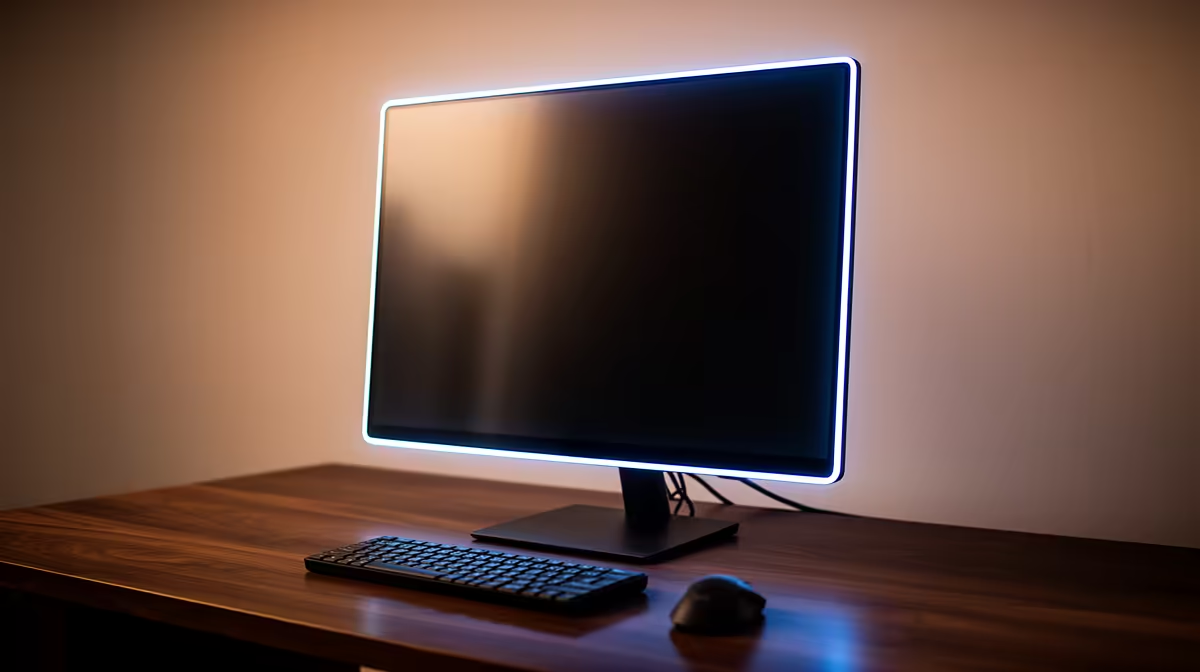
Why Games Run Faster on Your Laptop's External Monitor
Quick Answer
Some gaming laptops run faster on an external monitor because a display port connects directly to the dedicated GPU. That route can bypass the integrated graphics used by a hybrid internal-screen path.
The gain is not automatic. Port wiring, MUX support, display mode, game, resolution and CPU limit all affect the result. An external monitor at a higher resolution can perform slower even when its connection path is more direct.
Identify the exact laptop design before buying a screen for a promised FPS increase.
Step 1: Understand Hybrid Graphics
A gaming laptop often contains integrated graphics inside the CPU and a separate NVIDIA or AMD GPU. During light work, integrated graphics saves power.
In a traditional hybrid path, the dedicated GPU renders the game and passes completed frames through the integrated graphics for the internal panel. That extra path can add overhead or limit some display features.
The size of the difference changes by game and frame rate. CPU-limited esports titles can show more benefit than a heavy GPU-bound game.
Step 2: Know What a MUX Switch Does
A hardware multiplexer lets supported laptops change which GPU drives the internal display. Dedicated mode connects the panel path to the gaming GPU, while hybrid mode preserves the power-saving route.
Some systems need a restart when you switch. Advanced dynamic designs can change routing without the same manual process when hardware, driver and application support align.
Do not assume every gaming laptop has a MUX. Check the maker's manual, control application and independent review for the exact model.
Step 3: Inspect External-Port Wiring
An HDMI port may connect directly to the dedicated GPU while a USB-C display output connects to integrated graphics. Another laptop can wire them the other way around.
Look at the GPU activity icon, NVIDIA control-panel topology or maker diagram. A credible laptop review may show which port bypasses hybrid graphics.
USB-C shape does not guarantee video, charging or dedicated-GPU routing. Check the supported alternate mode and bandwidth.
Step 4: Keep Resolution Constant During Testing
Compare the internal and external display at the same resolution, settings and refresh where possible. Moving from a 1080p laptop panel to a 1440p monitor increases pixel load by about 78 percent.
A direct GPU path can save overhead while the higher resolution costs more performance. If you change both at once, you cannot tell which effect won.
Use a repeatable built-in benchmark or the same game sequence. Capture the average, slow-frame result and GPU utilisation for each run.
Step 5: Try External-Only Mode
Windows duplicate mode can force both displays into a shared timing or resolution arrangement. Extend mode keeps separate desktops but still runs both panels.
External-only mode turns off the laptop panel and can simplify the display path. Test it after saving work, using the operating system's normal display controls.
Keep the laptop open if its cooling design uses the keyboard deck or hinge area for airflow. Display mode does not override thermal requirements.
Step 6: Check the CPU Limit
At high esports frame rates, the CPU and game engine often set the ceiling. Removing hybrid-display overhead can produce a visible gain there.
At 4K with high graphics settings, the GPU may already sit near full use. A routing change has less room to help.
Monitor CPU and GPU use without treating one percentage as a complete diagnosis. Frame-time measurements and repeated runs show the result more clearly.
Step 7: Understand Battery Trade-Offs
Dedicated-GPU display mode can keep the high-performance GPU awake and reduce battery life. It may also increase idle heat and fan activity.
Use hybrid mode away from the desk when you need endurance. Switch to the supported performance route for plugged-in gaming.
Do not expect full gaming performance on battery. Laptop firmware commonly limits power to protect the battery and manage heat.
Step 8: Choose the External Monitor for the GPU
Start with the laptop GPU tier and its sustained power in your chassis. A 1080p 144Hz to 180Hz monitor suits entry gaming laptops. A stronger laptop can use 1440p high refresh or 4K with tuned settings.
Browse external monitor options, then compare popular PC displays by resolution, refresh and adaptive-sync support.
Check the exact input needed for the full mode. A monitor with 165Hz over DisplayPort may have another limit over HDMI.
Step 9: Test Adaptive Sync
A direct dedicated-GPU port may expose variable-refresh features that another route does not. Enable them through the monitor menu and GPU controls.
Check for flicker, blanking and stable wake from sleep. Use a balanced overdrive mode across the frame-rate range.
Do not mistake tearing removal for an FPS gain. Adaptive sync changes presentation, while routing can change rendering overhead.
Step 10: Troubleshoot a Missing Gain
Confirm the cable uses the intended port and the game runs on the dedicated GPU. Select the external screen's native resolution and desired refresh.
Close frame caps and V-sync only for a controlled comparison, then restore the configuration you prefer. A 60fps cap will hide a path capable of more.
Check temperatures and power mode. A hot laptop can reduce clocks during the second benchmark run, masking the external-route benefit.
Update graphics and laptop firmware through official sources. Keep the known sound configuration available in case the change creates a display issue.
What the Result Means
If performance rises at the same resolution, the external path or display mode reduced a limit. That does not mean the internal screen is faulty.
If performance stays equal, the game may be GPU-bound or the external port may use the same hybrid route. You can still keep the monitor for size, motion or ergonomics.
If it falls, check whether external resolution or graphics settings increased. The direct path cannot make extra pixels free.
FAQ
What does a MUX switch do?
It changes which GPU drives the display path on a supported laptop, allowing a dedicated-GPU mode as well as hybrid operation.
Is an external bypass the same as a MUX?
No. A port can be physically wired to the dedicated GPU even when the internal panel has no switchable route.
How much faster will games run?
There is no fixed gain. It depends on laptop wiring, game, resolution, CPU limit and display mode.
Can you toggle the feature?
Some laptops offer a control with or without a restart. Others have fixed routing. Follow the exact manual.
Does any external monitor create the benefit?
No. The chosen output must connect through the relevant route, and higher resolution can outweigh the saved overhead.
Map your laptop's display ports, benchmark the same resolution in internal and external-only modes, and choose the monitor after the routing result is clear.