HDMI 2.1 Explained: What Console Gamers Actually Need
Quick Answer
Ignore the HDMI 2.1 label until you have checked the exact video mode. For a current console and monitor, confirm 3840 x 2160 at 120Hz, variable refresh, HDR colour depth and the bandwidth or compression used by that input.
HDMI 2.1 defines a broad feature set, and a product does not have to implement every option. The maximum link rate associated with the standard is 48Gbps, while real devices can expose lower rates and still carry useful console modes.
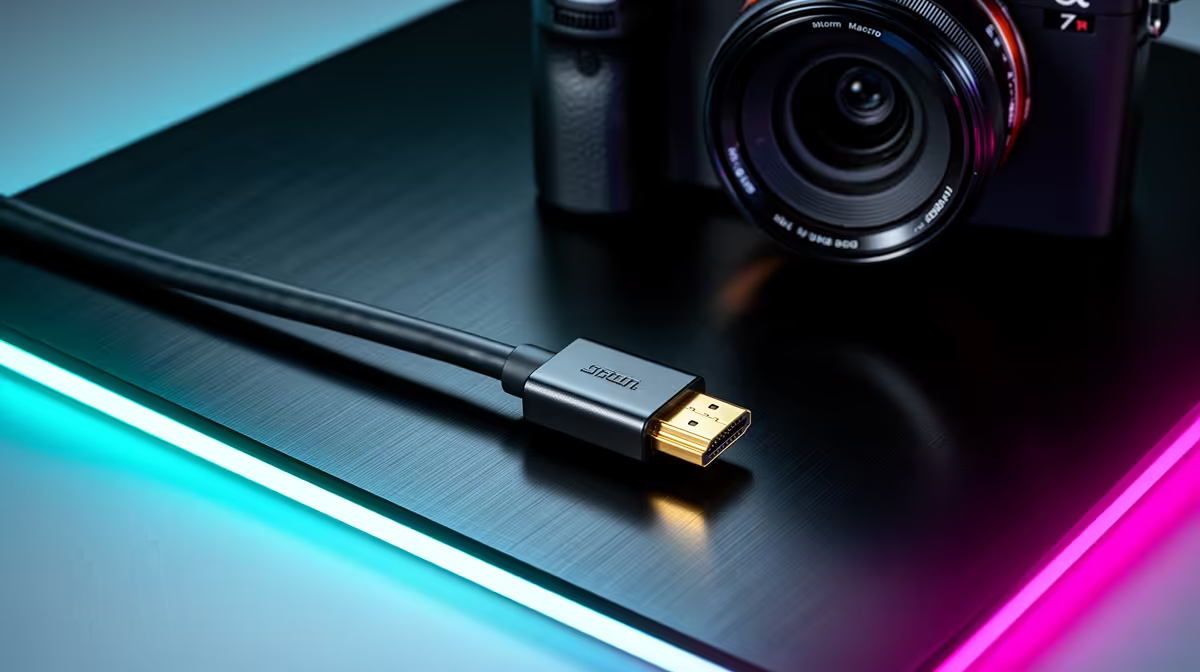
Use a suitable certified Ultra High Speed HDMI cable and the correct monitor port. The cable cannot add a feature missing from either device.
Step 1: Start With the Target Mode
Write down the console output you want. A 1440p 120Hz monitor has another bandwidth need from 4K 120Hz with HDR.
Resolution, refresh, colour depth and chroma all consume link capacity. Variable refresh and HDR also need common support in the source and display.
The monitor timing table is more useful than a logo. Find the exact HDMI input and supported combination.
Step 2: Understand FRL and TMDS
Older HDMI modes commonly use TMDS signalling. Higher HDMI 2.1 modes can use Fixed Rate Link, shortened to FRL.
FRL offers several link rates below the 48Gbps maximum. A monitor with a lower FRL rate may still show 4K 120Hz through Display Stream Compression or a reduced colour format.
Check how the exact console outputs the mode. A PC GPU and console can negotiate another combination on the same monitor.
Step 3: Do Not Assume Every Port Matches
A monitor may have one high-bandwidth HDMI input and another with a lower limit. A TV can reserve one port for eARC.
Read the labels and manual. Connect the console to the input named for gaming or the target 4K 120Hz mode.
Enable an enhanced, deep-colour or high-bandwidth setting where the monitor requires it. Menu names vary.
Step 4: Check the Cable
Use the console-supplied cable when it is specified for the mode, or a certified Ultra High Speed HDMI cable of suitable length.
A marginal cable can cause sparkles, black screens, signal drops or loss of the highest refresh. It does not usually reduce the mode gracefully.
Avoid unnecessary couplers, wall plates and switches during setup. Prove the direct cable first.
Step 5: Verify 4K at 120Hz
The console settings should report supported video modes. Select 120Hz output and use a game that offers a compatible performance mode.
A 120Hz-capable monitor cannot force every title to run at 120fps. The game needs to expose the mode and the console needs enough performance.
Some games use dynamic resolution or reconstruction to reach their target. The output can remain 4K 120Hz while internal rendering changes.
Step 6: Verify VRR
Variable Refresh Rate lets the display follow the console's changing frame output inside a supported range. It can reduce tearing and judder.
HDMI 2.1 VRR is optional, and monitor support can depend on input or timing. Check the console's current compatibility screen.
VRR does not repair a large stutter or network lag. It improves how varying frames are presented.
Step 7: Treat HDR as Its Own Test
HDMI bandwidth can carry HDR, but the monitor needs useful contrast, brightness and colour to display it well.
An HDR-compatible label may only confirm signal acceptance. Read measured local dimming, peak and sustained brightness, black level and colour volume.
Calibrate HDR from the console for the exact monitor mode. Do not copy another display's slider values.
Step 8: Know Where eARC Fits
Enhanced Audio Return Channel sends high-bandwidth audio from a display to a compatible sound system. It does not improve the video sent from console to monitor.
Many monitors do not include eARC because desktop audio routes differently. Check audio output and headphone needs separately.
On a TV or monitor with one shared eARC input, plan which device connects where before buying a switch.
Step 9: HDMI 2.0 Can Still Be Enough
HDMI 2.0-class modes can handle common 4K 60Hz and 1440p high-refresh combinations, depending on colour and exact implementation.
If your console games target 60fps and the monitor is 4K 60Hz, a full 4K 120Hz path may add little today.
Buy HDMI 2.1 features for the mode you will use, not future-proof wording alone.
Step 10: Shop the Monitor by Timing Table
Browse current console-capable monitors and compare popular gaming screens.
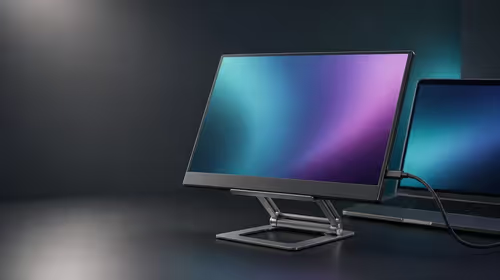
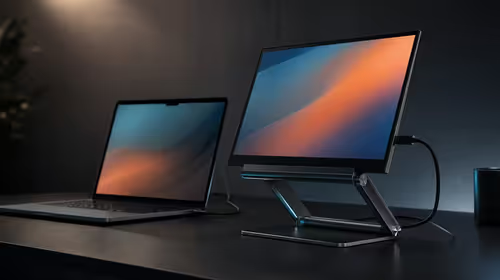
Shortlist models that state the exact HDMI resolution and refresh. Check VRR range, HDR performance and whether both high-bandwidth ports support the same mode.
Stand, size and panel quality still matter. A perfect link feeding weak contrast remains a weak viewing experience.
Step 11: Run the Console Test
Connect directly, enable the display's full-bandwidth input and open the console video-information page. Confirm resolution, refresh, HDR and VRR one by one.
Test a known 120Hz game and a 60Hz HDR game. Watch for blanking, colour problems and unstable wake from sleep.
Add an AV receiver, capture device or switch only after the direct path works. Every extra device needs to pass the same mode.
FAQ
Does every HDMI 2.1 port support 4K 120Hz?
No. Features and link rates vary. Verify the exact supported timing.
Can a cable bottleneck the port?
Yes. Use a certified cable suitable for the mode and avoid extra joins during testing.
Is VRR guaranteed?
No. It is an optional feature and needs support at both ends.
Should console gamers choose HDMI over DisplayPort?
Current consoles use HDMI for monitor output, so the monitor's HDMI capabilities are the relevant path.
Is HDMI 2.0 enough for 4K 60Hz?
It can be, within the exact colour and device implementation. Check the complete mode.
Match the console's exact resolution, refresh, VRR and HDR mode to one monitor input and a certified direct cable before trusting the HDMI label.