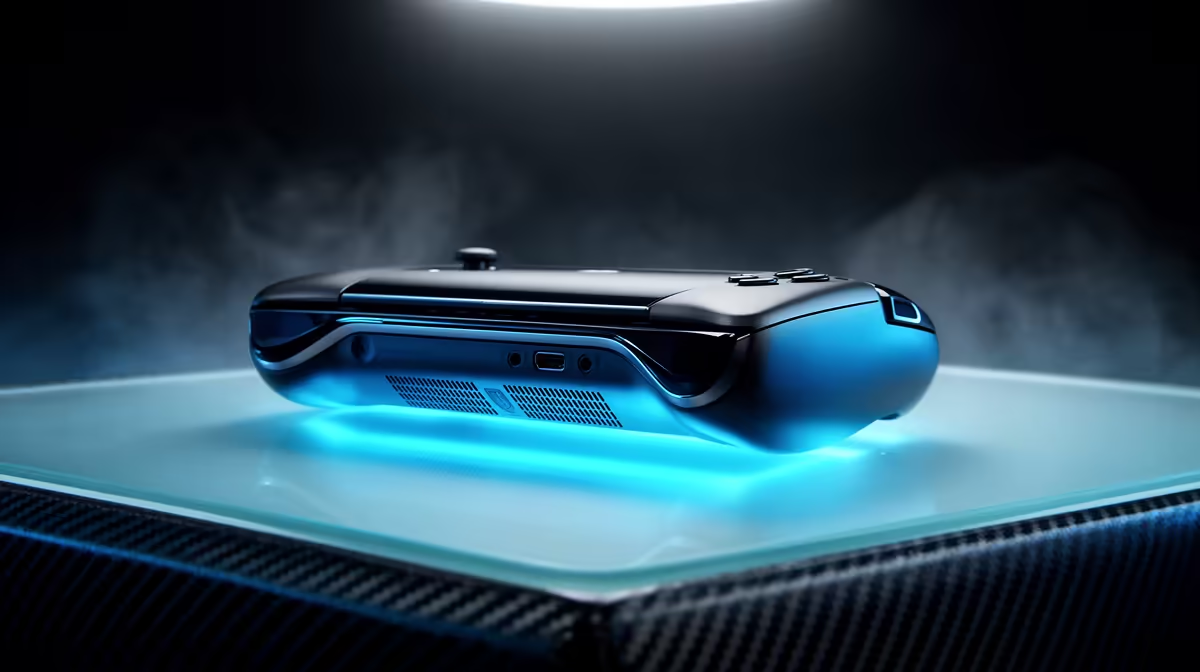
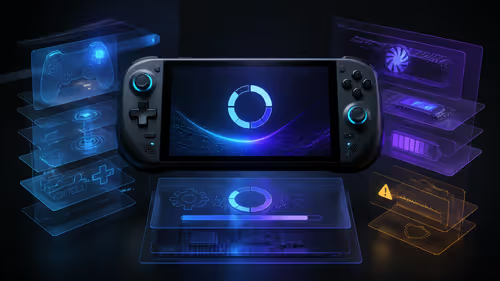
A new Windows handheld arrives with several layers competing for attention: Windows startup items, vendor control software, game launchers, update services and overlays. Cleaning that list can improve startup time and reduce background interruptions. Keep the ASUS or Lenovo services that operate buttons, power modes, firmware and cooling. The aim is a lean supported setup, not the smallest process count.
Quick Answer
Finish Windows setup, install firmware and drivers through Armoury Crate SE or Legion Space, and restart. Open Task Manager's Startup apps page and disable programs you recognise but do not need at sign-in. Remove unwanted applications through Windows Settings. Keep the handheld control centre, hotkey services, graphics software, audio components and security tools until you know their jobs.
Evetech groups the relevant machines in its handheld gaming console section. You can compare them with the current PC best sellers when deciding which games belong on the handheld and which suit a fixed gaming system.
Establish a Clean Baseline
Before removing anything, complete Windows Update and the maker's supported update process. Update BIOS, firmware, graphics, chipset and the control centre in the order the manufacturer presents. Restart until no pending reboot remains.
Create a restore point and note the installed control-software versions. Sign into the launchers you use, install one known game and test the controls, sleep, Wi-Fi, audio and charger behaviour. That gives you a working baseline to compare after each change.
Do not run a one-click debloat script from an unknown source. Broad scripts can remove Windows components, scheduled tasks and services that a later update or handheld feature expects.
Trim Startup Apps
Open Task Manager, choose Startup apps and sort by status or startup impact. Disable chat clients, launchers, update helpers and media tools you do not need at every sign-in. Disabling startup leaves the app installed and lets you open it when required.
Keep Armoury Crate SE or Legion Space components that handle the built-in controls and quick settings. Keep graphics and audio services until a manufacturer document says they are optional. A name you do not recognise is a research task, not a deletion target.
Restart and test the hardware buttons after a small group of changes. If a function breaks, re-enable the last item instead of rebuilding Windows.
Uninstall Apps You Will Never Use
Use Settings, Apps, Installed apps. Remove games, launchers and promotional utilities you understand and do not want. Leave device drivers and vendor frameworks alone. A small application taking storage is less costly than breaking the control layer.
Windows optional features also deserve care. Handwriting, touch keyboard, Bluetooth and Xbox components can support a handheld workflow even when their names look expendable. Remove a feature only when you understand its dependencies and have a recovery path.
Cleaning storage can help Windows updates and shader caches more than chasing a low background-process number. Keep free space on the system SSD and move large games you are not playing.
Set Power Through the Handheld Software
Windows power plans and the vendor operating modes overlap. Use Armoury Crate SE on an Ally or Legion Space on a Legion Go as the main performance control, then leave the Windows plan at the maker-supported default unless a documented fix calls for a change.
Choose a frame target per game and the lowest mode that holds it. A quiet desktop profile, balanced portable game profile and stronger plugged-in profile cover most use without editing hidden processor settings.
Do not disable sleep, hibernation or processor management across the system to chase a benchmark. First measure the game, temperature and battery use under the supported controls.
Control Overlays and Recording
Xbox Game Bar, launcher overlays, performance monitors and capture tools can all hook into a game. Keep the ones you use. Disable recording or overlay features you never call, one platform at a time, then test screenshots, controller shortcuts and invitations.
Game Bar is part of the Windows gaming experience and can be useful for capture and social features. Removing it is not a universal performance fix. A background recording option has more reason to be off when you never record.
Run one performance overlay during tuning. Several sensor tools polling the same hardware can create clutter and make diagnosis harder.
Keep Updates Under Control
Windows, graphics drivers, firmware and handheld software can update on different schedules. Check them before a long trip, then play and charge-test at home. Do not begin a BIOS update on low battery or through an uncertain power source.
Pause game downloads during battery play. Set each launcher to start on demand unless it manages a library you use every day. Schedule cloud backups for a time when the handheld is awake, cool and connected.
Avoid blocking update services forever. Security and device fixes matter. Manage when they run instead of cutting out the mechanism.
Measure the Result
Record boot-to-desktop time, idle memory, idle battery draw and a repeatable game's frame-time graph. Compare after each round. A lower process count with broken buttons is a loss; a calmer startup and fewer mid-game pop-ups is a useful result.
If the handheld becomes sluggish again, inspect Task Manager for current CPU, disk and network use. A shader build, antivirus scan or game update can create a temporary spike that no cleanup should remove.
FAQ
Which startup apps are safe to disable?
Disable applications you recognise and do not need at sign-in, such as unused launchers or chat tools. Keep device-control and driver services until their purpose is confirmed.
Should I replace the default Windows power plan?
Use the manufacturer's supported operating modes first. Change the Windows plan only for a documented need and keep a record of the original setting.
Does disabling Xbox Game Bar guarantee more FPS?
No. Disable capture or overlay functions you do not use, then measure the same game scene to see whether the change helps your setup.
Update the handheld, establish a working baseline and remove startup clutter in small tested groups while keeping the services that run its controls.