Spent a fortune on a new GPU, but the vibrant landscapes of Horizon Forbidden West or the gritty streets of Verdansk still look... washed out? You're not alone. Your monitor is the final gateway to your gaming world, and out-of-the-box settings often don't do it justice. Learning how to calibrate a gaming monitor with a colorimeter is the one professional trick that guarantees you see colours exactly as the developers intended. It’s time to unlock your display’s true potential.
Why Your Monitor's Default Settings Aren't Good Enough
Monitor manufacturers aim for a "one-size-fits-all" setting that looks bright and punchy in a brightly lit showroom. This often means crushed blacks, over-saturated colours, and an inaccurate white balance. For gaming, this translates to a competitive disadvantage. Enemies hiding in the shadows might be completely invisible, or subtle colour cues in a strategy game could be lost entirely.
Software-only calibration using Windows' built-in tool is a start, but it relies on your subjective eyesight. A colorimeter is a small hardware device that physically measures the light and colour output from your screen, removing all the guesswork. It’s the only way to achieve true colour accuracy for your specific PC monitors.
Preparing for Your Monitor Calibration 🔧
Before you begin the process to calibrate your gaming monitor, you need to set the stage for success. A few simple prep steps will ensure the most accurate reading possible.
- Warm It Up: Turn your monitor on for at least 30 minutes. This allows the backlight and components to reach a stable operating temperature and consistent brightness.
- Reset to Factory Settings: Dive into your monitor's On-Screen Display (OSD) menu and find the option to reset all settings to their factory defaults. This gives you a clean slate.
- Control Ambient Light: Close your curtains and turn off any direct lights shining on the screen. The light in your room can influence the colorimeter's readings, so a dim, consistent environment is best.
- Clean Your Screen: A smudge or dust particle can interfere with the reading. Give your screen a gentle wipe with a microfibre cloth.
Don't Forget the Basics ⚡
Before you start, make sure you have the correct software for your colorimeter installed (e.g., Datacolor SpyderX or Calibrite Display). Also, disable any screen-dimming features like Night Light on Windows or True Tone on macOS, as these will interfere with the calibration process. True colour accuracy requires consistency!
How to Calibrate a Gaming Monitor with a Colorimeter: Step-by-Step
Got your colorimeter ready? Let's get this done. The software will guide you, but here’s a general overview of the process. This demonstration of how to calibrate a gaming monitor with a colorimeter uses common settings that are ideal for most gaming and general use cases.
Step 1: Launch the Software & Configure Settings
Start the calibration software you installed. It will likely ask you to choose some target settings before you begin. For most gamers in a moderately lit room, these are the ideal targets:
- White Point:
D65 (or 6500K) - Gamma:
2.2 - Luminance (Brightness):
120 cd/m²
Don't stress if these terms are new. They are the industry standards for displaying content on the web and in most games.
Step 2: Place the Colorimeter on Your Screen
The software will display an outline on the screen showing you where to place the device. Gently hang the colorimeter over the top of your monitor so the sensor rests flat against the screen within the outline. Most have a counterweight on the cable to hold them in place.
Step 3: Follow the On-Screen Instructions
This is where the magic happens. The software will flash a series of colours (red, green, blue, white, black, and various shades of grey) on the screen. The colorimeter measures each one.
During this process, the software might ask you to manually adjust your monitor's brightness or RGB controls using the OSD buttons to match the targets you set in Step 1. It’s a simple back-and-forth process until the software gives you the green light. ✨
Step 4: Save Your New Colour Profile
Once the measurements are complete, the software will have created a custom ICC (International Color Consortium) profile for your monitor. It will prompt you to save it. Give it a descriptive name, like "[Monitor Model] - Calibrated [Date]". The software will then automatically set this as your system's default colour profile.
You'll often be shown a before-and-after view. The difference can be staggering, with more natural skin tones, deeper blacks, and vibrant yet accurate colours.
What Now? The Post-Calibration Advantage
Your PC will now automatically load this corrected colour profile every time it starts up. The result? Every game, movie, and photo will be displayed with incredible accuracy. From the subtle greens of the Highveld to the deep blues of the Cape coast in Microsoft Flight Simulator, you'll see your virtual worlds in a whole new light.
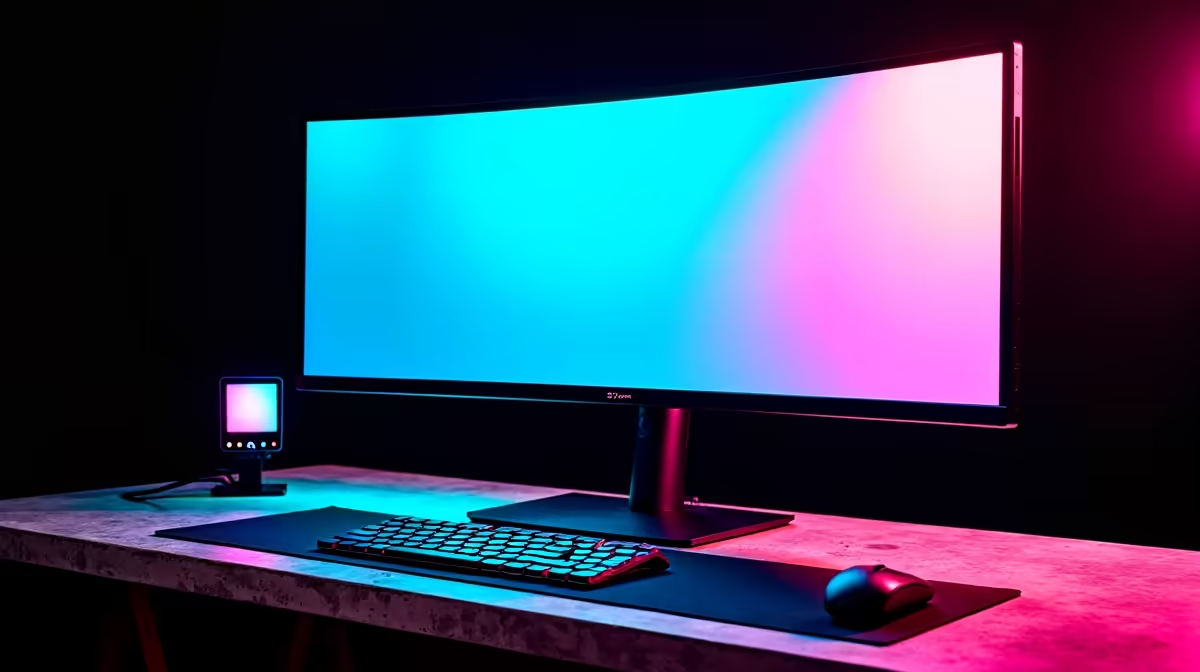
Of course, calibration can only optimise the panel you have. Starting with a great display is key. For competitive esports, high refresh rates are crucial, while for stunning single-player adventures, the pixel density of high-resolution 4K and 5K monitors provides breathtaking clarity. Many gamers in South Africa find that immersive curved monitors offer the perfect blend of engagement and performance.
Even if you're working on the go, having consistent colours across your devices is important, which is where quality portable monitors come in handy. Ultimately, a good calibration process elevates any screen, but it truly shines on a quality panel. If you feel your current display is holding you back, it might be time for an upgrade. You can find a wide variety of essential monitor accessories and displays built for every need and budget, and it's always worth checking the latest PC monitor deals to snag a bargain.
Ready to See the Difference?
A perfectly calibrated monitor is a visual revelation. If your current display isn't cutting it, even after calibration, it might be time for an upgrade. Explore all our gaming monitors and find the perfect panel to bring your games to life.