



How to make a new SSD your primary drive
A primary drive is the one your PC boots from, so install or clone Windows onto the new SSD, then set it first in the BIOS boot order. Afterwards, move your user folders and save locations across.
Read moreA flickering laptop screen is usually a graphics driver glitch, a wrong refresh rate or a power-saving feature, though a worn hinge cable also causes it. Update the display driver, reset the refresh rate and test an external monitor to split software from hardware.
If the picture shimmers every time the cursor crosses the screen, the hp laptop screen flickering when mouse moves is almost always a software problem. The graphics driver, a power-saving panel feature or the refresh rate setting reacts to cursor movement and redraws the screen badly. A worn hinge cable can cause the same symptom, but test the software first.
Update the display driver from HP's support page, set the refresh rate to the standard value in Display settings, and turn off any panel power saving in the graphics app. Take a screenshot while it flickers: a clean screenshot means a hardware fault, a flickering one means a driver. A cable or panel repair usually costs R1,500 to R5,000.
Your first job is to split software from hardware.
Press Windows plus Shift plus S, or the Print Screen key, while the flicker is happening, then open the saved image. If the screenshot looks steady, the operating system is drawing a clean picture and the screen or its cable is mangling it. If the flicker is captured in the image, the driver is to blame.
Next, bring up Task Manager from the taskbar. If that window flickers but the rest of the desktop does not, a misbehaving app or a driver conflict is likely. Close startup programs one at a time and watch.
Finally, plug in an external monitor. A steady external picture while the built-in panel keeps flickering points to the panel or cable. If both flicker, the graphics side is at fault.
In Device Manager, note which graphics chip is listed under Display adapters. Fetch the matching driver from HP's own support site, not a generic download portal. Install it, restart and test. If the problem started after an update, open the adapter's properties and roll the driver back.
Inside Display settings, choose Advanced display and select the rate HP lists as normal for this panel, often 60 Hz, or 144 Hz on a gaming model. A rate picked by mistake after an update can cause shimmer when the cursor moves.
Intel and AMD graphics software include a feature that lowers backlight or refresh to save battery, called display power saving or panel self refresh. Open your Intel or AMD graphics control app and switch it off. This one change fixes a surprising number of cursor-triggered flickers.
Also set the power plan to Balanced and test while plugged in, since battery mode is more aggressive.
Boot into safe mode: hold Shift on the Restart button, then follow the Troubleshoot menu to Startup Settings. If the flicker vanishes there, a third-party driver or startup program is responsible, and a clean driver install usually fixes it.
If it flickers in safe mode too, and the screenshot was clean, the thin cable running through the hinge is the likely culprit. Open the lid slowly and watch for flicker changing with the angle. Pressing lightly around the bezel may make it better or worse. Stop pressing once you notice, because repeated flexing wears the cable further.
A laptop carried daily on a Gautrain commute, squeezed in a rucksack, takes more hinge stress than one that stays on a desk. A padded sleeve helps. Get a written quote from a Pretoria or Johannesburg workshop that names the part before agreeing to the work. If the quote edges toward the cost of a new machine, look at the Intel gaming laptops for a comparison.
While you decide, you can dock the laptop to a monitor and keep working. The laptop best sellers list gives a sense of what a replacement costs at different budgets.
The graphics driver is the prime suspect, sometimes together with a power-saving panel feature. Update the driver from the laptop maker's page, not a generic site.
Take a screenshot while it flickers. A clean screenshot means the screen or cable is at fault. A flickering screenshot means a driver is to blame.
Yes. In Display settings, then Advanced display, pick the standard rate your laptop lists. A mismatched value after a driver update causes flicker.
Yes. If the flicker changes as you tilt the lid, the thin cable through the hinge is probably worn and needs a technician rather than another driver.
It does. If the flicker disappears in safe mode, a third-party driver or startup program is responsible.
Keep it docked to an external monitor if that works well. Get a written quote before you decide to repair or replace.
Ready to leave the flicker behind? See the laptop ranges at Evetech for a replacement with a steady, comfortable display.
The graphics driver is the prime suspect, sometimes together with a power-saving panel feature. Update the driver from the laptop maker's page, not a generic site.
Take a screenshot while it flickers. A clean screenshot means the screen or cable is at fault. A flickering screenshot means a driver is to blame.
Yes. In Display settings, then Advanced display, pick the standard rate your laptop lists. A mismatched value after a driver update causes flicker.
Yes. If the flicker changes as you tilt the lid, the thin cable through the hinge is probably worn and needs a technician rather than another driver.
It does. If the flicker disappears in safe mode, a third-party driver or startup program is responsible.
Keep it docked to an external monitor if that works well. Get a written quote before you decide to repair or replace.
A primary drive is the one your PC boots from, so install or clone Windows onto the new SSD, then set it first in the BIOS boot order. Afterwards, move your user folders and save locations across.
Read more
Wear nitrile gloves and eye protection, wash prints in isopropyl alcohol, then cure them under UV light. Uncured resin is a skin irritant, so work in a ventilated room. Never pour resin or dirty alcohol down a drain; cure the waste first.
Read more
Download Creality Print from Creality's official site, run the installer, then pick your printer model. The installer is a large file, so use fibre rather than a capped South African LTE bundle. Sign in to Creality Cloud only for its model library and remote tools.
Read more
After a fall, check whether the laptop is still running behind a black screen: shine a torch at the display and plug in an external monitor. A picture on the monitor means a damaged panel or cable. Switch off if you smell burning, and back up your data.
Read more
A Lenovo that will not turn on usually has a flat battery, a charger fault or a frozen power state. Check the charger and socket, then try the forced reset or the small Novo pinhole button that many Lenovo models carry beside the power button.
Read more
Download the touchpad driver from Lenovo's support site using your exact machine type, then install it and restart. Remove the old device first in Device Manager if the pad is misbehaving. Windows Update is a fallback, not the first choice.
Read more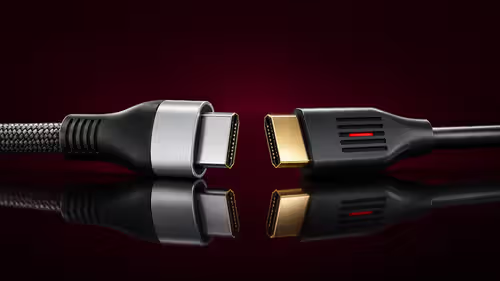
Yes: the Promate ProLink4K60 cables carry 18Gbps for 4K at 60Hz, while the Promate PrimeLink8K-300 carries 48Gbps. In a small flat, a lounge TV and a desk monitor can each run a different one.
The RTX 3070 Ti is a newer, faster tier than the RX 5700 XT and adds ray tracing and DLSS, which the Radeon lacks. It also draws more power, near 290W against 225W, so check the PSU and case airflow.
The GTX 1660 Ti laptop GPU has 6GB and usually outpaces the RX 5500M, but both vary a lot with each laptop's power limit. You cannot upgrade either, so compare the exact laptop model, its cooling and its memory configuration before paying.

Put both buds back in the case, forget them on your phone, then reset them so they pair to each other first. Many sets pair the left and right buds before the phone sees them. A missed reset leaves one bud silent or the pair in a loop.
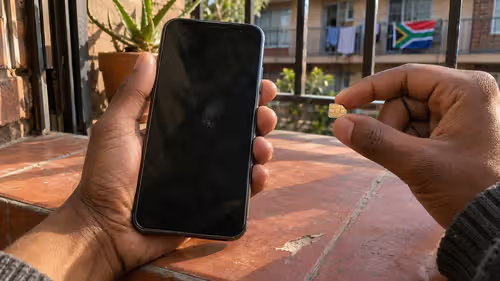
Restart the phone, reseat the physical SIM, then cross-test with another compatible handset or SIM. Use a spare compatible phone or ask your South African network to test the card before replacing hardware.
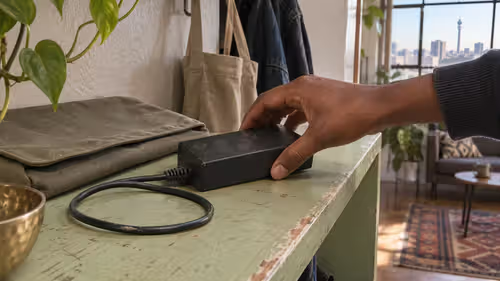
Use the full laptop model or machine type to look up the approved Lenovo charger and compare its plug and electrical ratings. Check the approved part and the intended workload before spending money on a replacement adapter.
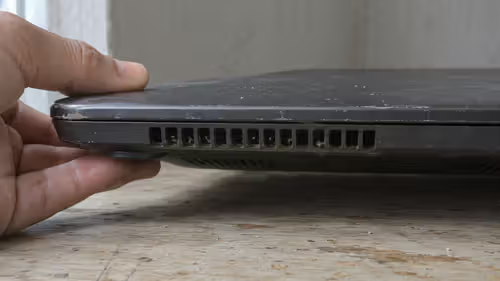
Open Task Manager and check CPU usage, then test the laptop on a hard surface with the vents clear. Check workload and airflow before buying a cooling pad or replacing the laptop.
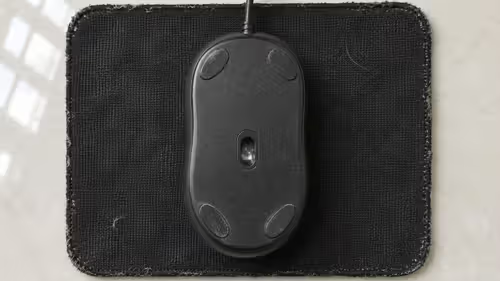
Test your mouse on a matte pad or plain paper, then check the sensor and try a direct USB connection. Use a surface you already own to isolate the problem before shopping for a new mouse.
The RTX 4090 is the faster, more expensive card; both carry 24GB, but the 4090 draws about 450W against roughly 355W. The 4090 uses a 12VHPWR connector and a very large cooler, so check PSU cabling and case space first.
The RTX 2070 Super is far quicker than an RX 580 8GB, so this is a question of ambition rather than rivalry. An RX 580 handles 1080p esports well. The 2070 Super reaches 1440p and ray tracing, but asks for a stronger power supply.
A GTX 670 is a 2012 desktop card that needs a power supply, a slot and a big cooler, while Vega 8 is integrated graphics inside a Ryzen chip. In raw speed the 670 can still compete, but its drivers and power appetite make Vega 8 the sensible modern option.

Bone conduction is better for awareness, earbuds are better for sound. Bone conduction sends vibration through your cheekbones and leaves your ears open, which suits Cape Town road runners who must hear traffic. Earbuds seal the ear and win on bass and noise blocking.