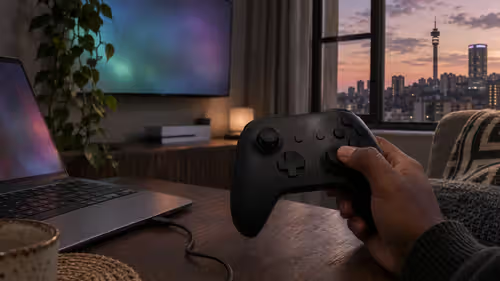
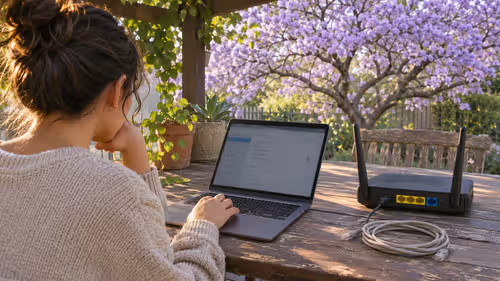
The spare cable from behind your TV might work on a new screen, even if the listing for that screen calls for a faster one. To make sense of High Speed HDMI cables, start with the picture you want to send. A streaming box on a lounge TV and a desktop driving a fast monitor can ask very different things of two leads with identical plugs.
Quick Answer
Yes. Standard, High Speed, Premium High Speed and Ultra High Speed are separate HDMI cable categories. Premium High Speed certification tests for 18Gbps, while Ultra High Speed covers 48Gbps. Use the rating of the exact length and check which modes both devices support before changing a lead that already works.
🔍 Read the full cable name
People often call a spare lead a regular HDMI cable because it has the familiar plug. The plug can tell you whether it physically fits, and that is only the starting point. Standard and High Speed HDMI cable categories describe different capability levels. Premium High Speed is a further certification class with testing for 18Gbps. Ultra High Speed is another step, with testing for 48Gbps. In a shop listing, look for the full category name or the stated bandwidth rather than relying on the word speed by itself.
That distinction matters when two versions of a cable share most of their product name. Promate lists the ProLink4K60-500, its 5m model, at 18Gbps. The ProLink4K60-10M is listed at 9Gbps. Both listings mention 4K at 60Hz. That shared picture label leaves out the bandwidth difference, so open the specifications for the length you intend to use. Compare models and lengths in the Evetech cable solutions range.
Promate lists the 3m PrimeLink8K-300 as Certified Ultra High Speed and rates it at 48Gbps, with up to 8K at 60Hz. Keep the cable category and the port specification distinct when you read listings. An HDMI 2.1 version number describes a specification. A certification claim for the exact cable identifies a tested cable class. A quoted data rate on its own should not be treated as proof that a cable has a particular certification.
📺 Choose for the signal you actually use
For a lounge setup, pick the source you use most often and look at the video mode it sends to the TV. If a spare cable carries that mode steadily, replacing it with a faster cable will not increase sharpness. The display receives the same source resolution in that mode. Revisit the cable if you want to turn on an option the current path fails to carry, or if the layout calls for a different length.
A desk screen adds a different check. Look at the list of timings for your chosen port when shopping for gaming monitors. A screen can support a higher refresh rate over one input than another. Also check the graphics device at the opposite end. A higher-rated cable leaves room for higher-rate signals only if the hardware can send and accept those signals.
Pay attention to colour settings when you read a timing table. Two modes can have the same resolution and refresh rate but differ in the colour information carried with each frame. The manual may list which combinations are supported or split its tables by input. Search the manual for the exact model printed on the device, since a nearby model name can lead you to a different set of ports.
📏 Use the route as part of the decision
On a small desk, a short lead may reach the back of the graphics card without crossing a walkway. Behind a cabinet, the measured distance can grow because the cable needs to follow the wall and turn into a socket facing sideways. Measure the path your cable will take, with room at each plug to reach the socket. Once you know that length, compare the exact models that fit.
Treat a receiver, switch or capture device as an extra link. Each intervening device has its own list of supported video modes, and there is a cable on each side to check. A setup with an older receiver and a newer TV can behave differently when the same source is plugged straight into the TV. That comparison can save you from replacing a cable when the device in the middle sets the limit.
🧪 Test before changing hardware
Connect the source directly to the screen with the cable you already have and choose the settings you plan to use. Open the display's information panel if it shows the incoming mode. Play a game or video long enough to see whether the picture stays steady, and check that the devices negotiate the same mode after you switch inputs and back again.
If the picture fails, start by reseating the plugs and checking the input settings. Try a mode with a lower signal demand and note whether that changes the result. A spare cable with a known rating gives you one comparison under the same settings. Make each change separately so you can tell whether it was the cable, the input or the picture mode.
If the direct link works and the normal setup fails, put the receiver or switch back in and check its supported modes. Some devices have different capabilities on different sockets. Write down which port and cable combination works before putting the equipment back in the cabinet, especially if you share the room and someone else might move a plug later.
Frequently Asked Questions
Is an ordinary cable always a Standard HDMI cable?
No. Regular is an informal description and could refer to any category. Look for the category name on the package or check the model against its specifications.
Can two lengths in the same family carry different rates?
Yes. The 5m Promate ProLink4K60-500 is rated at 18Gbps, while the 10m ProLink4K60-10M is rated at 9Gbps. Read the specification for the cable you will actually install.
Do I need Ultra High Speed for a setup that already works?
Keep a lead that reliably carries the picture and sound modes you use. Check the cable class again if a new source or display changes the signal the connection must carry.
How do I check that the TV is receiving the mode I selected?
Look at the TV's incoming signal information if it offers that readout. The source menu shows the setting you requested, while the display can tell you what it is receiving.
Choosing a lead for two particular ports?
Check the supported modes and measure the run, then compare the exact cable lengths in Evetech's HDMI range.