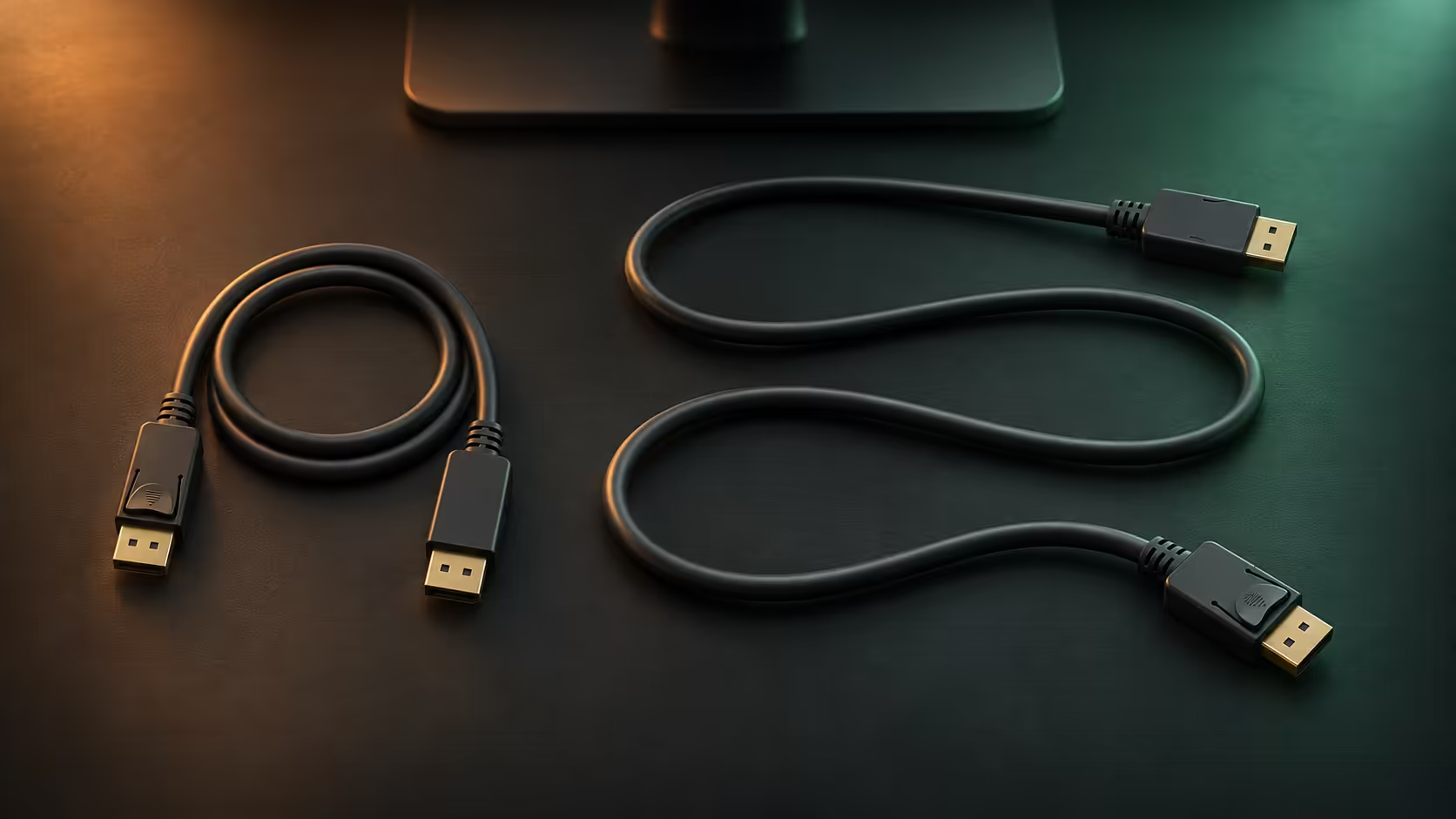
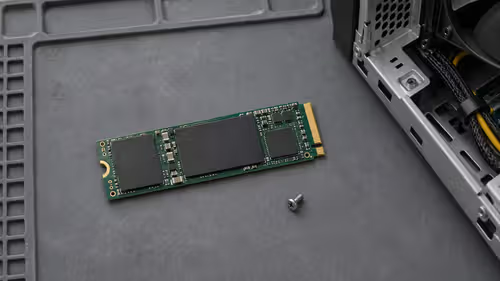
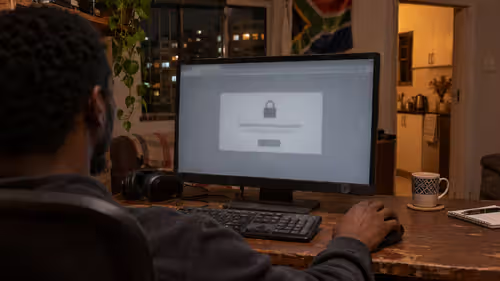
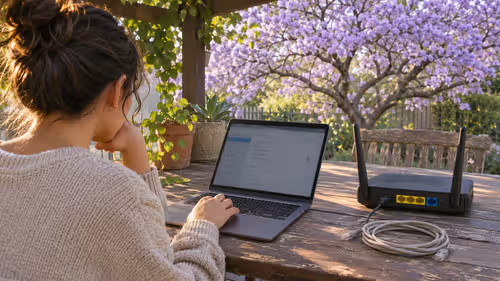
Put the tower under a desk and the cable has to climb behind the tabletop before it can reach the monitor. Move the tower beside the screen and the same path shrinks. The Promate DPLink DisplayPort cable comes in two lengths for those arrangements. Measure from socket to socket along the intended route to see which one fits.
Quick Answer
Choose the 1.2m DPLink-120 if it reaches with slack after you account for the plugs and the full cable route. Use the 3m DPLink-300 for a floor-mounted tower, a longer route or a screen that needs more freedom to move. Promate rates both at 32.4Gbps for DisplayPort 1.4 and lists clip-lock plugs on both.
📏 Measure the path the cable will actually follow
Find the DisplayPort output on the PC and the matching input on the monitor. On some monitors the cable plugs in from below. On others it sticks straight out from the back. The orientation changes where the first bend will be and how much clearance you need against a wall. If the graphics card sits low on the back of a tower, measure from that socket rather than estimating from the top of the case.
Lay a piece of string or another flexible lead along the route you expect to use. Allow for bends around the desk and the length needed to bring your hand to each plug. Mark where the string reaches the second socket with enough room to disconnect the lead without moving the whole setup. Then measure it flat. Compare that figure with the 1.2m or 3m options in the Evetech cable solutions range.
Check the path from where you sit and where you walk around the desk. A longer cable can go around the back of a cabinet instead of taking a diagonal through legroom. A shorter run can be neat when the tower sits beside the monitor and neither device needs to move. Draw the route on the desk in your head before deciding whether excess cable or insufficient reach is the bigger nuisance.
🖥️ Account for how the monitor moves
If the monitor has a height-adjustable stand, move it from the lowest position you use to the highest while following the planned cable route. If you rotate it for documents, check both orientations. On a monitor arm, look at the joints and decide which sections of the cable can move freely. Keep the wire away from places where an arm can pinch it as it folds.
When comparing gaming monitors, consult the photos or manual for the direction of the display inputs and how the supplied stand moves. The port is often behind a panel you cannot see from the front. An angled input or a recessed area can consume a surprising amount of the reach that looked spare when you judged the desk from above.
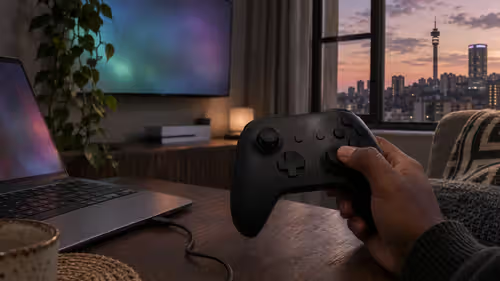
You might arrange a shared res room desk with the tower on the floor and the monitor pulled forward for gaming. You may then push the screen closer to the wall to make room for a notebook. Try both positions before tying down the cable. Mark the point where the cable can stay still and leave the moving part free to follow the screen. If the 1.2m lead would restrict that movement, the 3m one gives you more room to route around furniture.
🧷 Make the extra length easy to live with
Secure spare cable in a loose loop where it cannot catch on a foot or a chair wheel. Keep that loop away from the plug so that a change in desk layout does not pull sideways on the connection. Use the cable management provision on the arm or desk if it lets you keep the bend gentle. Avoid cinching a tight bundle that puts strain on the connector housing.
Both DPLink models use a locking plug. When planning around a wall or under a desk, leave finger room to press the release at the connector. Once the lead is connected, check that the case can be moved enough to reach the back when you clean or add another device. A little slack matters more when the device is difficult to reach.
After connecting the cable, run the external screen at the resolution, refresh rate and colour settings you intend to use. Promate quotes the same bandwidth for both DPLink lengths. Screen and graphics output support still matter, particularly when you are trying a demanding mode. Test the picture before fastening the cable in place so you can investigate it without undoing the desk wiring.
📐 Compare a fixed desk with a desk that changes
For a small fixed setup, a short lead can give you less to gather behind the screen. Measure it with the PC and monitor in their usual positions, then set aside space to disconnect the cable. If you share the desk or plan to mount the monitor later, think through the rearrangement before buying the shortest cable that reaches today.
Keep the current layout in mind when comparing cables for a future screen. You can mark the rough position where the new screen's input will sit if that is documented. If the estimate is close to the shortest lead's limit, it is worth leaving more margin or measuring again once the stand is in place. The goal is a route you can install and remove comfortably.
Frequently Asked Questions
Do I need the 1.2m cable for a better-rated DisplayPort link?
Promate rates both the 1.2m DPLink-120 and the 3m DPLink-300 at 32.4Gbps. Choose between these two by how much working length the installation needs.
How should I measure for a tower on the floor?
Start at the actual graphics output, run the measuring string up through the intended desk opening, then follow it behind the monitor. Include space to reach both connector releases.
Will the lead go straight up a monitor arm?
Check the arm's own cable guides and its full range of motion. Test at the farthest position you regularly use, since the path can lengthen when the joints open.
Can I check the length with the monitor turned off?
Yes. The measurement is physical. Turn the screen on and test the actual signal after installation, before securing the cable along the final route.
Measuring a DisplayPort run for your desk?
Follow the path around the stand and furniture, then compare DisplayPort cable lengths at Evetech.