You move the mouse a centimetre and the pointer skips across the desktop. Repeat the movement on plain matte paper before opening the mouse settings.
Quick Answer
When the mouse cursor jumps, move the mouse onto a matte pad or plain paper and check that nothing covers the sensor. The surface test costs R0. For a wired mouse or a wireless receiver, try a direct USB port next. If the same jump follows the mouse to another PC, check the mouse itself before changing Windows settings.
🎯 Repeat the same small movement
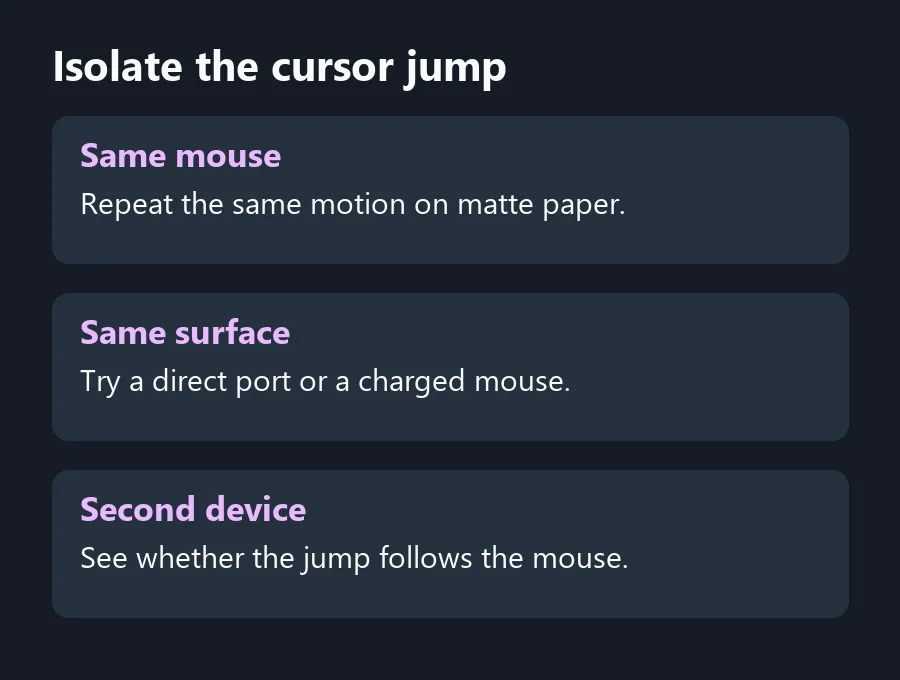
Use the desktop for the test so the picture stays still. Trace a few short straight lines on your usual surface, then repeat them on a flat piece of matte paper. Keep the same speed and avoid moving the cable or receiver between the two tests. If the jump disappears on paper and comes back on the desk, use a matte mat and try again.
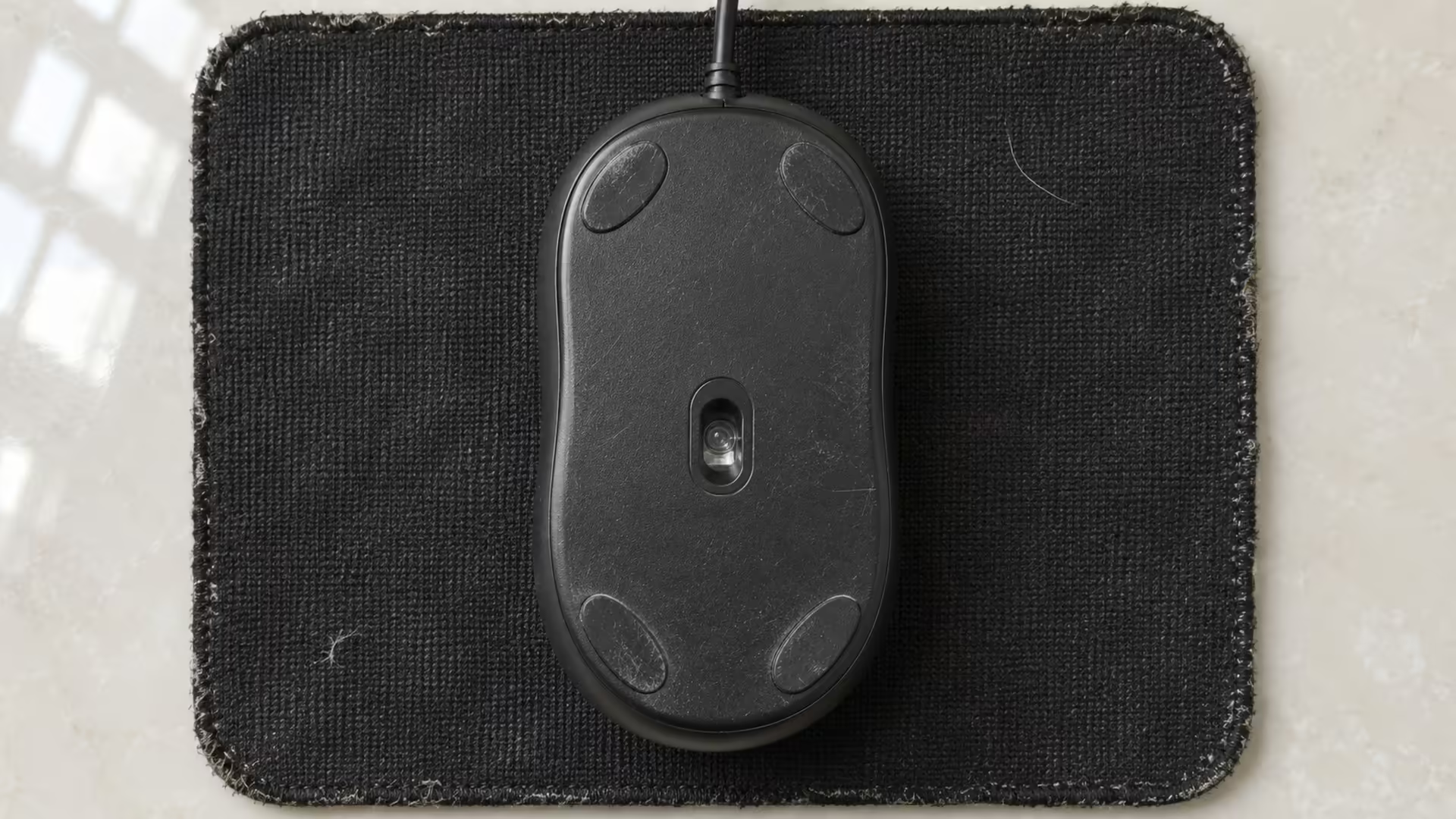
Look at the sensor opening with the mouse switched off or disconnected. Check for a hair or lint stuck across it. Follow the maker's cleaning directions and keep liquids away from the opening. Retest on the same surface after cleaning, so you can see what changed.
🔌 Check the connection
If you use a USB cable or a wireless receiver, move it from the hub to a port on the computer. Repeat the same movement. On a rechargeable mouse, charge the battery first so you can test without a low battery. Change one thing at a time and leave the pointer speed as it was until the movement test is done.
On a laptop, you can move the mouse with your other hand away from the touchpad. If movement is normal on the desktop and the view skips in just one game, check that game's input settings and performance. A jump on a plain desktop gives you a cleaner test of mouse tracking.
🖱️ Test with a second mouse or PC
Borrow a working mouse and try it on the same surface and port. If it behaves normally, try the suspect mouse on a second device. Keep those results handy if you ask for help. You can describe what changed instead of starting over with a fresh set of settings.
If the surface caused the problem, compare Gaming Mouse Pads by size and fit before choosing one. If the fault travels with the mouse, compare All Mouse for a replacement with the connection you already use. Test before you spend money changing both the mat and the mouse.
Frequently Asked Questions
Can I test on a sheet of paper?
Yes. Use a flat sheet of plain matte paper and repeat the same motion you made on the desk.
Does a shiny desk affect optical tracking?
It can. Compare it with a matte surface while keeping the mouse and settings the same.
Should I change pointer speed first?
Keep it fixed during the surface test. Adjust speed once you have smooth tracking.
Can lint cause the cursor to skip?
Lint can block the sensor. Inspect the opening with the mouse switched off or disconnected.
Which USB port should I test?
Try a port on the computer itself. That removes the hub from the test.
What if the jump happens only in one game?
Check that game's input and performance settings. Compare how the mouse behaves on the desktop.
Same mouse
Use a surface you already own to isolate the problem before shopping for a new mouse.