One person watches on the living room TV, another on a phone. Use Netflix account settings to choose playback for the profile you actually watch with, then check the app on the phone if that is where you use mobile data. Keep the second viewer's playback choice on their own profile.
Quick Answer
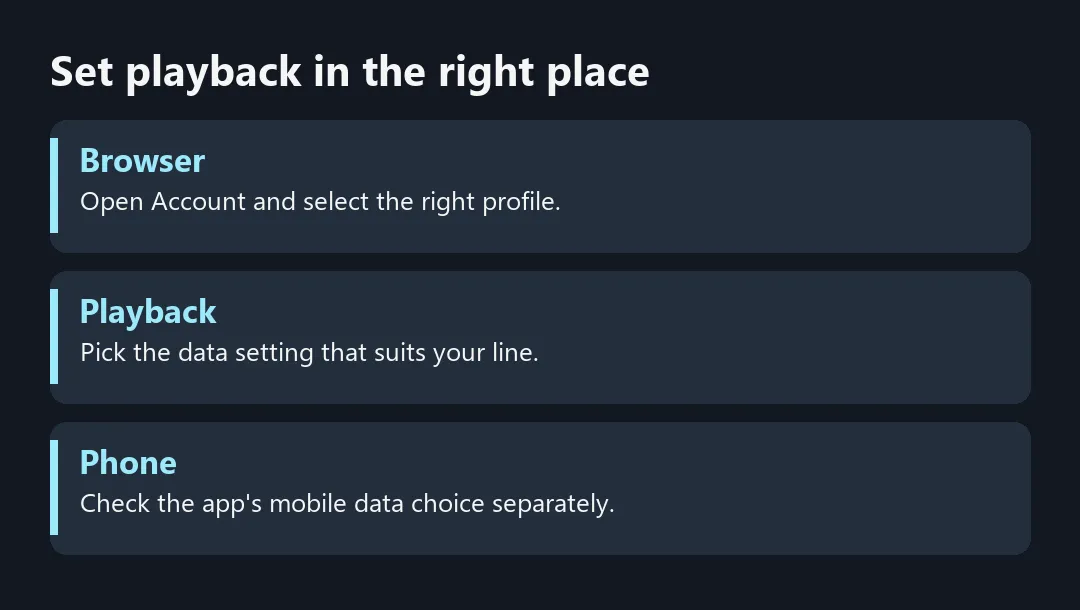
Sign in to Netflix in a browser, open Account and find the profile you use on the TV. Open Playback settings and choose the data usage option for that profile. Check mobile data in the phone app separately. The account setting affects the stream but does not force a particular screen resolution.
🖥️ Find the profile before changing playback
Check the name and picture of the profile that opens on your main screen. In your browser, go to Account and select that same profile to find Playback settings. If another person shares the TV, ask which profile they use regularly. Write down the current choice before you change it so you can return to it after you compare the picture.
Watch part of a title you know with the same screen and profile after making the change. Look at motion and fine detail on the TV as well as whether streaming starts and continues without an interruption. If a title behaves differently from another title, keep that in mind before making a second adjustment.
📱 Set phone data in the right menu
Check the mobile app if your main concern is using a limited mobile bundle. Its dedicated mobile data option applies to viewing on that connection. Check which network the phone is on before you test. You may think you're testing home Wi-Fi while the phone has switched to mobile data in a room with weak signal.
An account's profile options also include settings such as language preferences. Use the language control when the menus or the viewing experience open in the wrong language. A data change won't address that. If the TV app does not show the profile settings you need, use the browser on a device where you can see the Account page.
📶 Troubleshoot a room before changing your line
If the picture only drops in one room, compare the same title and profile closer to the router. A wired test can help if the device offers an Ethernet connection. Check Network Cables for a lead that can reach without running across a doorway. Compare Wireless Routers after you know where the connection falls short. If performance is steady and a different profile setting gives you the picture you want, you can keep your current connection.
Frequently Asked Questions
Where are the Netflix account settings?
Use a web browser, sign in, and open Account. Choose the profile you want when you are changing playback.
Can I open the same settings on my TV?
If the TV app does not show the control, use a browser on your phone or computer and choose the profile you watch on TV.
Where do I change the playback language?
Look for language preferences in the profile options. This is separate from the data usage setting.
Can I force the picture to 4K from Account?
Account lets you change playback data usage. Your plan, screen, connection and device also affect the resolution you receive.
Do I need to change every profile?
Only change the profiles that need different data use. Netflix provides profile-level playback controls.
Where do I check Netflix mobile data use?
Check the setting in the phone app if your concern is streaming over a mobile data connection.
Set playback in the right place
Set playback by profile before upgrading a home connection. Compare compatible options at Evetech.