Adjustable actuation stays dependable when the keyboard remains clean and its sensors know their resting positions. Magnetic keyboard maintenance is a light routine of safe cleaning, inspection and calibration through the maker's supported process.
Quick Answer
Maintain a magnetic keyboard with power disconnected, a soft brush and the maker's cleaning guidance. Dust can obstruct key travel, while actuation drift can also come from calibration, firmware, temperature or a damaged switch. Do not assume debris near the magnet is the sole cause. Remove keycaps only when the board supports it, avoid spraying liquid or high-pressure air into the switches and recalibrate through the official software after cleaning. A spill needs immediate power removal and manufacturer support before the keyboard is used again.
Record the symptom
Note which key triggers early, releases late or moves poorly. Save the actuation and rapid-trigger profile before resetting anything.
Test the key in a plain text field and the keyboard's supported diagnostic tool. A game binding or macro can mimic switch trouble.
Check whether the fault appears after waking, after the board warms up or across every profile. That timing helps separate firmware and calibration from a physical obstruction.
Power down safely
Disconnect USB and switch off wireless power. Remove the battery only when the manufacturer provides a user-safe process. Do not open the case while the keyboard is under warranty unless support directs you.
Move drinks and loose desk items away. Take a photograph of the key layout before removing caps.
Use an anti-static, dry work area. Avoid a vacuum nozzle touching the electronics because static and mechanical force can cause damage.
Remove surface dust
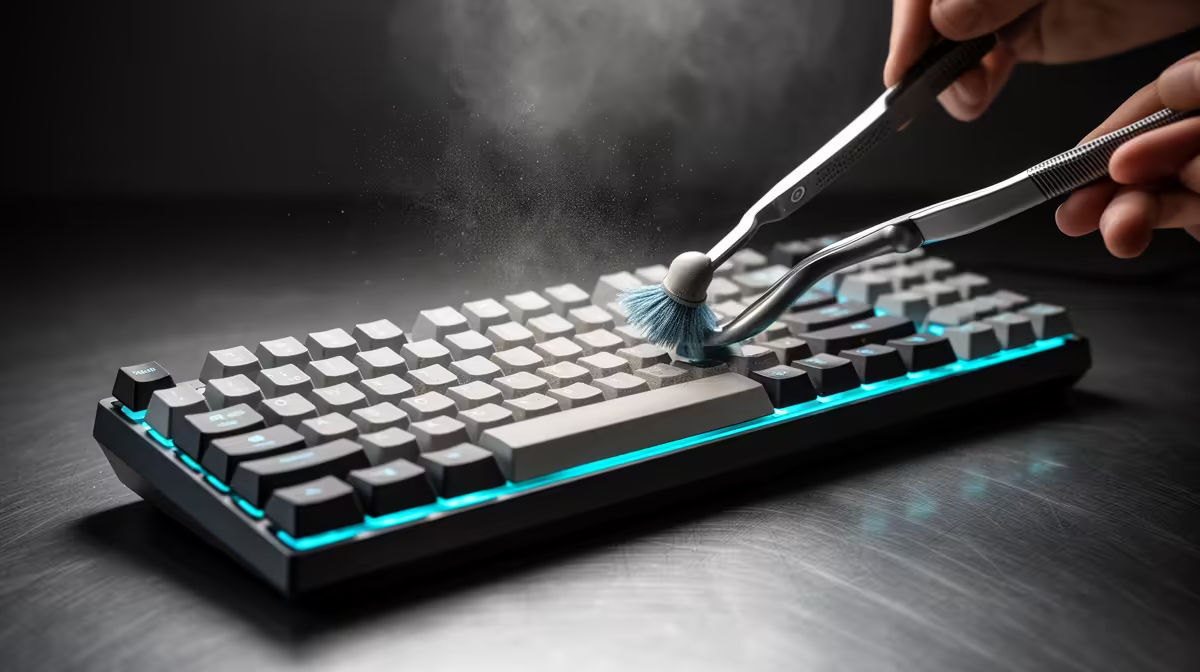
Turn the disconnected keyboard at a gentle angle and use a soft clean brush between keys. A hand air blower can move loose dust without propellant.
If the maker permits compressed air, keep the can upright, use short controlled bursts and hold the fan or loose parts as directed. Do not blast a switch at close range or let liquid propellant reach the board.
Wipe the case and keycaps with a barely damp microfibre cloth when the material guidance allows it. Keep moisture out of openings.
Lift keycaps with care
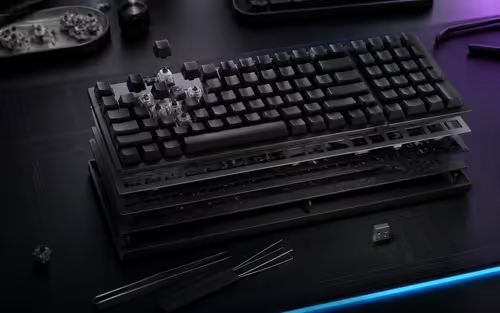
Use a keycap puller and pull straight up. Stabilised keys such as Space, Enter and Shift can have clips or wires, so read the model instructions before removing them.
Store caps in rows. Brush around the exposed switch stems without pressing debris into the housing.
Magnetic keyboards do not all use the same removable-switch design. A keycap being removable does not mean the switch can be pulled.
Avoid casual lubrication
Many magnetic switches arrive lubricated or use a structure that needs a specific product and quantity. Extra lubricant can attract dust, affect feel or reach the sensing area.
Lubricate only when the manufacturer supports user service and provides a method. Do not use household oil or spray lubricant.
A scratchy sound alone does not prove the sensor is failing. Keycap contact, stabilisers and the switch guide can each create noise.
Reassemble and recalibrate
Replace every keycap in the correct row and press it straight onto the stem. Reconnect the keyboard, update firmware only through the official tool and load the known profile.
Run the built-in calibration when the maker provides it. Keep the board flat, leave keys untouched and follow the on-screen sequence.
Test default actuation before restoring an extreme rapid-trigger setting. A very shallow point can make normal key movement look like drift.
Handle a spill as a separate incident
Disconnect power at once. Do not press keys to see whether they still work and do not reconnect the board to speed drying.
Blot external liquid without forcing it deeper. Sugary, salty or milky drinks can leave conductive or corrosive residue that drying alone will not remove.
Contact the manufacturer or a qualified repair service with the liquid type and affected area. Warranty treatment and safe disassembly differ by model.
Set a sensible cleaning interval
Clean when visible dust, key drag or desk conditions call for it. A home with pets or open windows may need more frequent surface work than a covered office desk.
Use a dust cover only when the keyboard is cool and disconnected according to its guidance. Keep food and drinks away rather than relying on a fixed monthly deep-clean schedule.
Save the last clean, firmware and calibration date. If the same key drifts again, the record supports a warranty case.
Choose a serviceable board
Look for official calibration software, firmware support, replacement keycap compatibility and a clear warranty. Magnetic switch marketing matters less when the support path is vague.
Compare gaming keyboard options for layout and supported actuation features. Use the keyboard best-seller range to compare complete boards and current user needs.
FAQ
What causes actuation drift?
Calibration, firmware, temperature, obstruction or hardware damage can contribute. Record the pattern before cleaning or resetting.
Should magnetic switches be lubricated?
Only when the manufacturer supports it and specifies the method. Extra lubricant can create new contamination or feel problems.
Can you clean a liquid spill at home?
Disconnect the keyboard and seek model-specific support. Conductive residue can remain after the surface appears dry.
Save the current profile, clean the disconnected board with dry supported tools and recalibrate at default actuation before judging the switch.