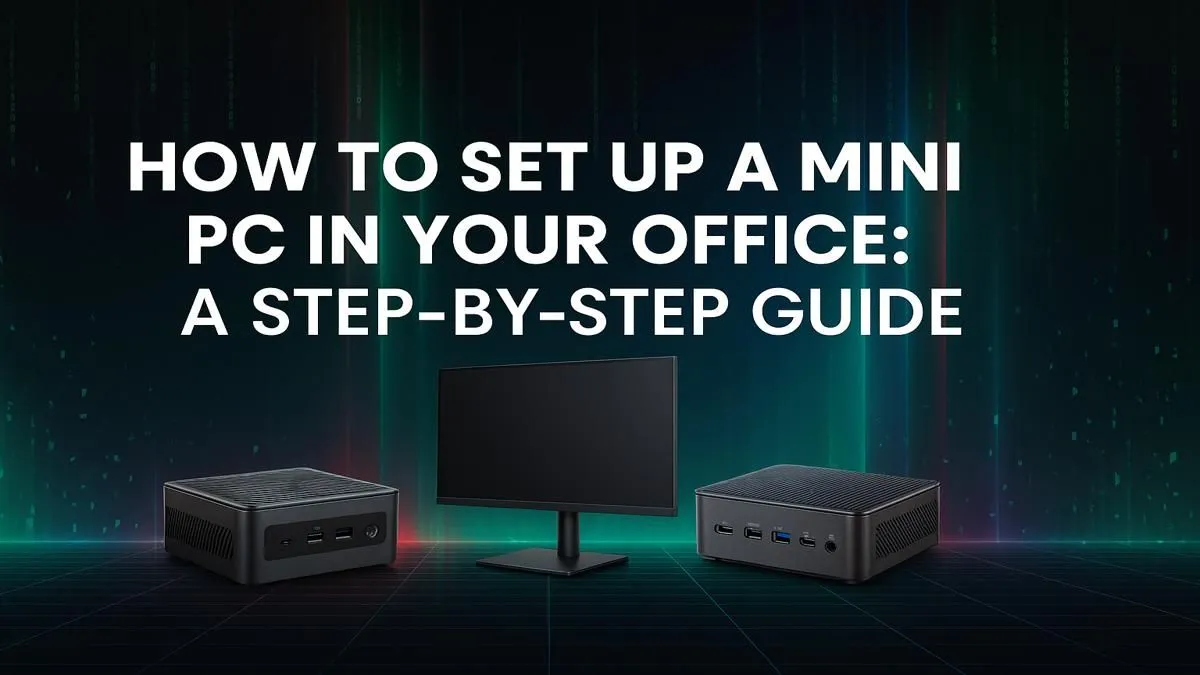
Tired of that bulky, noisy PC tower hogging all your legroom and desk space? In today's world of hybrid work and shrinking office footprints, a clean, minimalist workspace isn't a luxury... it's a necessity. A complete Mini PC setup offers the perfect solution: all the power you need for spreadsheets, video calls, and daily tasks, packed into a box that can fit in the palm of your hand. This guide will walk you through setting one up, step-by-step. 🚀
Your Pre-Flight Checklist: What You'll Need
Before you dive in, remember that a Mini PC is just the brain of your operation. You’ll still need the essentials to interact with it. A successful Mini PC setup starts with having the right peripherals ready to go.
- Monitor: Any modern monitor with an HDMI or DisplayPort input will do. Consider an ultrawide for maximum productivity!
- Keyboard & Mouse: Wired or wireless, the choice is yours. A wireless combo keeps your desk looking extra clean.
- Cables: Your Mini PC will come with a power adapter, but double-check that you have the right video cable (usually HDMI) for your monitor.
While the core unit is small, it's built from the same powerful Mini PC components as its larger cousins, just cleverly engineered for a smaller space.
The Physical Setup: From Box to Desk in Minutes 🔧
This is the easy part. Setting up a Mini PC is refreshingly simple compared to a traditional desktop.
Step 1: Find the Perfect Spot
The beauty of a Mini PC is its versatility. You can place it neatly on your desk, or for the ultimate minimalist look, use the included VESA mount to attach it to the back of your monitor. It’s completely out of sight! Just ensure there's a little space around it for air to flow.
Step 2: Connect Everything
Plug in your peripherals. Your monitor connects to the HDMI or DisplayPort slot. Your keyboard and mouse go into the USB ports. For the fastest, most stable internet, plug an Ethernet cable into the LAN port. Otherwise, you'll connect to Wi-Fi during the software setup. Finally, connect the power adapter.
Cable Management Pro Tip ✨
Use a few velcro cable ties to bundle the monitor, power, and keyboard cables together. For a truly invisible setup with a VESA-mounted Mini PC, run the bundled cables down the monitor stand. It makes a massive difference to the look and feel of your desk.
First Boot and Software Optimisation
With everything connected, it's time to bring your new office powerhouse to life. Press the power button and your monitor should light up.
The first boot will guide you through the standard Windows setup process. You'll connect to your Wi-Fi network, sign in with your Microsoft account, and set your preferences. This initial guide to Mini PC setup is mostly automated.
Once you're at the desktop, your first two tasks are crucial:
- Run Windows Update: Go to Settings > Update & Security > Windows Update and install everything it finds. This ensures you have the latest security patches and drivers.
- Install Your Apps: Download your essential office software like Microsoft 365, Chrome, Slack, or Zoom.
With a solid-state drive (SSD) as standard, you'll be amazed at how quickly everything loads. The performance packed into our entire range of mini PCs is more than enough for even the most demanding office multitasker.
The Smart Choice for a South African Office
So, why is a mini PC office setup such a great fit for South Africa? Two big reasons: space and power. It frees up valuable desk real estate in smaller home offices. A small, affordable UPS (Uninterruptible Power Supply) that would barely keep a gaming rig alive for a minute can run your entire Mini PC setup for ages.
You don't need to break the bank, either. With technology advancing so quickly, you can get a machine that handles all your office needs with ease, and there are plenty of great options under R22,000 that are ready to go.
Ready to Revolutionise Your Workspace?
A compact, powerful, and energy-efficient Mini PC setup is the smart choice for any modern South African office. Stop letting a bulky tower dictate your desk space. Explore our incredible range of Mini PCs and build the minimalist office of your dreams.