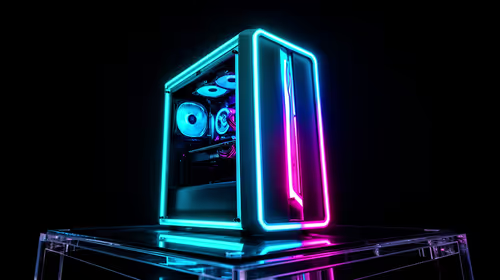
Multi-GPU Workstation Build Guide for Heavy Simulation Tasks
Tired of watching render progress bars crawl? Is your complex CFD or finite element analysis grinding your current machine to a halt? For professionals in South Africa, time is money, and a standard PC just can't keep up with truly demanding workloads. It's time to consider a proper multi-GPU workstation build—a purpose-built machine designed to crush heavy simulation tasks and slash your project times. Let's dive into what makes these powerhouses tick. 🚀
Why Go Multi-GPU for Simulation Work?
The magic of a multi-GPU setup lies in parallel processing. Many modern simulation and rendering applications, from Blender's Cycles to V-Ray and various scientific computing libraries, are designed to scale their performance across multiple graphics cards. Instead of one GPU shouldering the entire load, the software can distribute the calculations, dramatically reducing processing times.
This approach means a well-configured multi-GPU workstation doesn't just work faster... it unlocks new possibilities. You can tackle larger datasets, run more complex simulations, and iterate on your designs far more quickly than with a single-card setup.
Core Components for Your Multi-GPU Workstation Build
Assembling one of these machines requires careful component matching. It's not just about slapping two or three powerful cards into a case; every part needs to support the others to achieve maximum performance and stability.
The Heart of the Matter: Choosing Your GPUs ⚡
This is the most critical decision in your entire build. You have two main paths:
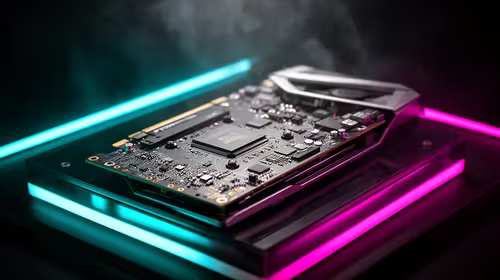
- Professional Workstation Cards: Cards like NVIDIA's RTX Ada Generation (formerly Quadro) are built for this. They come with certified drivers, massive VRAM pools, and features optimised for professional software. They are the top-tier choice for mission-critical stability and are available among our range of workstation graphics cards.
- High-End Consumer Cards: For many applications, high-end consumer cards offer incredible performance-per-rand. A pair of powerful NVIDIA GeForce cards can often outperform a single, more expensive professional card. When stacking cards, look for models with robust cooling solutions from partners like MSI, as managing heat is crucial. Brands like Palit also provide excellent options that balance performance and thermal design.
The Motherboard: Your Build's Foundation
You can't just use any old motherboard. The key spec to look for is PCIe lanes. These are the data pathways between your CPU and your GPUs. A standard consumer motherboard might not have enough lanes to run multiple GPUs at their full x16 or x8 speed.
For a serious multi-GPU workstation build, you should look at High-End Desktop (HEDT) platforms like AMD Threadripper (TRX50) or Intel Xeon (W-series). These platforms provide the massive number of PCIe lanes necessary to feed multiple GPUs without creating bottlenecks.
PSU Power Tip 🔧
Never skimp on your Power Supply Unit (PSU)! To estimate your needs, add the maximum power draw (TDP TGP) of your CPU and all your GPUs, then add another 150-200W for other components. Finally, multiply that total by 1.2 to give yourself a 20% headroom for safety and efficiency. A high-quality 1200W-1600W PSU with a Gold or Platinum rating is a wise investment.
CPU & RAM: The Supporting Cast
While the GPUs do the heavy lifting in simulations, the CPU's job is to prepare and feed them data. A CPU with a high core count is beneficial for managing these data streams efficiently.
Similarly, RAM is vital. Simulation datasets can be enormous. 64GB is a good starting point for a professional workstation, with 128GB or more being common for particularly intensive tasks. Ensure you get a kit that's validated for your chosen motherboard platform.
Cooling and Case Considerations 🌬️
Two or more high-performance GPUs generate a colossal amount of heat. Your case and cooling strategy must be up to the task.
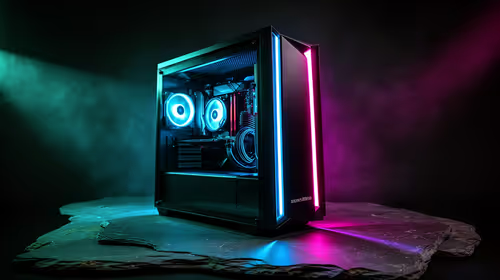
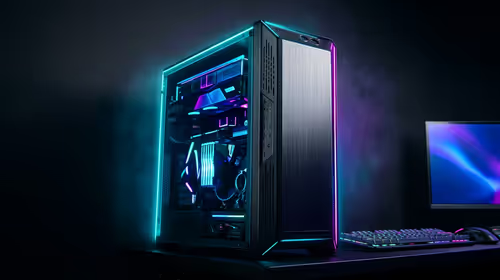
- Case Choice: Look for a large, full-tower case with excellent airflow. Mesh front panels and multiple fan mounts are your best friends.
- GPU Coolers: Traditional open-air coolers are great for single-GPU setups but can struggle when cards are stacked closely, as they exhaust hot air back into the case. For tightly packed multi-GPU builds, "blower-style" cards, which exhaust heat directly out the back of the case, can be a better choice, though they are less common these days.
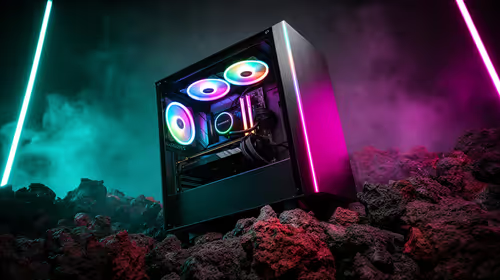
- Airflow Path: Plan your fan configuration to create a clear path for cool air to enter, flow over your components, and exit as hot exhaust.
Looking Ahead: Future-Proofing Your Rig
When you invest in a platform capable of handling multiple GPUs, you're also setting yourself up for the future. A powerful motherboard and PSU leave room for upgrades down the line. This forward-thinking approach ensures your multi-GPU workstation build remains relevant for years. You'll be ready to adopt next-generation powerhouse cards like the eventual RTX 5070 or more mainstream but still potent options like the future RTX 5060 as they become available, further extending the life and power of your investment.
Ready to Build Your Simulation Powerhouse?
A custom multi-GPU workstation is a serious investment, but the performance gains are undeniable. Skip the guesswork and use our powerful tools to configure your dream machine. Start your custom build with Evetech and get the perfect rig for your needs, delivered anywhere in South Africa.