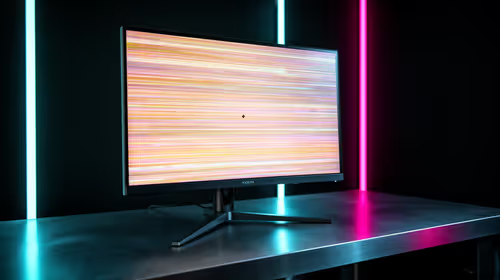
The OLED care menu can make a new owner feel as if one wrong toggle will ruin the panel. Most of it is easier than that. Leave the quiet protections running, set brightness for the room and avoid using deep maintenance cycles as a daily cleaning button. The useful OLED care settings support normal use instead of interrupting it.
Quick Answer
Keep pixel shift, logo or static-content dimming and automatic compensation enabled. Use a five-to-ten-minute screen-off timer in Windows. Leave thermal and automatic brightness safety systems at their intended defaults; tune ordinary SDR brightness separately. Ignore internet tricks that enter a service menu, defeat limiting or schedule manual deep refreshes without a fault symptom.
✅ Keep pixel shift enabled
The monitor moves the image by a tiny amount so persistent edges do not occupy the same subpixels continuously. You may occasionally notice a narrow border change. That small movement is easier to live with than concentrated wear.
If a desktop edge looks cropped, confirm native resolution and overscan first. Disabling shift should be the last response, guided by the manual.
✅ Let automatic compensation run in standby
Short care cycles can happen after accumulated use, with longer routines requested far less often. Finish the session and switch the monitor off normally so it can work in standby. Do not cut the wall power every night.
Run a manual panel refresh only when the manufacturer instructs you or a persistent uniformity issue calls for it. Repeating the deepest cycle for reassurance can add unnecessary correction activity.
See current care implementations in Evetech's OLED monitor category, then use the manual for the chosen model's timing.
✅ Use static-content dimming at a tolerable level
Logo detection can lower a fixed HUD, taskbar or broadcast graphic. Start at default and play normally. If it becomes distracting, try a less aggressive documented level rather than switching every protective behaviour off.
Automatic dimming sometimes reacts to a whole idle desktop, which is different from the power limiter responding to a large bright window. Knowing which control moved the brightness prevents random menu changes.
⚠️ Treat brightness limiting as part of the panel design
Large bright areas can trigger lower output to manage heat and power. Some monitors expose limited control; others do not. Use an accurate SDR mode and set its normal brightness for the room instead of trying to defeat the safety system.
For HDR games, calibrate the supported peak and paper-white controls. A bright showroom desktop is a poor reason to add stress to every working hour.
❌ Ignore service-menu shortcuts and daily maintenance rituals
Hidden menus can change factory parameters, complicate support and expose controls never meant for routine ownership. Leave them alone. The same applies to videos promising a manual refresh after every gaming session.
A rotating wallpaper, taskbar auto-hide and a quick display timeout provide simple protection. You do not need to move every window by hand on a timer.
🪟 Put Windows controls in their own lane
The monitor care menu and Windows power settings solve different problems. Let Windows turn the display off after a short idle period, while the monitor handles pixel shift and compensation internally. Avoid a power strip that cuts electricity the instant the screen goes dark; standby may be when the panel completes its scheduled work.
Use dark mode because it is comfortable in your room, not as a licence to run bright content at maximum output later. Auto-hide the taskbar if it does not interrupt your workflow. A changing wallpaper is helpful background variety, though the screen-off timer matters more when nobody is at the desk.
HDR deserves a separate profile. Calibrate highlights for games, then set ordinary SDR desktop brightness to a calmer level. If the monitor changes brightness across white windows, check whether Windows HDR mapping or the panel's large-area limiter is responsible before changing care controls.
📝 Save the defaults before experimenting
Photograph each care-menu page after setup. If a firmware update or factory reset changes the behaviour, you can restore the original configuration without relying on memory. Change one option at a time and use the monitor for a full evening before judging it.
Use Evetech's complete monitor selection and monitor best-sellers to compare OLED ownership with LCD before accepting any care trade-off.
Frequently Asked Questions
Should pixel-shift always stay enabled on an OLED monitor?
Yes for normal use. It spreads static edges with minimal visual disruption.
Is the panel refresh cycle worth letting run overnight?
Allow automatic cycles in standby when the monitor requests them. Avoid manually forcing deep refreshes without a reason.
Should auto-brightness limiting be left at default for gaming?
Start at default. Use the documented picture and HDR controls rather than defeating thermal or power protection.
Is logo dimming noticeable during normal use?
It can be on a persistent HUD or desktop element. Try the manufacturer's less aggressive level if one is available.
Should I disable static UI elements in games on OLED?
Use a HUD opacity or auto-hide option when it remains practical. You do not need to remove information required to play.
Do care settings reduce picture quality noticeably?
Pixel shift and scheduled maintenance are usually unobtrusive. Static dimming and brightness control can be visible in particular content.
Want OLED care that disappears into the background?
Compare models and their protection menus at Evetech, then keep the automatic safeguards, a sensible SDR level and a short idle timeout.