


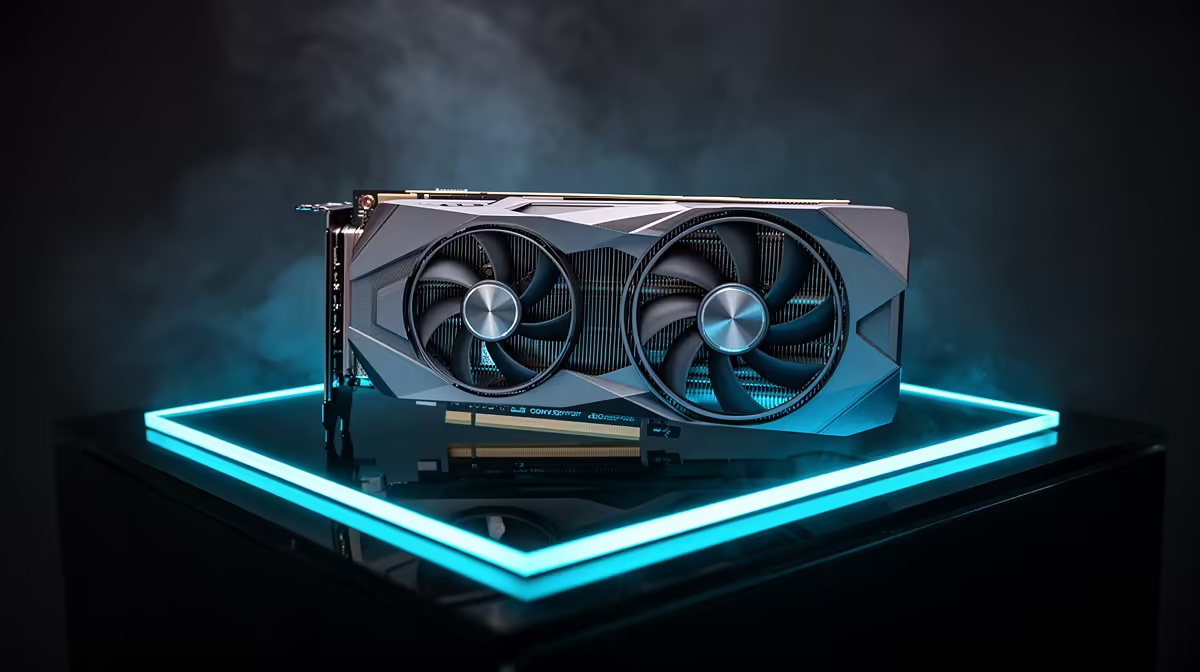
An RTX 3060 temperature of 80°C can look alarming when it is reduced to one number. In context, it may be a warm but normal result for a compact, quietly tuned card. The useful diagnosis starts with where the sensor settles, whether clock speed remains stable and what has changed since the PC last ran well.
Quick Answer
Most RTX 3060 cards should settle somewhere around 60-80°C during a sustained gaming load, but cooler design, room temperature, case airflow and fan settings can move the result. NVIDIA's reference specification lists 93°C as the maximum GPU temperature; individual board-partner models may use different targets. Do not replace a working card merely because it touches 80°C. Evetech's July 2026 graphics-card snapshot had a median of R13,299, so ten minutes of diagnosis is worth doing before treating a warm reading as a hardware failure.
🌡️ Read the temperature in context
Three readings tell a better story than a single peak.
First, note the idle temperature after the PC has been left on the desktop for several minutes. A zero-RPM fan mode can make idle figures look higher because the fans deliberately remain off until they are needed. That is not automatically a fault.
Second, watch the temperature after 15-20 minutes of a repeatable game or benchmark. The steady value matters more than a momentary spike during a loading screen.
Third, look at clock speed, fan speed and performance at the same time. A card that holds its normal clock and frame rate at 78°C is in a different condition from one that reaches the high 80s, drops clocks and stutters. Temperature is evidence; behaviour supplies the verdict.
The 93°C figure is a ceiling from NVIDIA's reference thermal specification, not a target to chase. An add-in-board model from MSI, Palit, ASUS, Gigabyte or another partner may have its own cooler, fan curve and firmware behaviour. Its normal operating point can therefore differ from another RTX 3060 in the same room.
🌬️ Why the same card can run hotter over time
If temperatures have risen without a hardware change, start outside the GPU. A clogged front filter, dust-coated heatsink, stopped case fan or cable blocking the intake can all reduce the amount of cool air reaching the card. A warmer room also raises the card's baseline; a South African summer can easily expose airflow that seemed adequate in winter.
Case pressure matters as well. Three exhaust fans do not help if the front panel cannot admit enough air. With the side panel fitted, air should have a clear path from the intake towards the graphics card and then out through the rear or roof.
Software can change the result, too. A game update may increase GPU utilisation. A driver update can reset a custom fan curve. An uncapped menu can render hundreds of frames per second and create more heat than the actual game. Compare the same workload before and after a change rather than relying on memories of a different title.
🧰 Fix the easy causes first
Shut the PC down, disconnect power and clean removable filters. Hold fans still while using short bursts of suitable compressed air; spinning them at extreme speed is unnecessary. Check that every case fan turns and that the GPU's fans respond once the card is under load.
Then test in this order:
- Refit the side panel and establish a normal baseline.
- Run the same game scene for 15-20 minutes.
- Temporarily remove the side panel and repeat the test.
- If the temperature falls sharply, improve the case's intake path rather than blaming the GPU.
- Restore any fan-control or frame-cap settings that were reset.
An undervolt can reduce heat and noise without a large performance loss, but it requires stability testing and should not be the first response to a dirty filter or dead case fan. Likewise, opening the card to replace thermal paste or pads can complicate warranty support and is not a routine first step.
If the card still climbs rapidly towards its limit, throttles in several known-good workloads or shows visual corruption, document the temperatures, clocks and fan behaviour. That evidence is far more useful for support than "the card feels hot".
🎯 When an upgrade is - and is not - the answer
High temperature alone does not mean the RTX 3060 is too old. Upgrade when the card no longer delivers the resolution, settings or frame rate you need, not because a sensor reports a normal operating value.
If replacement does make sense, compare the whole NVIDIA graphics-card range and check the GPU best-sellers for current alternatives. Cooler size, case clearance, power-supply capacity and noise behaviour deserve as much attention as raw GPU tier.
Frequently Asked Questions
What is a normal RTX 3060 temperature under load?
Roughly 60-80°C is a useful expectation for many cards under sustained gaming, but the exact result depends on the model, case, room and fan curve.
At what temperature does the RTX 3060 throttle?
NVIDIA's reference specification lists a 93°C maximum GPU temperature. Throttling behaviour and temperature targets can vary by board-partner model.
Why is my RTX 3060 running hotter than usual?
Check room temperature, dust filters, case fans, GPU fan operation, airflow obstructions and any software or fan-curve changes.
Does an RTX 3060 need extra case fans to stay cool?
It needs an effective airflow path. One good intake and one exhaust can outperform several badly placed or obstructed fans.
Is 80 degrees too hot for the RTX 3060?
Not automatically. If the temperature stabilises near 80°C without throttling or instability, the card may simply have a warm or quiet cooler profile.
Can high temperatures damage an RTX 3060 long-term?
Persistent operation near the thermal limit is undesirable, but the GPU protects itself by reducing performance. Fix abnormal heat rather than trying to run at the ceiling.
How do I lower my RTX 3060 temperature quickly?
Clean the filters, confirm all fans work, restore a sensible fan curve, cap unnecessary frame rates and test whether better case intake changes the result.
Checking whether your RTX 3060 still suits the build? Diagnose airflow before spending, then compare Evetech's graphics-card range by performance, cooler size and power requirements if an upgrade is genuinely due.











