Removing yesterday's browsing trail should not mean deleting every useful login. Chrome clear browsing history is a scoped choice: profile, time range and data type all matter. Review those controls before confirming deletion, especially if the same account shares browser history with another computer.
Quick Answer
Use Chrome History to delete selected entries, or Delete browsing data for a chosen time range and data types. Browsing history, cookies, cache and download history are separate selections. Check account sync before removal because history deletion can affect synced devices. There is no hardware cost: make the R0 data-selection check first.
🕒 Choose the smallest useful scope
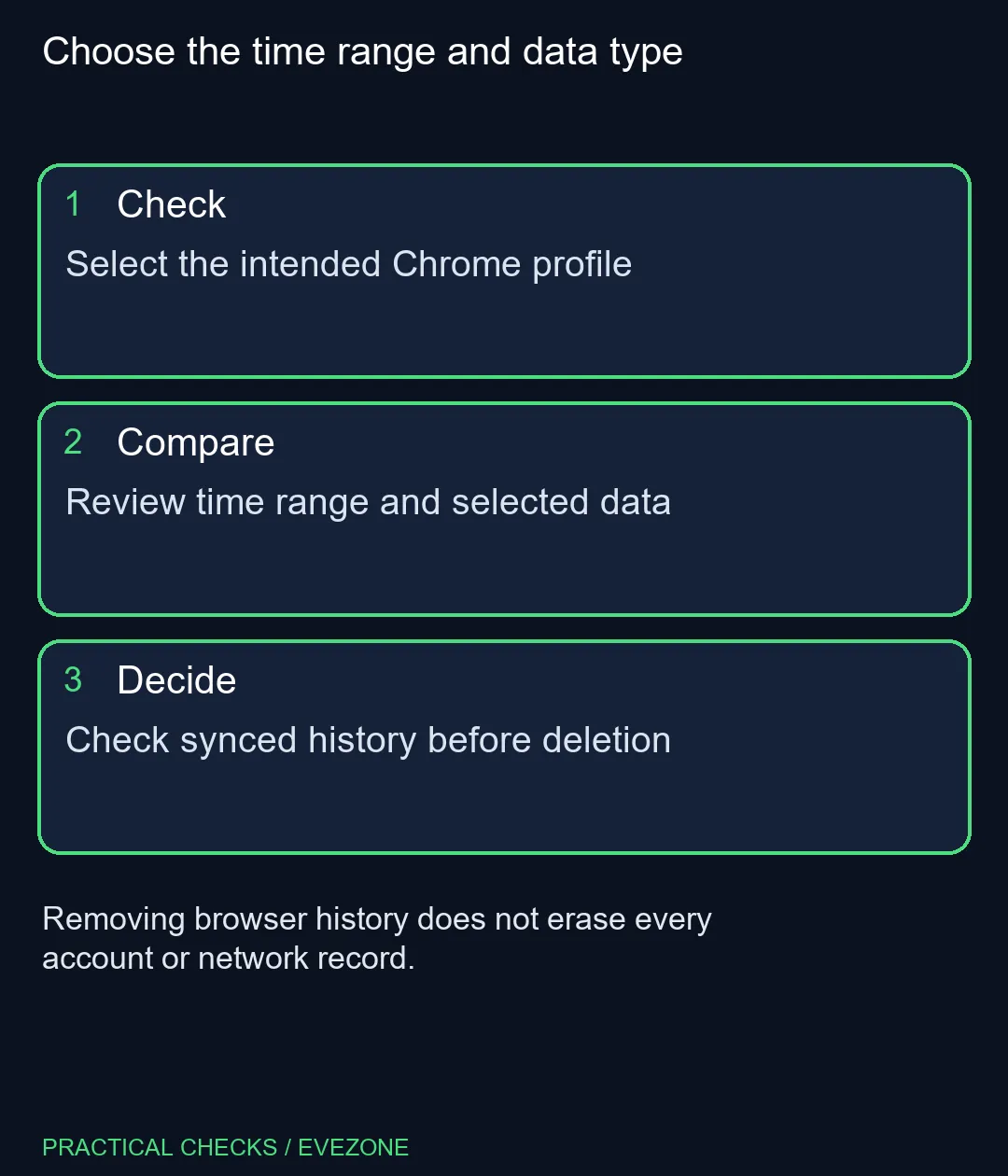
Open History and inspect the entries you intend to remove. When only a few pages are involved, selected-entry removal can be clearer than a broad cleanup. Confirm the address and date so a similarly named page is not removed accidentally.
For a wider period, open Delete browsing data and review the time range. Then read each selected data category. Do not tick every box merely because the dialog offers it. Removing history has a different purpose from signing out of websites or forcing page resources to download again.
Check which Chrome profile is active. A shared computer can contain several profiles, and changing data in one does not mean you have reviewed all the others. If the goal is to prepare a device for another owner, deleting a short history range is not a complete device-transfer process.
🔄 Understand the account boundary
When browsing history is synced to the Google Account, deleting it in Chrome can remove it from other synced devices too. Treat that as a consequence to understand before confirmation rather than a surprise to investigate afterwards.
Browser history is also distinct from activity kept by a service or account. Removing a local list does not establish that every remote activity record has gone. Downloaded files and bookmarks are different objects again. Review each according to the task instead of expecting one button to erase every trace.
🧭 Keep cleanup separate from performance claims
A history cleanup is not proof that the computer will run faster. If a page is broken, establish the actual symptom and choose a suitable diagnosis. all mouse is useful for a genuine pointer hardware problem, but replacing a mouse cannot change which history categories Chrome removes.
For longer-term device planning, all laptops on special offers a separate comparison. A replacement computer does not make the account-sync boundary disappear. Review which profiles and services you use before carrying browser data to a new device, and choose hardware according to its intended workload.
After deleting the intended entries, revisit History and confirm the expected result. Keep your important references saved independently before a large cleanup. A deliberate narrow removal is easier to check than several simultaneous account and browser resets.
Frequently Asked Questions
Can I delete only particular pages?
Yes. Review Chrome History and select the specific entries rather than automatically clearing every available data type.
Does history deletion remove all cookies?
Cookies are a separate data selection in the cleanup dialog. Read the selected categories before confirming.
Can the change affect another computer?
Yes, when history is synced to the same Google Account. Check the account and sync scope before deleting.
Will removing download history erase downloaded files?
No. The browser list and physical files are separate; inspect the file system for the saved documents.
Does this remove every online activity record?
No. A browser-history cleanup does not establish deletion of records held by websites, accounts or network services.
Will clearing history make a slow PC fast?
That is not guaranteed. Diagnose the performance symptom separately instead of treating privacy cleanup as a hardware benchmark.
Choose the time range and data type
Select the intended Chrome profile.