A row of tiny favicons is a poor project plan. Chrome tab groups can bring related pages together, provided you understand which actions collapse, close or remove the group. The useful outcome is being able to find the right page again, not merely making the tab strip look colourful.
Quick Answer
Chrome tab groups organise related open pages under a shared name and colour. Create a small group, test how it closes and reopens in your version, and keep essential page addresses bookmarked separately. Grouping is a R0 organisation step; it does not by itself demonstrate a memory reduction or justify a RAM upgrade.
🗂️ Build a group around one real task
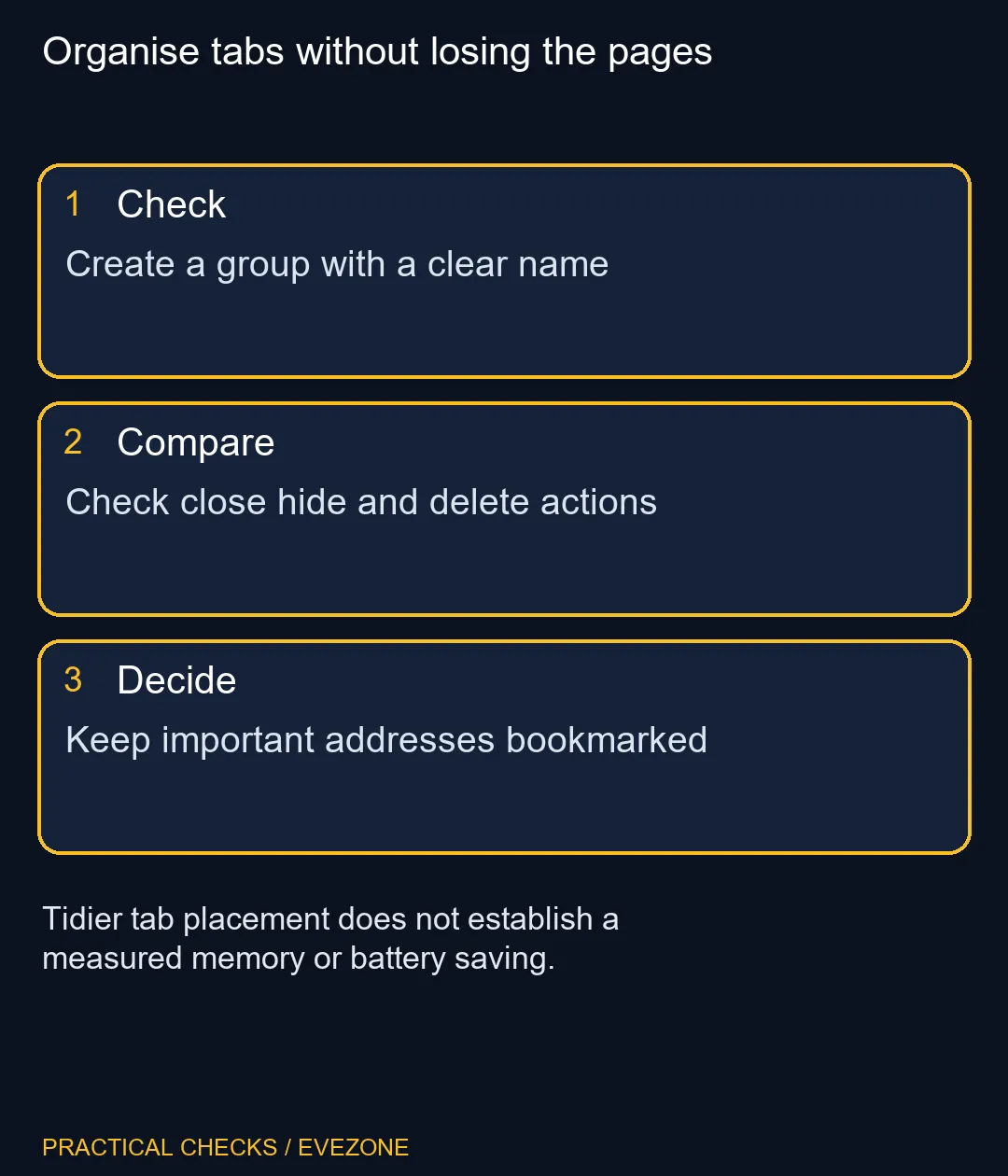
Start with two or three related pages. Use a tab's context menu to add it to a new group, then give that group a name that describes the task. A label such as a component shortlist is easier to understand later than an unexplained colour.
Move another relevant tab into the group and practise collapsing and expanding the label. Collapsing changes how the tabs occupy the strip. Do not assume the page has stopped working or consuming resources simply because its tab is less visible.
Keep unrelated sign-ins and private research out of a group you may show to someone else. Group names and visible page titles can reveal information even when nobody opens the pages. Review the group before a screen share or an on-screen demonstration.
💾 Distinguish convenience from durable saved addresses
Chrome's group controls and saved-group behaviour depend on the current browser version and account settings. Read the action label before choosing Close, Hide, Ungroup or Delete. Test with disposable pages before using an unfamiliar action on important work.
A bookmark saves an address independently of your current tab arrangement. Use that option for the instructions or reference pages you cannot afford to lose track of. It does not preserve every form entry or application state, so submit or save your work through the website's own controls too.
🧠 Measure resource pressure separately
If the computer is slow, a neat set of groups does not prove that there are fewer active pages. Investigate the workload and identify the tab or application responsible before deciding that more memory is needed. all memory (ram) is a hardware category, not a remedy for an unclear tab layout.
For a full-system comparison, all laptops on special includes current options. On 10 November, the HP Notebook 255R G10 with Ryzen 3, 8GB RAM and 512GB storage appeared at R8,999. That price anchors a separate computer decision; it does not establish that this configuration suits every heavy browsing workload.
Use the browser organisation tools first, then observe whether the original problem remains. A clearly named group can solve lost-page frustration without changing the machine at all.
Frequently Asked Questions
Does collapsing a group put its tabs to sleep?
Do not assume so. Grouping is an organisational control, while resource-management behaviour needs a separate check.
What is a useful group name?
Choose the task or project the pages support, so the label remains meaningful after you have forgotten the page order.
Can I treat a saved group as my only backup?
Keep essential addresses bookmarked and save work within the website. A tab arrangement is not a backup of every page state.
Should I press Delete to hide a group?
Read the exact action first. Test unfamiliar close, hide and delete controls using pages that do not contain important work.
Does a tidier strip prove I need less RAM?
No. Measure the active workload separately before drawing conclusions about memory requirements or buying an upgrade.
Is the R8,499 laptop a tab-group requirement?
No. It is a distinct live catalogue example, included without claiming that grouping needs a replacement computer.
Organise tabs without losing the pages
Create a group with a clear name.