The download succeeded, but the file is nowhere near the folder you expected. Chrome download location settings control the destination of new browser downloads. Check that setting before moving the Windows Downloads folder or buying storage to fix a problem that is really about finding the saved copy.
Quick Answer
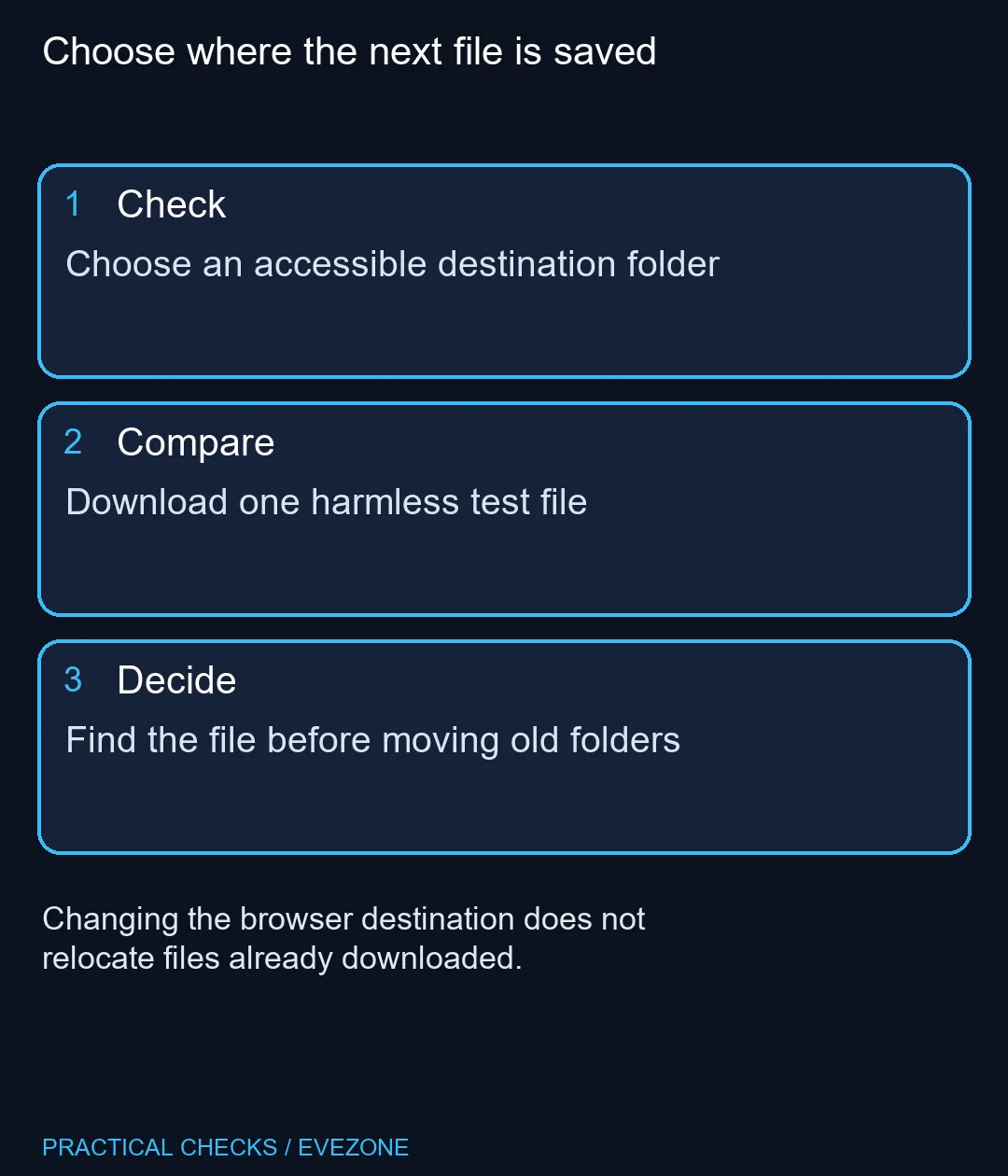
Open Chrome Settings and Downloads to change the default destination or enable asking where each file should be saved. Download one harmless test document and locate it afterwards. The setting affects future downloads, not the location of existing files. This is a R0 folder check before any storage purchase.
📥 Choose the destination Chrome actually uses
Review the location displayed under Downloads. If it is not the folder you want, use Change and select an accessible destination. For files that belong in different project folders, the ask-before-saving option can be more useful than changing the default repeatedly.
Use a folder name you understand and can find in File Explorer. Avoid testing with a confidential attachment or a large software installer. A small harmless document makes it easier to verify the destination without adding another cleanup task.
After the test download finishes, use Chrome's download list to locate the file on disk. Compare that physical path with the setting you changed. Seeing the item in the browser list is not the same as knowing which drive holds it.
🗄️ Leave old files alone until you have a plan
Changing Chrome's destination does not migrate earlier downloads. If you need to organise them, copy or move the selected files deliberately after checking what they are. Do not move a whole folder merely to make its name match the new browser preference.
Deleting a download-history entry also does not remove the saved file. Conversely, a file that was deleted or moved may still have an old browser-list entry. Use File Explorer to establish the actual file state before deciding that another download is needed.
💾 Separate capacity from a lost path
When storage is genuinely full, identify which drive and folders consume the space. all ssds is relevant to a capacity or performance upgrade, but a new drive does not automatically redirect the browser or organise existing files. Choose the storage interface and capacity for the machine before purchasing.
If you are comparing an entire computer, all laptops on special gives current options. Review the computer's actual storage specification and remaining space before comparing prices. Download-folder settings work independently of how much capacity you decide to buy; a larger drive still needs an intentional destination.
Keep a consistent folder habit after the fix. Test any changed destination, especially one on a removable drive that may be disconnected later. A clear save path is more useful than repeatedly downloading another copy of the same document.
Frequently Asked Questions
Where is Chrome's destination setting?
Open Settings and Downloads, then review the displayed location and the option to ask where each file should be saved.
Does changing it move my old downloads?
No. Existing files stay where they were saved unless you deliberately move them through the file system.
Does removing an entry delete the file?
Deleting a browser download-history entry is separate from deleting the physical file on disk.
What should I use for a test?
Download a small harmless document, then locate it in File Explorer and confirm the full path.
Will a new SSD repair the destination setting?
No. Storage capacity and browser routing are separate questions; review the setting before spending on hardware.
Can I choose a different folder for every download?
Enable Chrome's option to ask where each file should be saved, then select the destination when prompted.
Choose where the next file is saved
Choose an accessible destination folder.