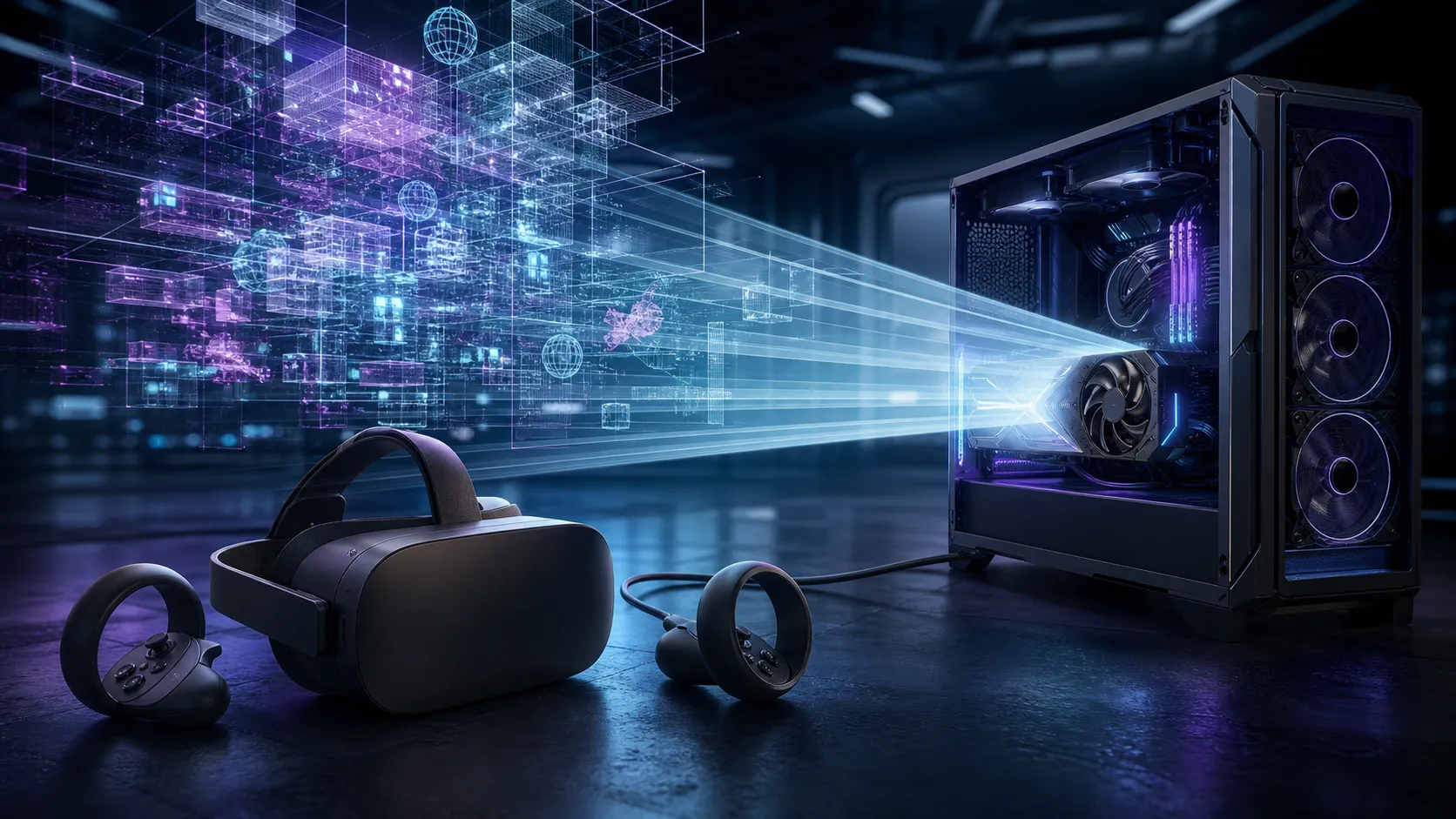
NVIDIA marks the desktop card VR Ready, but RTX 5060 VR performance still depends on far more than the badge. Its 8GB GDDR7 memory, headset render resolution, refresh rate, game engine and connection path create the actual workload. Start with a stable frame-time target and raise visual quality only after the headset remains comfortable through a full session.
Quick Answer
The RTX 5060 is a sensible entry point for moderate PC VR settings, not a promise of maximum quality on every headset. Start at the headset's lower supported refresh mode, use its recommended render resolution and monitor VRAM. A complete RTX 5060 gaming PC should also have a capable CPU, enough RAM and the correct USB or display connection.
🥽 Match the Connection to the Headset
Some PC VR headsets use DisplayPort, while Quest Link can use a supported USB connection or wireless route. NVIDIA lists DisplayPort 2.1b and HDMI 2.1b capability for the RTX 5060 family, but the add-in board's physical connectors still vary. Confirm the exact card and headset cable before buying an adapter.
Meta documents Quest Link on Windows for Quest 2, Quest 3, Quest 3S and Quest Pro. It also warns that Link performance and appearance can differ from on-device execution. USB quality, encoding, wireless conditions and the PC application can all affect a Link session even when raw GPU rendering is adequate.
⏱️ Choose Refresh Rate Before Eye Candy
A 72Hz headset gives the GPU about 13.9 milliseconds per frame; 90Hz reduces that to about 11.1ms, and 120Hz to about 8.3ms. Those arithmetic budgets explain why raising refresh rate can be more demanding than one extra quality preset. Missed timing is more disruptive in a headset than a small visual reduction.
Begin at the lower comfortable mode supported by the headset. Use a built-in performance overlay to watch application and compositor timing. Once a representative level remains stable, test the next refresh mode without changing other settings.
🧠 Treat 8GB VRAM as a Budget
The RTX 5060 has 8GB GDDR7. That is enough for many sensible VR configurations, but it can tighten quickly with high-resolution render targets, large textures, supersampling and background GPU tools. VRAM exhaustion may appear as stutter, hitching or delayed asset changes rather than a neat warning.
Reduce render resolution or supersampling first, then texture quality if monitoring shows memory pressure. Close browsers, capture tools and other GPU-accelerated applications during the test. Higher wattage or overclocking cannot create more memory capacity.
Compare the exact RTX 5060 graphics card selection for ports, cooler dimensions and power requirements, not for a fictional difference in VRAM.
🎛️ Build a Settings Ladder
Use three profiles. The comfort profile prioritises native headset timing with moderate render resolution. The balanced profile adds texture and effects while preserving the same refresh target. The showcase profile raises resolution or lighting for slower experiences where motion is predictable.
Avoid changing resolution, refresh rate, upscaling and graphics preset simultaneously. Keep one repeatable scene and record the setting that first causes missed frames. Motion smoothing can hide occasional misses but should not be used to excuse a baseline that constantly renders at half rate.
🧰 Do Not Ignore the Rest of the PC
Simulation and physics-heavy VR titles can be CPU-limited. Check per-core load and frame timing rather than total CPU percentage. Maintain dual-channel memory, update the headset software and graphics driver, and connect USB headsets to a stable controller with adequate bandwidth.
Readers building a cockpit or driving setup can browse simulation gear, but tracking space, comfort and a stable software baseline matter before accessories.
💰 Spend Against a Tested Target
Do not use a generic Rand threshold for VR. Define the headset, top three games and desired refresh rate, then test whether the RTX 5060 meets that workload. If it does, R0 is the correct graphics upgrade budget. If it repeatedly misses timing at the lowest acceptable profile, compare the next GPU tier and its power-supply needs.
A faster card cannot fix poor wireless coverage, a damaged cable or unsupported headset software. Separate connection faults from rendering limits before replacing the GPU.
Frequently Asked Questions
Is the RTX 5060 officially VR Ready?
Yes. NVIDIA lists the desktop RTX 5060 as VR Ready and specifies 8GB GDDR7 memory.
Is 8GB VRAM enough for PC VR?
It can be at moderate settings, but high render resolution, supersampling and large textures can exceed the available budget.
Can an RTX 5060 run Quest Link?
The GPU is only one part of compatibility. Verify Meta's current supported list, Windows, USB or Wi-Fi path, and headset software.
Which refresh rate should I start with?
Start with the lowest comfortable supported mode, establish stable timing, then test 90Hz or 120Hz separately.
Does DisplayPort 2.1 guarantee headset compatibility?
No. The exact headset may require DisplayPort, USB Link or wireless streaming, plus its own software support.
Ready to build a comfortable VR baseline?
Match the connection, render target and refresh rate first, then let measured frame timing decide whether the RTX 5060 needs help.