Installing a browser and making it handle links are separate actions. Windows default browser controls tell the system which installed app should open ordinary web addresses. If one document or messaging app behaves differently afterwards, check its scope before assuming that Windows ignored the whole choice.
Quick Answer
Open Settings > Apps > Default apps, select your installed browser and apply the available default option. Then test a normal web link outside the browser. This is an R0 hardware change; PDFs, app-specific preferences and Windows 11 S mode can require a different explanation from a standard web-link association.
🌐 Choose an installed application deliberately
Find the browser by name in Default apps rather than assuming that installation changed every association. Read the controls shown for that app. Windows supports choosing defaults by application and by particular file or link types, so the setting you change should match the behaviour you want.
After applying it, open an ordinary web address from another application. Check which browser receives the link. Opening a new tab inside a browser only tests that browser's existing window, not Windows' choice for an external link.
📄 Separate web links from documents
A PDF file can have a different default reader. If your complaint is about downloaded documents, inspect the PDF association rather than repeatedly switching the browser setting. Keep a sample file for the test and confirm its actual extension.
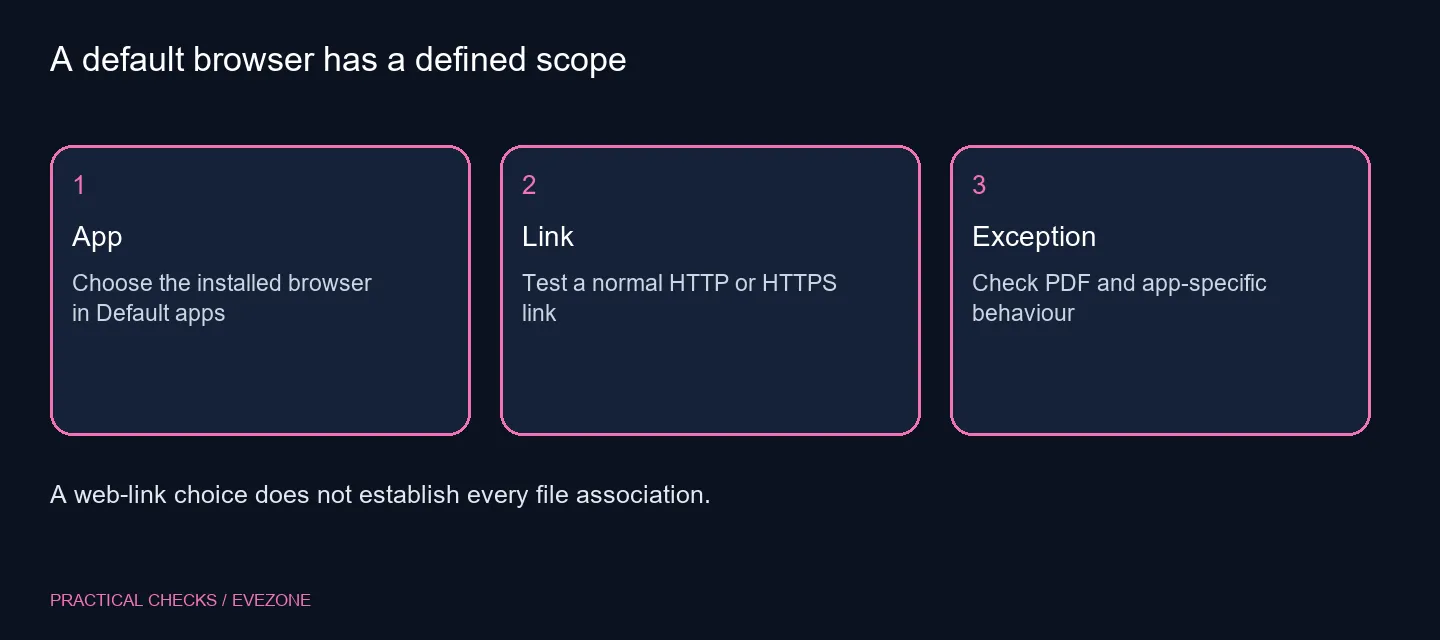
An application may also expose its own link-opening preference. If a normal external web link uses the selected browser while one app does not, investigate that app next. This narrows the problem without uninstalling software that is working as intended elsewhere.
💻 Check platform restrictions before replacing parts
Windows 11 S mode has a specific browser restriction: Edge remains the default. Confirm whether the machine is running that mode before treating an unavailable choice as a hardware fault. On an organisation-managed device, ask support about applicable policy instead of trying to overwrite it.
There is no need to buy from all laptops on special to change an ordinary association. If you are choosing a new laptop for other reasons, make operating-system mode and software requirements part of the buying checklist rather than discovering a restriction after setup.
An upgrade from internal ssds also addresses a different need, such as capacity or a compatible replacement drive. It cannot decide which app owns a link type. Keep the selection problem small: identify the link or file, check the relevant setting and test that same action once more. Save those observations if support is still needed, including whether the problem affects every app or only one.
Frequently Asked Questions
Where do I choose my browser?
Go to Settings > Apps > Default apps, find the installed browser and use its available default controls. Then test a normal web link.
Will that also change PDF opening?
Not necessarily. PDF is a separate file association. Check its default application when documents still open somewhere unexpected.
Why does one app still use another browser?
Some apps offer their own link-opening preference. Check that application after confirming ordinary Windows web links behave correctly.
What if the PC uses S mode?
Microsoft states that Edge remains the default browser in Windows 11 S mode. Check that platform restriction before treating the setting as broken.
Should I edit registry associations?
Use the supported Settings controls first. Registry changes are unnecessary for the ordinary default-browser selection described here.
Is a faster SSD required?
Changing this preference needs R0 in new parts. Storage speed does not decide which application Windows assigns to a link.
Setting up a PC around your preferred apps?
Check Windows mode and software requirements before comparing a laptop or storage upgrade.