A folder with many similar filenames can spend more screen space on gaps than useful information. File Explorer compact view lets you bring the rows closer together. It is a small, reversible change for a crowded laptop display or a large desktop file list, without making every menu and application smaller.
Quick Answer
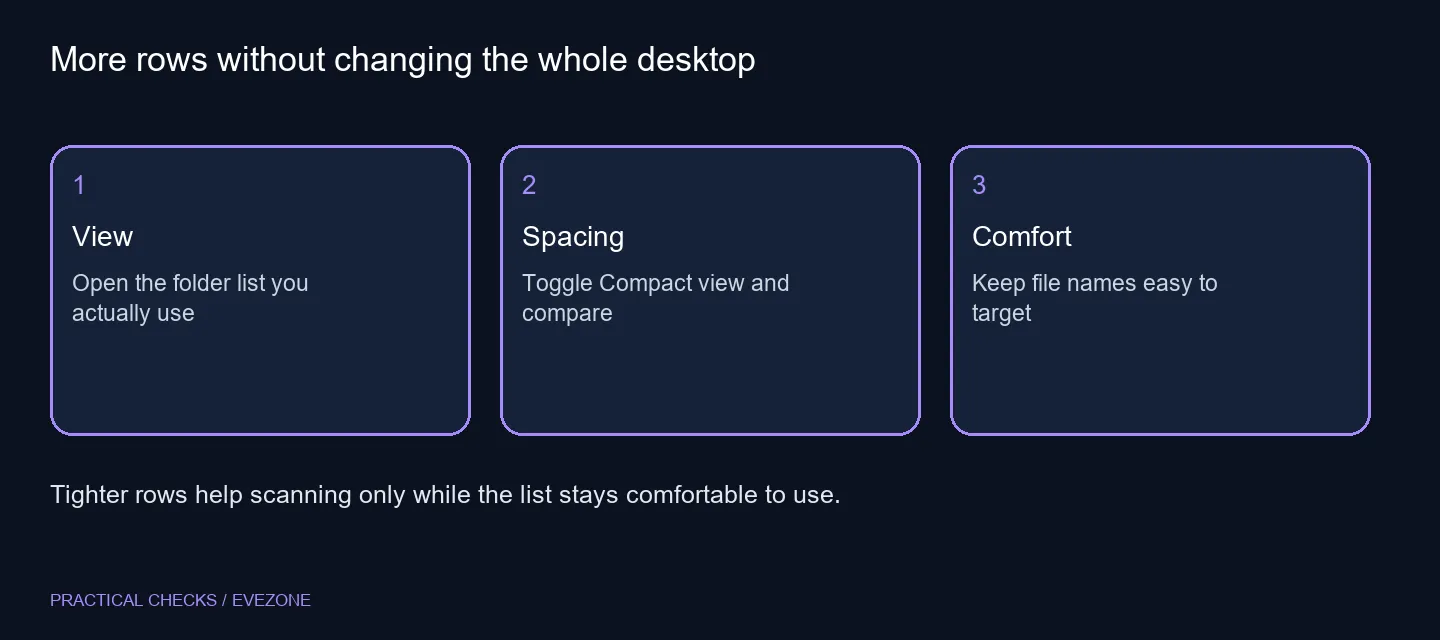
In File Explorer, open View and toggle Compact view to reduce the spacing between files. The adjustment costs R0 in additional hardware and does not alter file contents. Compare it in the same folder before changing Windows scaling, because a denser list and smaller text solve different problems.
📁 Use a folder with a meaningful comparison
Open a directory you know well and keep the window size fixed. Choose a list or details arrangement where you can see row spacing clearly, then switch Compact view on. Notice both how many items fit and how easy it remains to select the intended file.
Do not treat a different sort order or grouping as part of this adjustment. If filenames appear to jump around, check the sort and grouping options separately. A spacing preference does not explain a file being renamed or moved to another folder.
🔍 Preserve readability while fitting more information
Compact rows can help when you scan filenames with a mouse. They can be less comfortable on a touch screen or where precise selection is difficult. Leave enough spacing for your own input method rather than treating the densest arrangement as the correct one for everyone.
If text is hard to read, making the gaps smaller is not a cure. Review text size and display scaling as separate decisions. A higher-resolution choice from gaming monitors also needs a suitable viewing distance and readable settings; a specification alone does not guarantee comfort.
🖥️ Recheck the working layout before spending
Try the adjusted view in a second ordinary folder and return to the first. Confirm that long filenames, the selected row and the scroll position remain easy to follow. This is a practical reading test, not a storage-speed benchmark.
You can toggle the option back if the list feels cramped. Avoid installing an unrelated file-manager tweak solely for this built-in setting. If desk height or viewing angle is the actual discomfort, compare monitor accessories for a suitable physical adjustment instead of forcing tiny content to compensate.
Keep your preferred density simple enough that another user can understand it on a shared PC. The best outcome is more useful rows with fewer selection errors, not an impressive count of items squeezed into a screenshot.
Frequently Asked Questions
Where is Compact view?
Open File Explorer and choose View > Compact view. Compare the same folder before and after changing it.
Does it change the files?
No. It changes their presentation in the list. It does not compress, move or rename the stored files.
Is this a replacement for display scaling?
No. Display scaling affects much more of Windows. Compact view is a narrower adjustment to Explorer row spacing.
Should touch users enable it?
Try it carefully. Closer rows can be harder to select with a finger even when they fit more information on the display.
Can I undo the adjustment?
Yes. Toggle Compact view again to compare the more spacious arrangement. There is no need to edit a registry value.
Does a denser list need a new monitor?
The built-in setting needs R0 in extra hardware. Consider another display only for a separate size, resolution or connection requirement.
Making a file-heavy desk easier to use?
Try the built-in spacing control before changing display size or adding monitor hardware.