Losing the left column of folders can make a familiar PC feel as though its drives have disappeared. File Explorer navigation pane is a view setting, however, so start by restoring the panel. That quick check is more useful than creating duplicate shortcuts or assuming an external drive has failed.
Quick Answer
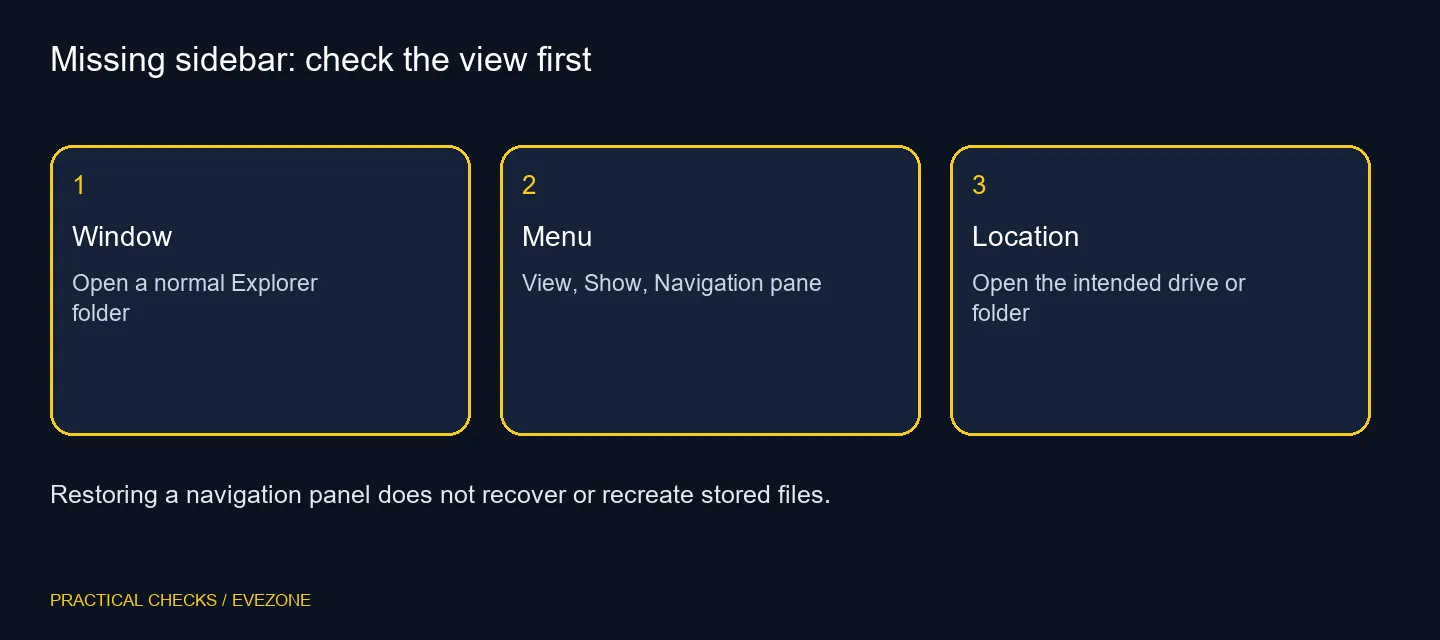
Open File Explorer, select View > Show > Navigation pane and check the left side of the window. Restoring a hidden pane costs R0 in additional hardware. If one specific drive or network location remains inaccessible, diagnose that connection separately instead of treating the whole sidebar as missing data.
📂 Restore the panel in an ordinary folder
Open a standard folder window rather than an application's save dialog. Select the navigation-pane option and check whether the left column returns. The navigation area provides routes to locations; the main area continues showing the contents of the currently opened folder.
Use the column to open a known local folder and confirm that its files are present. If the sidebar is visible but a single shortcut is absent, the task has changed: you are looking for that location or shortcut, not restoring the entire panel. Keep those two symptoms separate when describing the problem.
⌨️ Navigate without rebuilding your workspace
Microsoft's accessibility guidance describes the pane as a route to folders, drives, libraries and network locations. That makes it useful, but it is not the only way to reach a directory. The address bar remains another route when you know the location you need.
Avoid deleting and recreating folders merely to make them appear in a preferred place. A presentation problem does not justify changing the stored content. If this is a shared computer, ask whether another person intentionally changed the layout before replacing their organisation with your own.
🔌 Check only the location that still fails
An external drive must still be connected and accessible. A remote share also depends on the network and account permissions. Restoring the sidebar does not repair either link, and the absence of one location does not establish a failing laptop.
Before comparing all laptops on special, make a note of whether the PC otherwise opens local files normally. For external ssds, check the cable, connection and correct drive identity before considering replacement. Back up accessible important files as part of normal storage care, rather than attempting a format to fix a view.
If the navigation option cannot be used on a managed machine, report the exact Windows version and what the menu shows. A screenshot of the Explorer window can be helpful, provided it does not expose private filenames. That gives support a concrete starting point without a speculative hardware diagnosis.
Frequently Asked Questions
Where is the missing-sidebar control?
In Explorer choose View, then Show, then Navigation pane. It restores the left navigation area when that view is hidden.
Were my files deleted with the sidebar?
Hiding the pane is a presentation change. If an actual folder is missing after restoring it, investigate that location separately.
Is the sidebar the same as the preview pane?
No. Navigation is normally on the left and helps you reach locations. Preview displays a selected file's content separately.
Why is one network location still absent?
Its connection, permissions or availability may need attention. A visible navigation panel does not prove a remote share is online.
Can keyboard users still browse?
Yes. The address bar and normal Explorer keyboard navigation remain useful. Use the documented shortcuts appropriate to the task.
Do I need to buy another drive?
Restoring the sidebar costs R0 in hardware. Consider storage only after confirming a separate capacity or reliability need.
Trying to make a familiar folder layout usable again?
Restore the navigation view and test the actual location before spending on a new machine or drive.