A message chime can interrupt a recording even while the rest of your audio setup works perfectly. Windows notification sounds have their own controls, so buying a quieter keyboard or another headset will not address the sender that keeps announcing itself. Locate that sender first and keep the audio you still need.
Quick Answer
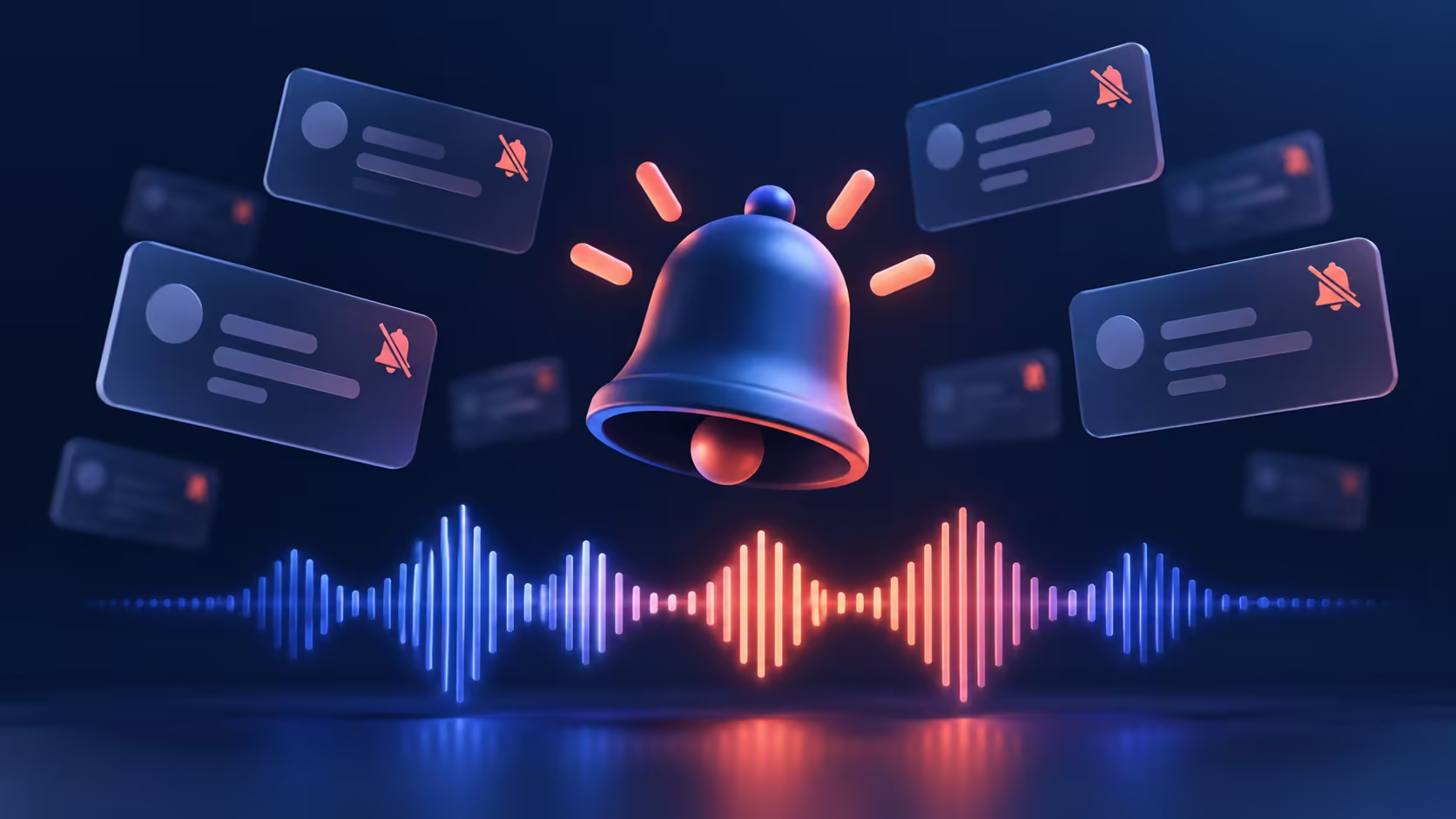
Open Settings > System > Notifications, choose the app and turn off its notification sound while keeping banners if you want them. This is an R0 equipment change. If the noise persists, check the app's own alert settings and browser tabs; muting notification sounds does not silence every possible sound event.
🔔 Identify the sender before changing the mixer
Wait for the next unwanted sound and look for its matching banner or entry in Notification Centre. Note which app sent it. If nothing appears, a web page, a running application or another Windows event may be responsible instead of a notification banner.
Open that sender's Windows notification settings and adjust the sound option. Keep the notification enabled when you still need its message. Test with one ordinary, nonurgent alert rather than disabling the entire category of communication and hoping nothing important is missed.
🎧 Keep calls and playback separate
Master volume is a broad control. Turning it down can hide the interruption while also making a call or video difficult to hear. The individual sender control is more useful when your gaming headsets already plays the right audio clearly.
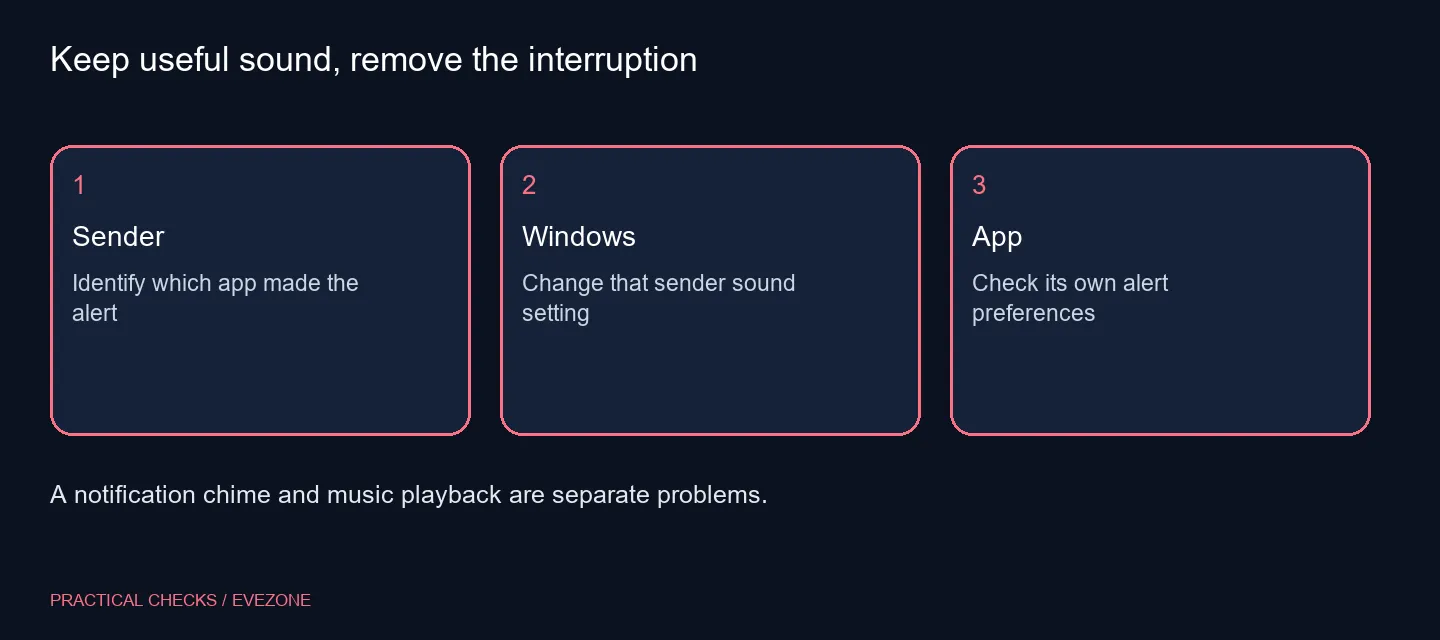
An application may also use its own notification system. If Windows' sender setting makes no difference, inspect that app's sound preferences and check whether the noise comes from an open browser tab. Change one source at a time so the result means something.
📝 Test the quieter setup in your normal routine
Leave essential visual notices enabled and try the same workflow again. Do not use an urgent incoming call as the test: notification sounds and call ringing can have different controls. Record what changed before adjusting another layer.
For a shared desk, agree which notices should stay audible. Compare office headsets only when there is a separate microphone, fit or connection need; a new headset does not repair an app preference. If the sound remains unexplained, provide support with its timing and the visible app rather than a guess about broken hardware.
Frequently Asked Questions
Can I keep banners but stop their sound?
Yes. Open the individual sender in System > Notifications and change its sound option while leaving the visual notification enabled.
Should I mute the whole computer?
That also silences audio you may want. Start with the notification sender so calls, music and games remain usable.
Why does a sound continue afterwards?
It may be generated by the app itself, a browser page or a different system event. Identify the source rather than repeating the same toggle.
Is Do not disturb the same setting?
No. It changes notification delivery behaviour. An individual sound control is more precise when you still want visible alerts.
Will this require a new headset?
No hardware purchase is needed to change the built-in notification controls. R0 refers to additional equipment, not the cost of Windows.
What should I record for support?
Note the time, app in use and visible notification. That makes an intermittent chime easier to trace without disabling every alert.
Need a calmer audio setup?
Set the alert behaviour first, then choose a headset around call clarity and comfort.