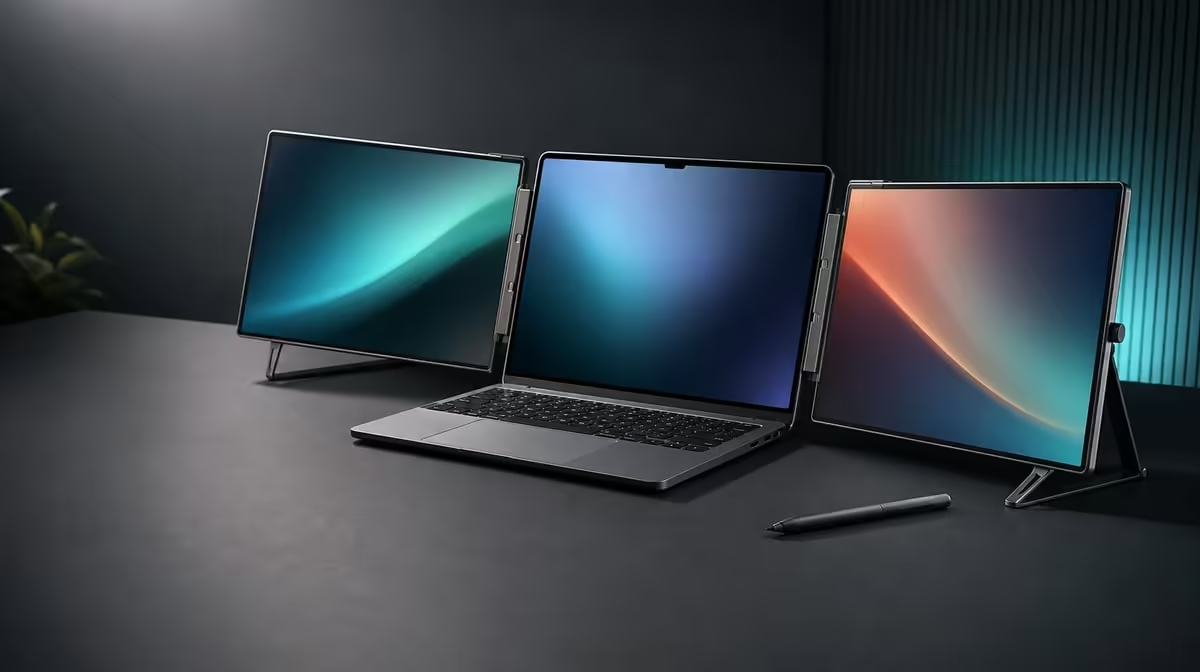
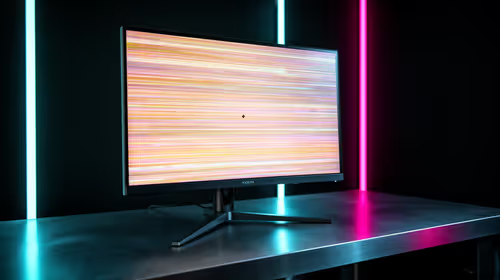
Two interactive panels only become a useful workstation after the laptop knows where each image and touch belongs. A careful 16-inch QHD dual touchscreen setup starts with a stable physical position, then proves both 2560 x 1600 displays, touch mapping and orientation separately before any important work opens.
Quick Answer
Open the Delta Pro Touch on its ergonomic stand beside the laptop, detect both 16-inch screens, and set each to native 2560 x 1600. The R11,999 monitor should then be tested panel by panel for touch accuracy and across its 180-degree rotation range so display layout, input mapping and physical orientation agree.
🧭 Stabilise the laptop-and-panel workspace
Place the laptop on a firm surface and position the two Delta panels where neither screen wobbles under a light touch. The stand angle should support viewing as well as direct input; an attractive arrangement that moves whenever a finger lands will weaken accuracy and comfort.
Leave room for the laptop display if it remains part of the desktop. Decide whether the Delta screens sit above, beside or in another practical relationship to it, then keep that physical layout unchanged during software configuration.
Evetech's portable-monitor range helps compare mobile screen arrangements, but every candidate still needs to be measured with the laptop, charger and working surface that will accompany it.
🖥️ Detect and arrange both QHD panels
Open the laptop's display settings and identify all three screens if its built-in panel remains active. Set each Delta display to 2560 x 1600, then arrange the on-screen rectangles to match their physical positions. Move the pointer and a window across every boundary to catch a reversed or misplaced display.
Choose readable scaling only after native resolution is confirmed. Two QHD screens can show substantial workspace, but tiny controls are not productive. Apply an initial scale consistently, open familiar applications and refine it around the text and touch targets actually used.
Use Evetech's broader PC-monitor category to understand how this dual portable arrangement differs from leaving a fixed display at one desk.
👆 Verify touch on one screen at a time
Begin with a simple canvas or settings window. Tap the centre and all four corners of the first panel, drag a straight line, and confirm the cursor or mark follows the contact. Repeat on the second panel without changing the display arrangement.
If touch lands on the wrong screen, preserve the working image layout and investigate input assignment rather than moving every display rectangle. Picture position and touch mapping are related in use but should remain separate checks.
Test several simultaneous contacts only after single-touch placement is correct. The Delta supports 10-point control, so use a compatible application that visibly responds to more than one contact. Do not infer pressure levels or a specific bundled pen; pressure response must be tested with compatible tools and software.
🔄 Confirm rotation before creative work
Move through the intended landscape, portrait or presentation positions within the 180-degree range. After each change, wait for gravity sensing to settle, then inspect image orientation, window position and touch mapping. Auto-rotation does not promise that every application will rearrange itself helpfully.
Apply several touches near the screen edges after rotation and confirm the stand remains balanced. Return both panels to the main working position, reopen the test canvas and repeat a short input sequence.
Evetech's monitor best-seller collection provides a current comparison point when the R11,999 dual-touch system is being considered. Check live availability at the buying stage.
Finish with a full restart of the laptop and repeat detection, QHD resolution, layout, touch and rotation. Record the successful display order and application used for testing so the workstation can be rebuilt after travel.
Check the full three-screen desktop
If the laptop display stays active, test the combined workspace rather than only the Delta pair. Put a different labelled window on each screen and note the pointer path between them. A misplaced laptop rectangle can make the correct dual panels feel wrong.
Choose which screen holds login prompts, new windows and notifications. The primary-display decision should reflect the daily task and remain understandable after reconnection.
Build a touch-mapping evidence card
Draw two simple rectangles representing the Delta panels. Mark the corner taps that landed correctly and note the application used. Repeat after rotating a panel and again after the laptop restarts.
If mapping changes, the card reveals the event that preceded it. This is more useful than repeating random touches while moving windows and changing orientation together.
Validate a complete creative session
Open the intended canvas, editing tool or interactive business application. Put controls on one QHD screen and working content on the other, then use touch on both. Add pressure input only through a compatible tool and pressure-aware function.
Work for long enough to include window changes, a rotation and return to the main layout. Observe whether the stand shifts or touch accuracy changes as the user reaches across the workstation.
Rehearse pack-down and return
Close important files, return panels to a safe position, and disconnect only after any active work has finished. Keep the laptop and monitor equipment organised by function so the next setup uses the known route.
At the second setup, follow the display-order note, restore 2560 x 1600 and repeat the five-point touch check on both screens. A portable dual touchscreen is ready when arrival and departure are as predictable as the first configuration.
Frequently Asked Questions
Should touch be tested before arranging the screens?
Arrange the pictures first, then verify touch assignment without disturbing the layout.
Does one accurate panel prove the second?
No. Tap, drag and test edge positions on each 16-inch screen independently.
Why begin at 2560 x 1600?
That is the native QHD resolution stated for both Delta Pro Touch panels.
Can auto-rotation organise every application?
It changes orientation through gravity sensing; application-window placement still needs confirmation.
What proves the stand angle is suitable?
The screens remain stable during normal touches and can be viewed without an awkward laptop or wrist position.
Ready to build a dual-touch workspace that maps every screen correctly?
Compare Evetech's portable monitors with your laptop, working surface, QHD layout and touch-aware applications already planned.