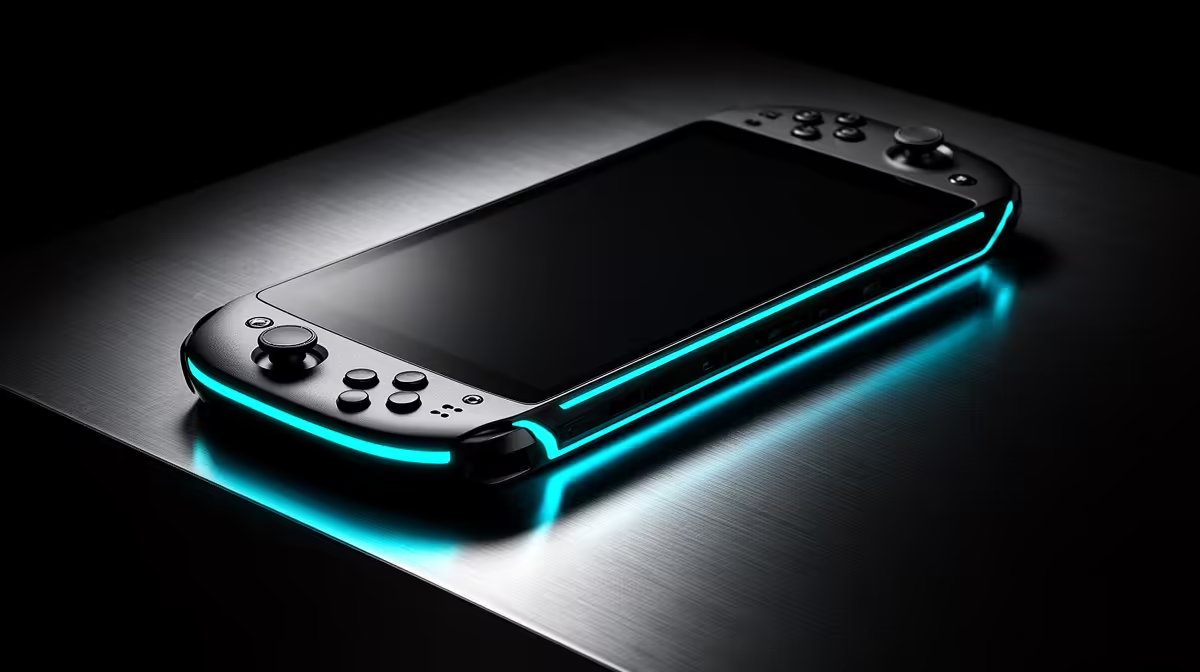
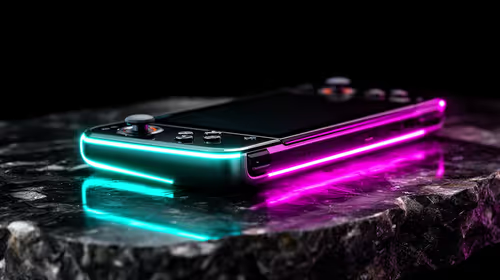
Battery life grows through several small limits rather than one magic handheld toggle. Steam Deck battery tricks such as frame caps, power limits and half-rate shading work best in per-game profiles tested for smooth play.
Quick Answer
The useful Steam Deck battery controls are a frame-rate target, refresh choice, per-game power limit and, in selected titles, GPU clock tuning or half-rate shading. Start with frame rate because it gives the clearest trade. Add one power control only when the game still holds that target. Half-rate shading can make fine text and effects look poor, and a fixed GPU clock can starve the CPU or waste power. Save every change per game.
Establish the stock battery run
Charge to the same level, use the same game area and set a fixed screen brightness. Turn off downloads and keep Wi-Fi, audio and Bluetooth in the state you use.
Record frame rate, frame time, estimated power and battery percentage over twenty minutes. The on-screen estimate moves with recent load, so the measured percentage drop gives a better A/B control.
Use one current Stable SteamOS build for the comparison. An update can change game performance or power reporting.
Frame-rate limits deliver the first saving
A game rendering 90 frames on a 90Hz display can use much more power than the same title held at 45 or 30. Pick the lowest target that still feels good for that game.
Match refresh and frame rate through the Deck's current performance controls. A 40fps target on a suitable refresh can split the feel between 30 and 60 for many slower games. Supported choices differ by Deck model, SteamOS and display mode.
Watch frame-time stability. A clean 40fps line feels better than a 45fps average that swings between 30 and 60.
Lower the TDP only after the target holds
The thermal design power limit controls the processor package power budget through supported SteamOS tools. Reduce it one step and replay the same route.
When frame rate or frame-time lows fall, return one step. CPU-heavy simulation, crowd and emulation workloads can lose performance before GPU utilisation looks full.
A low TDP is a performance limit, not a battery guarantee. Screen, wireless, storage and other system parts still consume energy.
Fixed GPU clocks need a bottleneck test
Manual GPU clock control can keep the graphics portion at a chosen frequency. A steady clock may help one game avoid inefficient swings, while another game needs dynamic boost.
Log GPU utilisation and frame time. If the GPU stays near full and misses the target, the fixed clock is too low. If CPU frame time rises, the shared power budget may need another balance.
Leave this control on Auto for the first profile. Fixed values demand more testing than a frame cap.
Half-rate shading is visible in the wrong places
Variable Rate Shading at a coarse rate can reduce shader work in supported rendering paths. Steam Deck's half-rate shading option can blur or break text, particles and interfaces in some games. Other titles show little change.
Open inventory text, thin foliage, smoke and HUD markers. Toggle the feature without changing resolution or upscaling. Keep it only when the visual loss is hard to see at handheld distance and power falls in the measured route.
It is a per-game experiment, not a global battery switch.
Brightness and radio choices still matter
Display power can take a large share in a light indie game. Lower brightness to the room, use dark UI where it suits the panel and turn off keyboard or controller lighting you do not need.
Airplane mode helps only when the game works offline and you do not need cloud sync, achievements or a controller. Verify offline mode before travel while you still have internet.
Speaker volume and Bluetooth add smaller loads. Do not sacrifice useful features for a number you never notice.
Docked play uses another profile
When connected to power and a monitor, remove battery-focused limits only when the game needs more performance. A higher external resolution can overwhelm the Deck even with a larger power budget.
Set the external display to a sensible resolution and frame target. Keep airflow clear around the handheld and dock.
Power passthrough does not mean the battery never cycles. Use Valve's current charging guidance and avoid heat.
Confirm stability and sleep
Aggressive power limits should not damage the APU through ordinary supported controls, but they can cause stutter or a game crash. Test launch, gameplay, suspend and resume.
Save the stock profile and the battery profile. If a game update misbehaves, return to stock before blaming the update.
Review battery, display and control differences on the handheld gaming console range. For demanding games that miss every battery target, put a desktop from the PC best-seller page beside the handheld plan.
FAQ
What should I change first?
Set a stable frame-rate target. It creates a clear performance and power trade you can measure.
Does half-rate shading work in every game?
No. Some games show artefacts or no useful gain. Test HUD, text and moving effects.
Can low power limits cause crashes?
Supported limits tend to reduce performance, but a game can become unstable. Return to stock and retest when it crashes.
Measure one stock battery run, set the frame target and add only one TDP, GPU or shading change at a time.