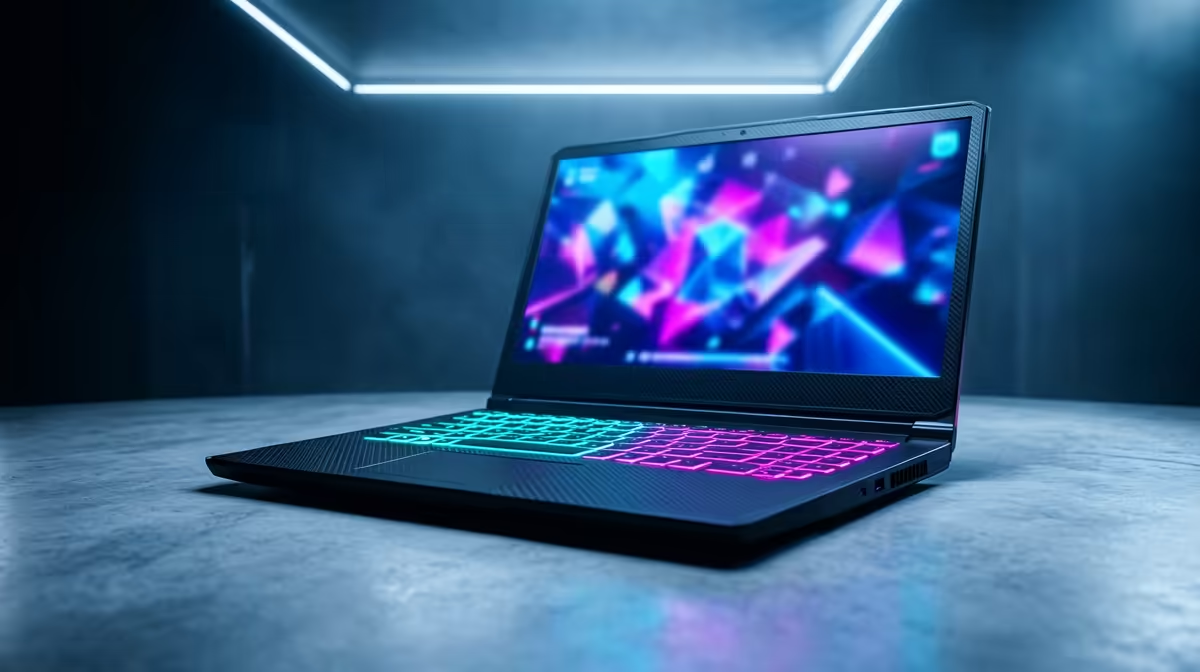
When a laptop screen starts flickering right after a Windows update, a swapped display driver is the usual culprit, and rolling it back fixes most cases.
Quick Answer
Post-update flicker almost always means Windows installed a generic or buggy GPU driver, or reset adaptive sync and refresh settings. Roll back or clean-reinstall the vendor display driver, confirm the native refresh rate, and toggle variable sync. Flicker clears in the vast majority of cases without touching the hardware.
Roll Back the Display Driver
Open Device Manager, find Display adapters, right-click the GPU, and choose Properties, then Roll Back Driver. If the option is greyed out, clean-install the previous vendor driver instead. This directly reverses the most common cause of update-triggered flicker.
Recheck Refresh and Sync Settings
Updates can drop the panel from its native refresh, such as 165Hz, back to 60Hz, which some screens show as flicker. In Display settings, restore the native refresh, then toggle adaptive sync off and on to clear any mismatch the update introduced.
Use the Task Manager Test
Open Task Manager and watch it. If it flickers along with everything else, the driver is confirmed as the cause; if it stays steady, an incompatible app updated alongside Windows. That tells you whether to focus on the driver or on recently changed software.
FAQ
How do I undo a driver change from a Windows update?
Use Roll Back Driver in Device Manager, or clean-install the previous vendor driver from your laptop's support page. Then pause optional driver updates so Windows does not re-apply the buggy one.
Why does the flicker only appear after this update?
The update most likely swapped a stable vendor driver for a generic one, or reset your refresh and sync settings. Restoring the vendor driver and native refresh reverses it.
Should I reinstall Windows to fix update flicker?
No. A driver roll-back or clean reinstall is far quicker and targets the real cause. A full reinstall is unnecessary for flicker that began with a single update.
Want a panel that stays rock-steady?
Compare Evetech gaming laptops by display quality and refresh rate, from 144Hz to 240Hz, for flicker-free gaming.