



Chrome Energy Saver: Check what changes on battery
Check when Chrome saves power, compare a repeatable task on battery and separate browser changes from battery health and Windows settings.
Read moreStop an important Chrome tab from reloading, choose a Memory Saver level and test whether your workload really needs a memory upgrade.
Open Chrome Settings, select Performance and turn on Memory Saver. Start with Balanced. If an important tab keeps reloading when you return to it, add that particular site to Always keep these sites active. Then repeat the same task with the tab in the background long enough to reproduce the reload.
Memory Saver deactivates tabs you have left unused. When you return, Chrome reloads the inactive page. That can be fine for a news article or an old reference tab. It can interrupt a page that takes a while to reconnect or restore your place. Start the experiment with a public page that has no unsaved work. Leave it open while you use another tab, then check what happens when you return.
Chrome offers Moderate, Balanced and Maximum settings. Moderate waits longer before deactivating tabs, while Maximum acts sooner. Balanced is a sensible first test because you can compare the browser's behaviour without changing how you use the rest of the computer. Chrome also documents cases that can prevent deactivation, including some active media, downloads and partially completed forms.
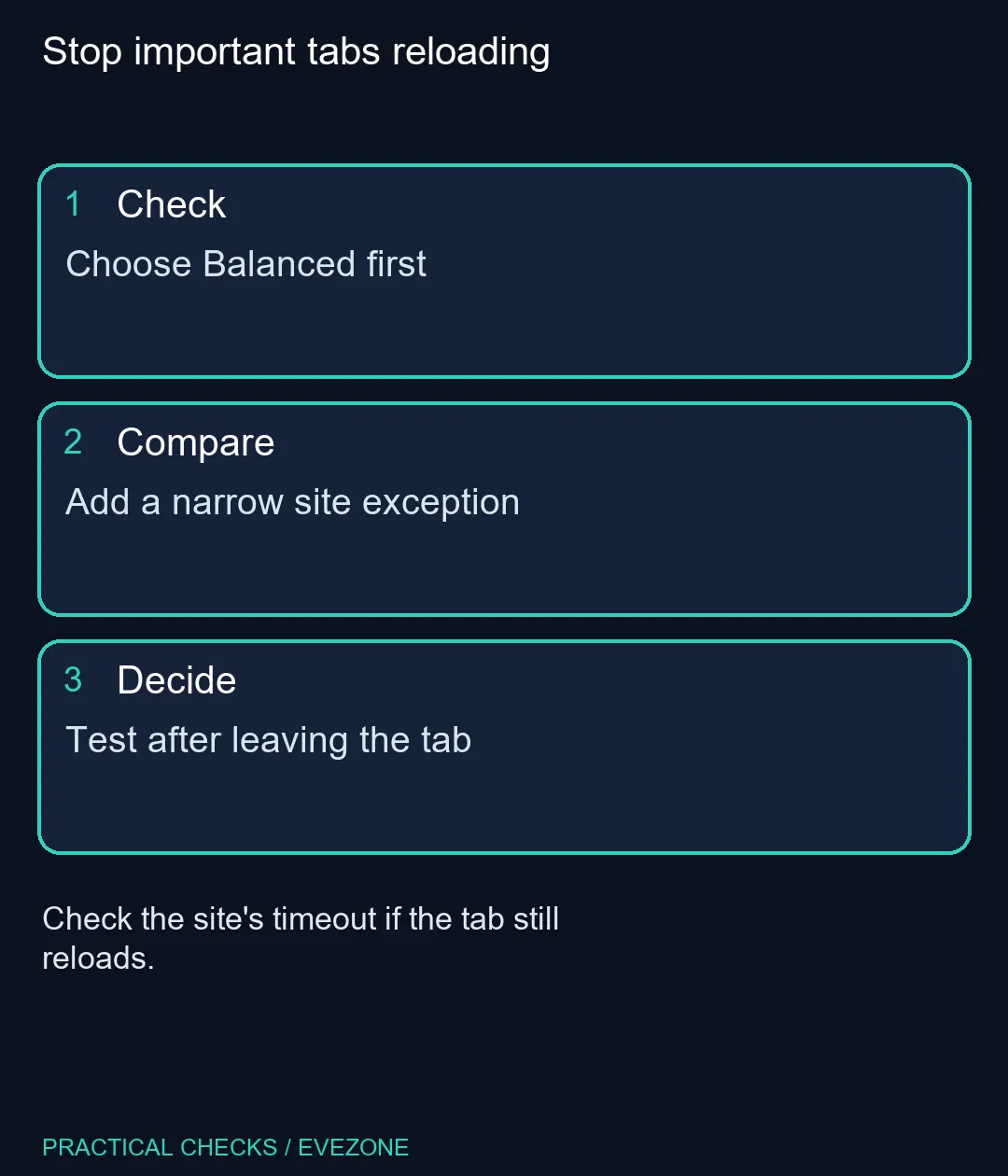
Under Performance, use the exception list for a site that needs to stay ready. If Chrome offers the current site from open tabs, pick the exact entry. A broad exception can cover more pages than you intend. Reproduce the same activity after adding it. If the tab still reloads immediately, check whether the site itself has a session timeout or whether the connection changed. Those causes can look like the browser discarded the tab. Before buying anything, compare your usual workload with fewer tabs, then test with Memory Saver on. Look at operating system memory use while your normal apps are open. all memory (ram) is relevant if a desktop runs short of memory across several programs. Check the motherboard and existing modules before pricing an upgrade. If you are comparing all laptops on special, check the installed memory and whether that exact configuration allows expansion.
The setting costs R0. If a narrow exception protects the work tab and the rest of the session feels responsive, leave the hardware decision for later. If the system struggles when Chrome is closed, the browser setting only addresses part of the workload.
It is in Chrome Settings under Performance on supported desktop versions.
Chrome reloads the page when you access it again.
Balanced is a practical starting point for comparison.
Add it to Always keep these sites active.
Some activities, including active media or downloads, can keep a tab active.
The browser setting is free. Check the full system workload before buying memory.
Stop important tabs reloading Choose Balanced first.
It is in Chrome Settings under Performance on supported desktop versions.
Chrome reloads the page when you access it again.
Balanced is a practical starting point for comparison.
Add it to Always keep these sites active.
Some activities, including active media or downloads, can keep a tab active.
The browser setting is free. Check the full system workload before buying memory.
Check when Chrome saves power, compare a repeatable task on battery and separate browser changes from battery health and Windows settings.
Read more
Find Chrome's caption control, check language and audio and bring back the floating bubble when captions disappear during playback.
Read more
Open the simplified Chrome reader, adjust type and spacing and check whether the page supports the view before changing your display setup.
Read more
Find an open Chrome tab by title with a keyboard shortcut or the address bar, and keep important links in bookmarks for later.
Read more
Isolate browser flicker with a repeatable Chrome test. Change graphics acceleration, relaunch and check the apps and effects you use before buying hardware.
Read more
Turn on Firefox HTTPS-Only Mode and understand what to do when an old device page has no encrypted connection.
Read more
Firefox can mute one noisy tab using its speaker button or context menu. Check the tab control before changing Windows volume or replacing a working headset.
ASUS PA329CDV combines a 4K 120Hz QD-OLED panel with USB-C charging and Auto KVM. Compare colour work, laptop power and desk connections before treating overseas availability as an SA offer.
Teclast N30 Pro pairs Core 3 304 with 12GB memory and USB4. Its expansion connection is useful, but an external graphics plan needs a complete cost and compatibility check.

Firefox private browsing separates a temporary session from normal browsing history. It does not make you anonymous online, and files or bookmarks you deliberately save can remain after the last private window closes.
Set Firefox as the default browser to open normal web links from other apps in it. Use Firefox Settings or Windows Default apps, then test an outside link; opening Firefox manually does not prove the default changed.
Firefox can mute one noisy tab using its speaker button or context menu. Check the tab control before changing Windows volume or replacing a working headset.
Firefox has a startup-cache control on its Troubleshooting Information page. Use it for a focused interface test and keep it separate from clearing website data or refreshing the profile.

Firefox Primary Password protects access to locally saved logins. It is separate from a website or Mozilla account password, and forgetting it can put saved credentials at risk during reset.
Check when Chrome saves power, compare a repeatable task on battery and separate browser changes from battery health and Windows settings.
Find Chrome's caption control, check language and audio and bring back the floating bubble when captions disappear during playback.
Open the simplified Chrome reader, adjust type and spacing and check whether the page supports the view before changing your display setup.
Find an open Chrome tab by title with a keyboard shortcut or the address bar, and keep important links in bookmarks for later.