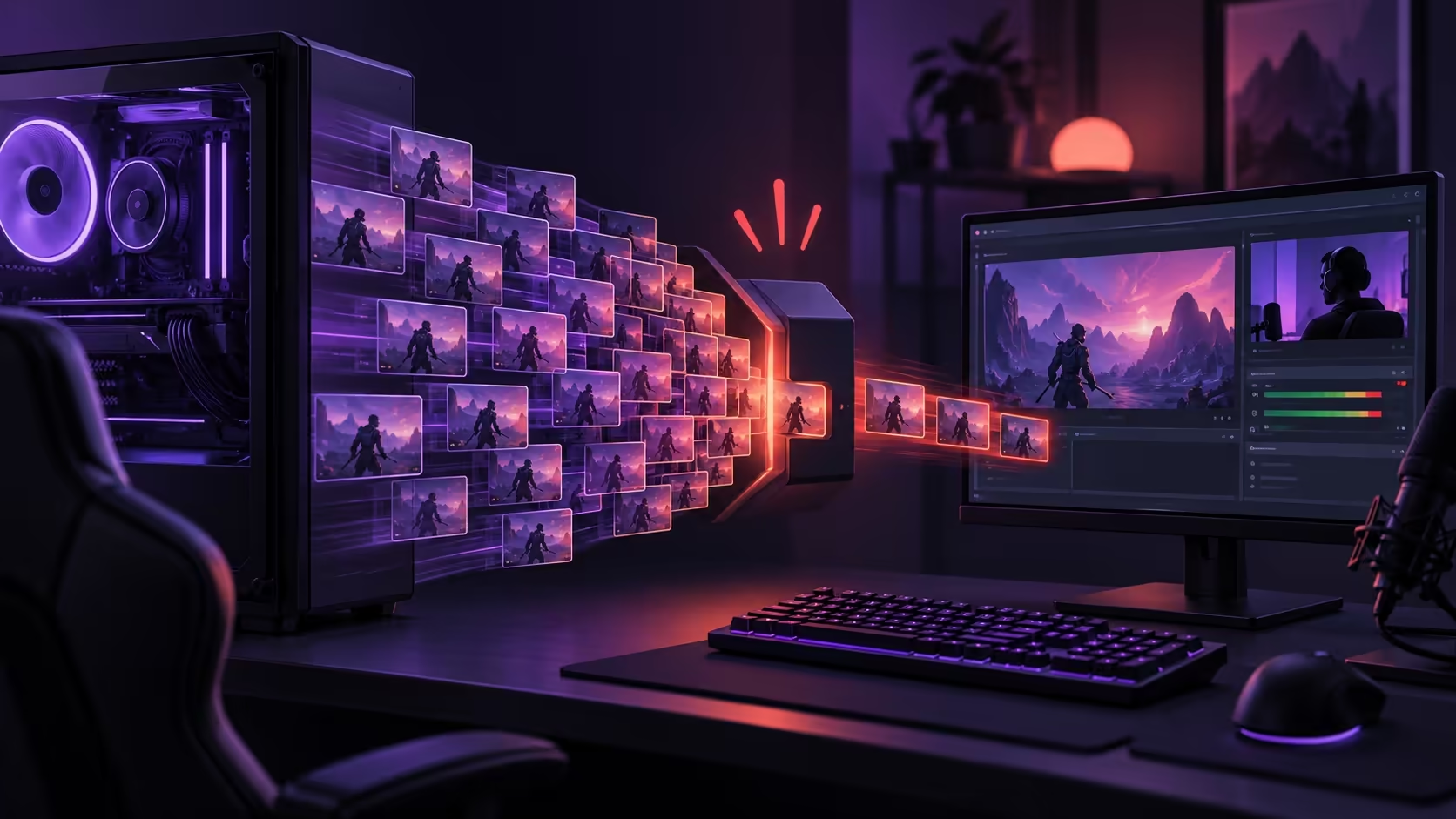
The game looks smooth on your screen, yet the recording stutters. OBS encoding overloaded calls for a test of the capture workload as well as the game. The fastest route to a useful answer is to identify where frames are being lost, then reduce one demand. An internet upgrade cannot fix a local encoder that cannot keep up.
Quick Answer
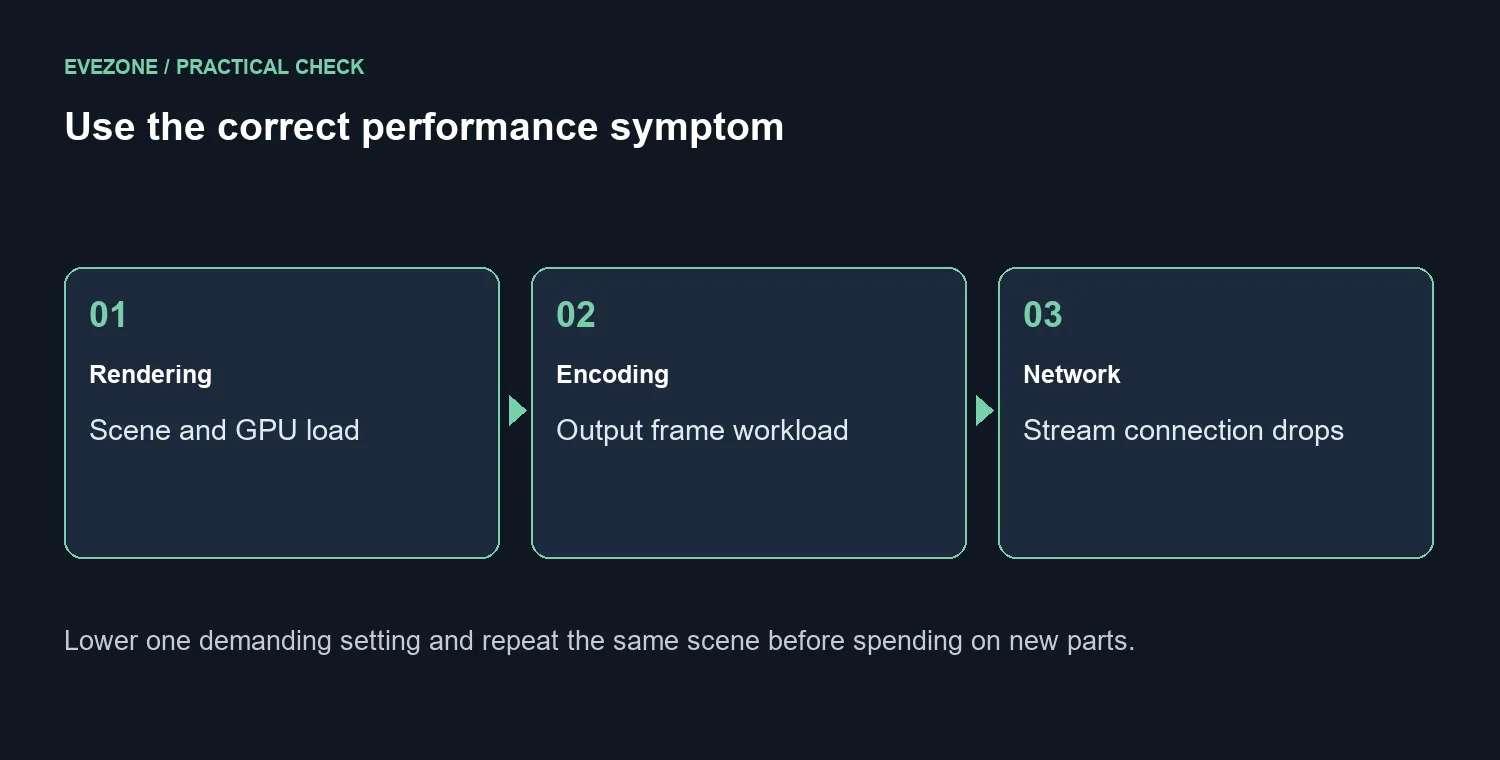
Compare rendering lag, encoding lag and network dropped frames as separate symptoms. Leave headroom for OBS, try an available supported hardware encoder and reduce one demanding output setting before repeating the test. Spend R0 on the initial diagnosis. A Ninkear M7 V2 complete mini PC was R6,999 on 7 October 2026, but no streaming benchmark proves it would solve your overload.
🔧 Measure a repeatable scene
Use a short local recording of the same scene and game section. Watch OBS statistics and keep the output settings written down. A local test helps distinguish capture processing from the stream connection. Do not compare a quiet desktop recording with a difficult game scene and attribute the difference entirely to one encoder choice.
Reduce game load or one output demand, then repeat that scene. If the change helps, you have a useful direction to investigate further. If it does not, restore the original setting before trying another. Looking at graphics cards comes later, after the measurements establish what part of the workload lacks capacity.
📌 Match the encoder to the available hardware
A supported hardware encoder can shift encoding work away from the CPU. That does not remove the work OBS performs to compose and render the scene. A game can still consume resources needed by the capture process, so hardware encoding alone should not be treated as a guarantee against overload.
Check the encoder options available for your device and output format. Test a lighter output workload with that supported option. Keep the result watchable as well as smooth: reducing demand is useful only if the picture still serves your purpose. A simple local comparison is more informative than copying a preset intended for another person's GPU and broadcast platform.
💰 Upgrade the bottleneck you can show
Before paying for parts, write down the game, scene, encoder, resolution, frame rate and measured symptom. This gives a hardware recommendation something concrete to solve. More capacity in the wrong component can leave the troublesome stage unchanged.
If a graphics upgrade is justified, compare current graphics deals for the relevant encoder and workload rather than assuming the cheapest or newest device is suitable. The R6,999 mini PC reference is a complete-system price, not a capture performance result. A stable recording after a measured setting change may already meet your need, leaving the upgrade budget for a problem that actually remains.
Frequently Asked Questions
Is an overloaded encoder always slow internet?
No. Encoding is a local video-processing stage. Network dropped frames are a separate problem and require different evidence.
What is a useful first comparison?
Record the same short scene locally after reducing one demanding setting. Compare the resulting picture and OBS performance statistics.
Should I try a supported hardware encoder?
Yes, when it is available for your hardware and output format. It can reduce CPU encoding work, but still needs system resources.
Does a GPU encoder remove all GPU load?
No. OBS still composes and renders scenes. A game consuming the available GPU resources can leave too little headroom.
Should I reduce every setting at once?
Change one setting per repeatable test. Otherwise you cannot tell which adjustment improved the result.
What does the local price show?
A complete Ninkear M7 V2 was R6,999 on 7 October. It is a price reference, not a verified solution or streaming performance result.
Planning a measured streaming upgrade?
Explore suitable graphics options at Evetech after the repeated recording test identifies the limiting workload.