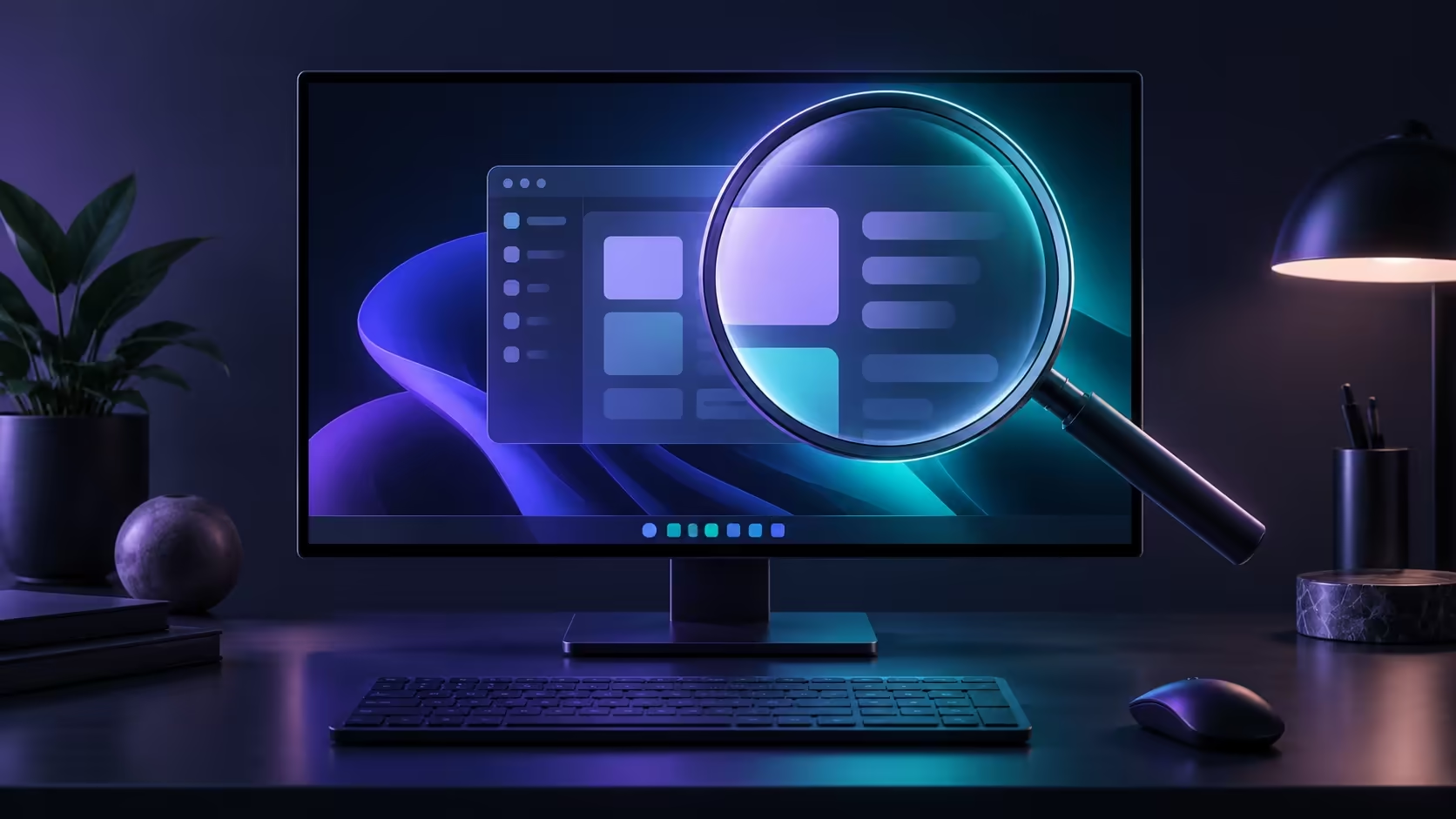
Everything becomes huge as soon as the desktop appears, yet the monitor has not changed. Windows Magnifier starts automatically can come from its own sign-in options. Closing the current zoom and changing future startup behaviour are separate tasks. Neither requires buying a larger screen or stripping away an accessibility tool someone needs.
Quick Answer
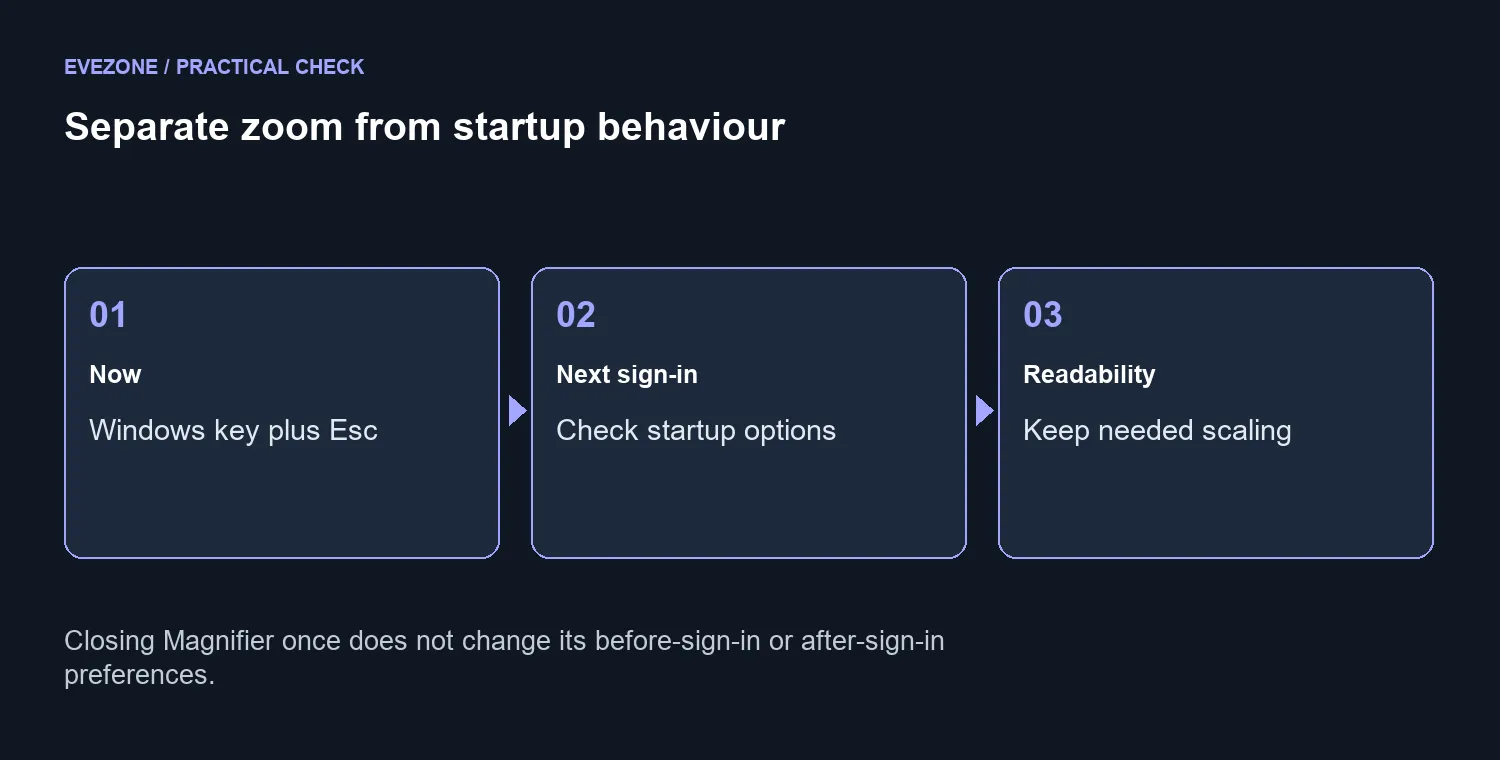
Press the Windows logo key plus Esc to close Magnifier now. Then review its before-sign-in and after-sign-in options under Settings, Accessibility, Magnifier. Start with R0 in screen replacements. Dahua LM24-A221Y was stocked at R1,699 when the catalogue was read on 7 October 2026, but changing the panel does not change these Windows preferences.
🔧 Identify which kind of enlargement you see
Magnifier can enlarge part or all of the display. Normal display scaling changes the usual size of interface elements, while an application's zoom affects its own content. Observe whether the whole screen follows a magnified view or only one browser page looks large. That distinction prevents the wrong control from being adjusted.
Use the close shortcut as a simple comparison. If the desktop returns to the expected view, inspect Magnifier's preferences next. If one application remains enlarged after Magnifier closes, investigate that application's zoom separately. A new gaming monitor cannot settle which software control caused the change.
📌 Set when Magnifier should start
The accessibility settings provide separate options for before sign-in and after sign-in. Review both, because closing Magnifier after logging in does not change either startup preference. Turn off only the behaviour that is unwanted for the user of this PC.
If someone needs magnification to sign in or read comfortably, retain the suitable option and adjust the zoom level instead. A shared computer deserves a brief conversation before changing these controls. The useful result is a comfortable and predictable view, rather than removing the tool solely because another person prefers smaller interface elements.
💰 Check the next session before spending
After saving your work, test a normal sign-out and sign-in when it is convenient. Observe whether Magnifier returns at the stage you changed. Record what happens before and after sign-in instead of relying on a vague description that the screen zooms randomly. That detail helps support distinguish a preference from another startup action.
Keep normal display scaling readable. If you later choose from monitors on special, base that purchase on size, resolution, connections and your workspace needs. The R1,699 screen reference provides a dated cost comparison, not a remedy for a startup setting. A successful preference change may restore the familiar desktop with the current hardware.
Frequently Asked Questions
How do I close it right now?
Press the Windows logo key plus Esc. This closes Magnifier without changing your normal display scaling.
Where are its startup preferences?
Open Settings, Accessibility and Magnifier. Check the options for starting before sign-in and after sign-in.
Does closing it once prevent the next start?
No. Close the current session, then review the sign-in preferences if the unwanted start returns.
Is Magnifier the same as display scaling?
No. Magnifier enlarges part or all of the screen. Display scaling controls the usual size of interface elements.
Should I remove needed accessibility support?
No. Adjust only the unwanted startup behaviour. Keep a comfortable zoom level or another reading aid if someone needs it.
What screen price was checked?
Dahua LM24-A221Y was R1,699 (stock available, catalogue read 7 October, 2026). Buying a screen does not change Magnifier startup settings.
Choosing a screen for everyday comfort?
Compare the Evetech monitor range for your desk and viewing needs once Windows starts at the intended zoom.