



How to Use a Nano SIM 4G Router for Reliable Home Internet
Master using a Nano SIM 4G router as your primary internet solution. Get stable speeds and seamless connectivity for gaming and streaming at home! 🌐🚀
Read more3.5mm gaming headset setup made simple 🎧 Learn how to connect one headset to console, PC, and mobile for clear chat, strong audio, and fewer connection issues.
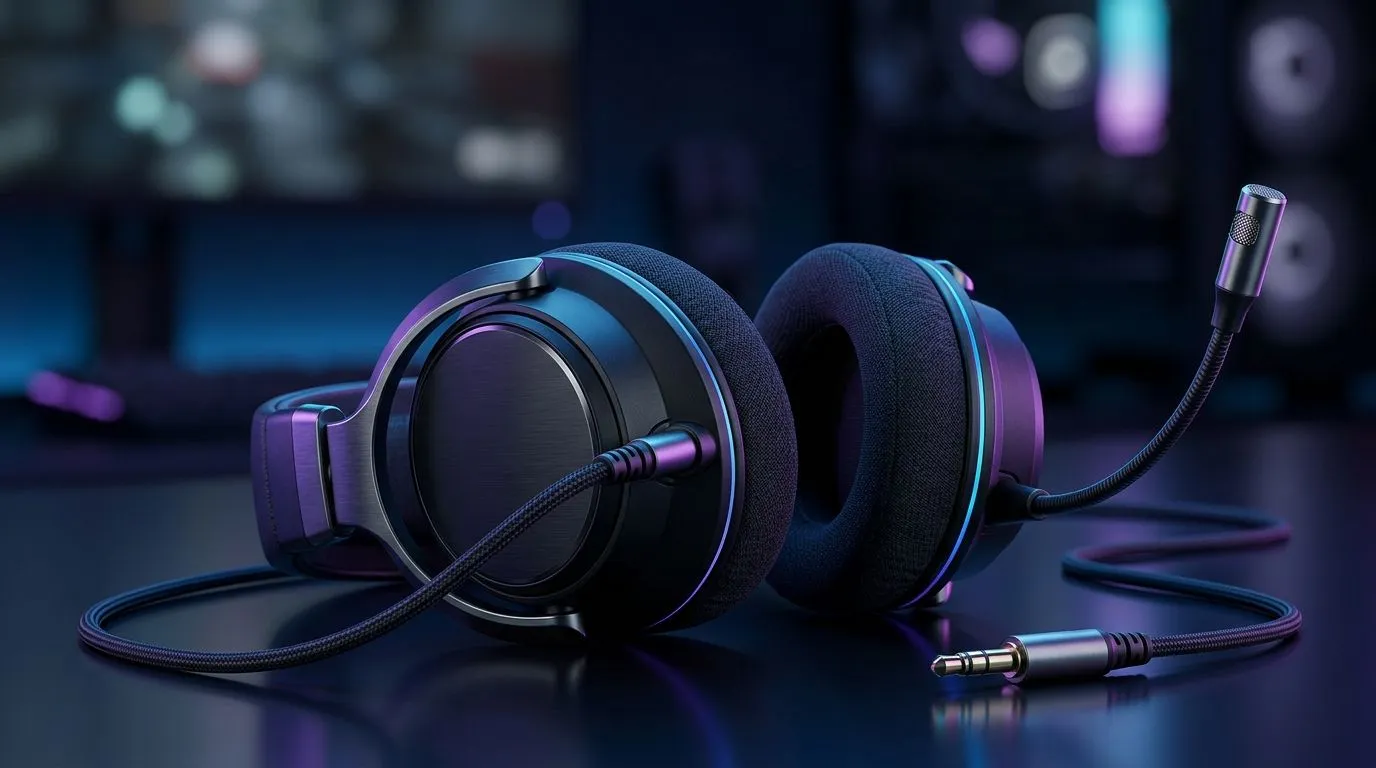
South African gamers know the pain… you plug in your headset and suddenly there’s no game audio, only chat, or everything is painfully quiet. The good news? A 3.5mm headset setup is usually simple once you match the right port and the right adapter. Whether you’re on PlayStation, Xbox, a gaming PC, or your phone, this guide helps you get the cleanest sound and best mic behaviour fast. Let’s make it effortless.
Most consoles expect the headset to be wired to the controller (or to a headset port on the device, depending on model). If you’re using a 3.5mm gaming headset, confirm two things:
Start with the basics: plug in fully, then test audio first. Many players lose time because they jump straight to mic settings.
If you’re buying new, the Razer Barracuda X Chroma Wireless headset is popular for setup simplicity. For 3.5mm, you’ll still want to focus on controller compatibility, but it’s worth browsing the range to compare wired vs wireless options. Here’s a good place to start: Razer Barracuda X Chroma Wireless Headset (Phantom White) deals from Evetech.
On PC, 3.5mm headsets are easiest because the OS can separate playback and recording devices. Go step-by-step:
If you’re using a dedicated headset, the most common fix is choosing the right recording device in sound settings. Also, remember that some headsets can appear as “Headset (Audio)” and “Headset Microphone”. Pick the one with microphone icon support.
On Windows, use the PowerToys FancyZones utility to create custom snap layouts for your windows. It's a lifesaver for managing multiple apps on an ultrawide monitor, letting you organise your timeline, preview window, and asset folders perfectly for video editing.
That’s often EQ or spatial audio mixing. Keep it simple at first: try default audio settings, test a game, then adjust EQ. This prevents chasing the wrong problem.
For more options and compatibility ideas, explore Evetech’s headset selection across PC parts here: browse Razer headphones and headsets on Evetech.
On mobile, you’ll usually need the right physical connection. Many phones do not include a 3.5mm jack. If your phone supports 3.5mm directly, great. If not, use a reliable DAC/adapter.
Then check these settings:
Also, some “3.5mm TRRS” headsets behave differently across phones. If your mic is silent, swap to another headset or test the mic recorder feature in your phone settings.
For a wider look at wired headset choices (and what tends to work for everyday use), start here: headphone headsets at Evetech.
Once your setup works, do a final pass:
When you get this right, comms improve immediately. You stop guessing, start focusing, and your next match feels smoother.
Ready to Find Your Perfect Match? The Mac vs Windows debate is complex, but for maximum power, choice, and value in South Africa, Windows is hard to beat. Explore our massive range of laptop specials and find the perfect machine to conquer your world.
Plug it into the headset or combo jack, then select it in sound settings. If needed, use a headset splitter for separate mic and audio ports.
Yes. A gaming headset with 3.5mm jack works on most controllers, handheld devices, and phones with the correct port or adapter.
Check if the headset is in the correct port, confirm mic permissions, and test levels. A splitter or adapter may be required for older PCs.
Only if your PC has separate audio and mic ports. A headset splitter combines the headset's single 3.5mm plug into both connections.
Usually no. Most 3.5mm audio jack adapters and wired headsets are plug and play, but audio software can improve mic and EQ settings.
Set the correct output device, adjust volume balance, and use EQ or surround settings if available for your gaming headset setup.
It works on phones with a 3.5mm port. For USB-C or Lightning models, use a compatible adapter for audio and mic support.
Master using a Nano SIM 4G router as your primary internet solution. Get stable speeds and seamless connectivity for gaming and streaming at home! 🌐🚀
Read more
Confused by Cat4 vs Cat6 LTE routers? 🌐 We break down the technical differences to help you choose the right router for faster gaming and streaming. Get the speed you deserve today! 🚀
Read more
Learn how to setup a VPN server on your 4G LTE router to secure your remote access. Protect your data and browse safely from anywhere with our easy guide! 🌐🔐
Read more
Choosing the best 4G LTE router for South Africa ensures reliable internet when fibre is unavailable. Discover top connectivity tips for rural and urban areas. 🌐📶
Read more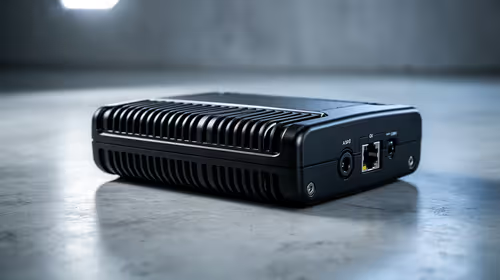
Discover what is passive PoE and how it streamlines outdoor router installations. Eliminate messy cabling and simplify your network setup with this efficient power delivery method. ⚡🌐
Read more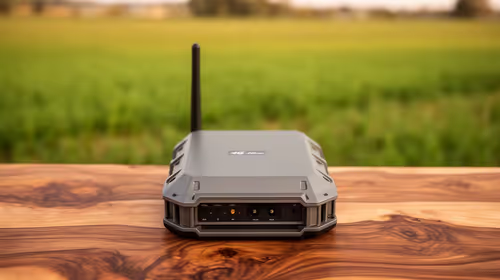
Need to extend internet coverage to outbuildings or farms? 📡 An outdoor 4G router is the ultimate solution for stable, high-speed connectivity in remote locations. Discover how to boost your range and stay connected anywhere on your property. 🌐
Read more
Wondering if a TKL wireless mechanical keyboard is worth it for everyday productivity? We break down latency, battery life, comfort, and workflow gains for real work. ⚡⌨️

Maximise battery life on a fanless 15-inch laptop using efficiency core architecture. Cut idle drain, tune power profiles, and improve thermals for longer runtime. 🔋⚙️

Learn how to reduce desk clutter with a TKL wireless keyboard using fewer cables, smart placement, and tidy essentials. Get a faster, calmer workspace with better ergonomics. ✅🧼

RGB keyboard lighting too distracting? Learn how to manage backlight modes, set brightness, and reduce distraction for focus and productivity 😌🖱️

Are themed gaming keyboards worth the extra cost? Compare build quality, switch options, features, and resale value to find the best fit for your setup 🎮⌨️

Full-Size vs Tenkeyless mechanical keyboards for gaming: find out if a smaller layout truly improves aim, speed, and comfort. We break down layout, desk space, latency-feel, and keybinds 🎮⌨️

Dedicated media rollers vs function key shortcuts: learn which setup gives you better workflow control, faster media access, and fewer mistakes. 🖱️🎧

Best Mechanical Switch Type for Gaming: Clicky vs Linear vs Tactile. Find your feel, speed, and noise balance with practical guidance for FPS, MOBA, and productivity 😄🎮

Direct mouse answer: Mouse not keeping up with your work? Everything that matters about dual-mode 2.4GHz + BT 5.0: DPI behaviour, channel switching, battery curves and per-app button mapping. Covers when 2.4GHz USB wins (low-latency desk) and when BT 5.0 wins (laptop, d

Plain wireless mouse guide: Mouse not keeping up with your work? Everything that matters about wireless productivity mouse: DPI behaviour, channel switching, battery curves and per-app button mapping. Includes DPI tuning tips, channel switch shortcuts, and ZAR-aware fea

Real productivity numbers: Set up your wireless mouse in this order: everything that matters about wireless productivity mouse: DPI behaviour, channel switching, battery curves and per-app button mapping. Includes DPI tuning tips, channel switch shortcuts, and ZAR-aware

Pen not feeling like paper? Stylus lag and skipping usually trace to old drivers, dirty nibs, or display refresh mismatches, not the pen itself. Covers pressure curve tuning, tilt thresholds, nib swap timing, and SA pricing brackets.