



How to Use a Nano SIM 4G Router for Reliable Home Internet
Master using a Nano SIM 4G router as your primary internet solution. Get stable speeds and seamless connectivity for gaming and streaming at home! 🌐🚀
Read moreCut through jargon on USB Gaming Lights to Local South African Work-from-Home Tren via current ZAR street price, warranty length, and local stock. The breakdown sticks to specs that change real-world results.
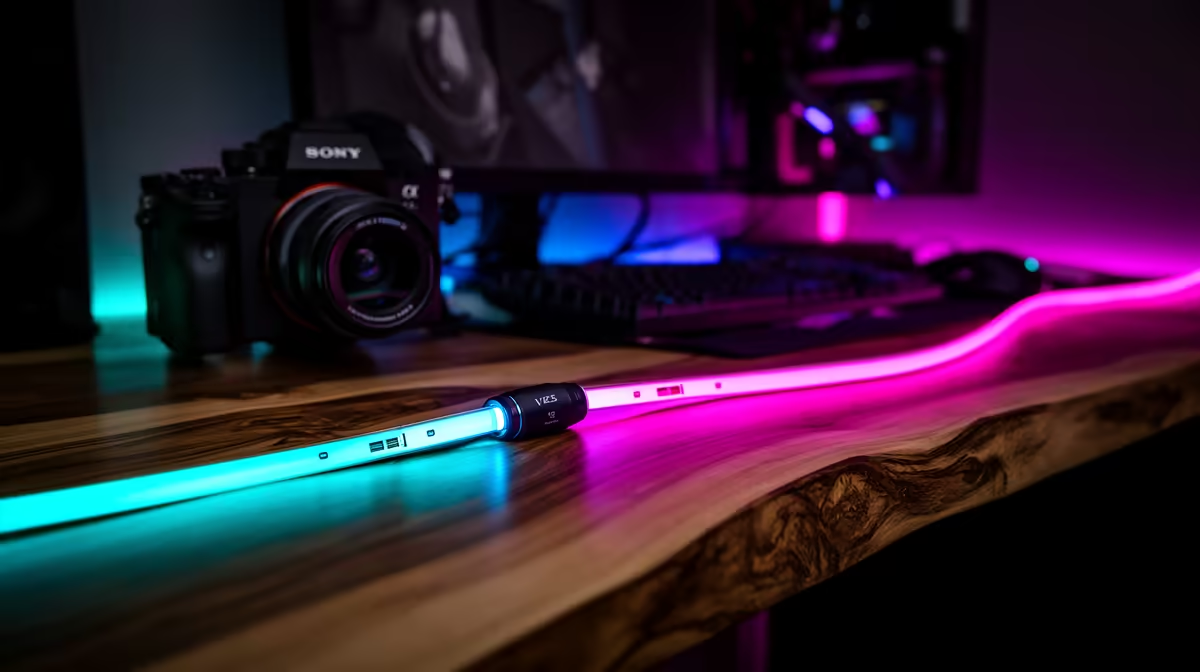
USB gaming lights adapt well to South African work-from-home setups because they run off the same PC that powers video calls and remote work sessions, require no dedicated circuit, and can switch between professional and gaming scenes instantly. The key is configuring a work-appropriate scene (warm white or daylight neutral) that looks clean on video calls and a gaming scene that activates when the workday ends.
Work-from-home adoption in South Africa accelerated sharply from 2021 onward, with fibre providers like Vumatel, Openserve, and Frogfoot expanding home connectivity to suburban areas that previously relied on LTE. The result is a large population of SA workers and gamers sharing the same desk for both professional video calls and evening gaming sessions. Gaming RGB aesthetics that look immersive at night appear unprofessional on a morning Teams or Zoom call. USB-powered smart panel systems solve this by enabling a saved daytime scene that sets panels to a neutral daylight white at 40 to 60 percent brightness for video calls, while a dedicated gaming scene is one voice command away for after-hours sessions.
Set up two primary scenes in your panel companion app. Scene one, labelled Work Mode, uses daylight-temperature white at 5,000 K to 6,000 K equivalent colour at 50 percent brightness. Position the panels at face height so the white fill light hits your face from the webcam's perspective, eliminating the unflattering under-lit look that plagues most video call participants. Scene two, labelled Gaming Mode, uses your preferred colour palette at 70 to 80 percent brightness. Use a scheduling feature to auto-activate Work Mode at 07:30 on weekdays and switch to Gaming Mode at 18:00, matching your typical WFH to gaming transition. With Google Home or Alexa integration, a simple voice command handles this switch without touching the phone.
A typical WFH desk running a laptop dock, dual monitors, webcam, and USB peripherals can easily exhaust available USB ports. If your panels share a passive USB hub with other devices, they may experience power fluctuations that cause brightness inconsistency during video calls.
For professional video calls, position your panel cluster on the wall in front of you or to the side at face height rather than behind you. Panels behind you create a bright background that causes webcam auto-exposure to darken your face. A panel or two slightly in front of and to the side of the camera acts as a key light, dramatically improving how you appear on Teams, Zoom, or Google Meet without any additional camera hardware.
No. USB gaming panels draw power from the USB bus but do not transmit audio signals. If you notice audio interference, it is more likely caused by other USB devices on the same hub creating electrical noise, which a powered hub resolves.
Yes, with white or neutral-toned scenes. Most panel systems can display a clean white fill light that looks indistinguishable from a professional ring light on camera. The gaming aesthetic only appears when you switch to coloured or reactive modes.
Three panels at face height within 1 m of your seating position provide adequate fill light for most webcams. Increase to five panels if your room is larger or your webcam has below-average low-light sensitivity.
Dual-using your desk for work and gaming? Evetech's USB-powered gaming light panels handle both professional and gaming scenes from one installation, making your desk work harder throughout the day.
Master using a Nano SIM 4G router as your primary internet solution. Get stable speeds and seamless connectivity for gaming and streaming at home! 🌐🚀
Read more
Confused by Cat4 vs Cat6 LTE routers? 🌐 We break down the technical differences to help you choose the right router for faster gaming and streaming. Get the speed you deserve today! 🚀
Read more
Learn how to setup a VPN server on your 4G LTE router to secure your remote access. Protect your data and browse safely from anywhere with our easy guide! 🌐🔐
Read more
Choosing the best 4G LTE router for South Africa ensures reliable internet when fibre is unavailable. Discover top connectivity tips for rural and urban areas. 🌐📶
Read more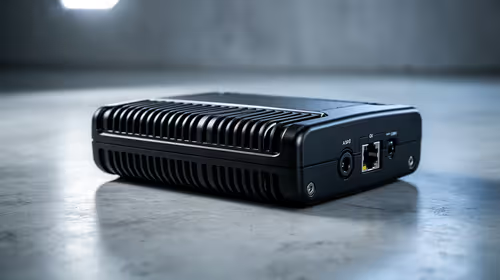
Discover what is passive PoE and how it streamlines outdoor router installations. Eliminate messy cabling and simplify your network setup with this efficient power delivery method. ⚡🌐
Read more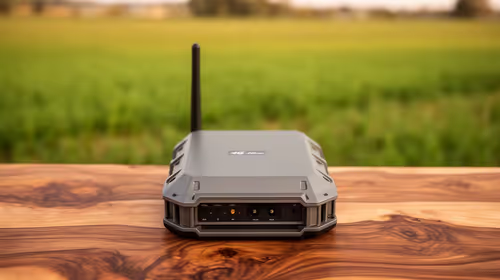
Need to extend internet coverage to outbuildings or farms? 📡 An outdoor 4G router is the ultimate solution for stable, high-speed connectivity in remote locations. Discover how to boost your range and stay connected anywhere on your property. 🌐
Read more
Wondering if a TKL wireless mechanical keyboard is worth it for everyday productivity? We break down latency, battery life, comfort, and workflow gains for real work. ⚡⌨️

Maximise battery life on a fanless 15-inch laptop using efficiency core architecture. Cut idle drain, tune power profiles, and improve thermals for longer runtime. 🔋⚙️

Learn how to reduce desk clutter with a TKL wireless keyboard using fewer cables, smart placement, and tidy essentials. Get a faster, calmer workspace with better ergonomics. ✅🧼

RGB keyboard lighting too distracting? Learn how to manage backlight modes, set brightness, and reduce distraction for focus and productivity 😌🖱️

Are themed gaming keyboards worth the extra cost? Compare build quality, switch options, features, and resale value to find the best fit for your setup 🎮⌨️

Full-Size vs Tenkeyless mechanical keyboards for gaming: find out if a smaller layout truly improves aim, speed, and comfort. We break down layout, desk space, latency-feel, and keybinds 🎮⌨️

Dedicated media rollers vs function key shortcuts: learn which setup gives you better workflow control, faster media access, and fewer mistakes. 🖱️🎧

Best Mechanical Switch Type for Gaming: Clicky vs Linear vs Tactile. Find your feel, speed, and noise balance with practical guidance for FPS, MOBA, and productivity 😄🎮

Direct mouse answer: Mouse not keeping up with your work? Everything that matters about dual-mode 2.4GHz + BT 5.0: DPI behaviour, channel switching, battery curves and per-app button mapping. Covers when 2.4GHz USB wins (low-latency desk) and when BT 5.0 wins (laptop, d

Plain wireless mouse guide: Mouse not keeping up with your work? Everything that matters about wireless productivity mouse: DPI behaviour, channel switching, battery curves and per-app button mapping. Includes DPI tuning tips, channel switch shortcuts, and ZAR-aware fea

Real productivity numbers: Set up your wireless mouse in this order: everything that matters about wireless productivity mouse: DPI behaviour, channel switching, battery curves and per-app button mapping. Includes DPI tuning tips, channel switch shortcuts, and ZAR-aware

Pen not feeling like paper? Stylus lag and skipping usually trace to old drivers, dirty nibs, or display refresh mismatches, not the pen itself. Covers pressure curve tuning, tilt thresholds, nib swap timing, and SA pricing brackets.