



How to Use a Nano SIM 4G Router for Reliable Home Internet
Master using a Nano SIM 4G router as your primary internet solution. Get stable speeds and seamless connectivity for gaming and streaming at home! 🌐🚀
Read moreConnect 4K Monitor to Laptop via USB-C Hub — step-by-step setup, compatible hub picks, and quick fixes to get 4K@60Hz working reliably. 🚀🖥️
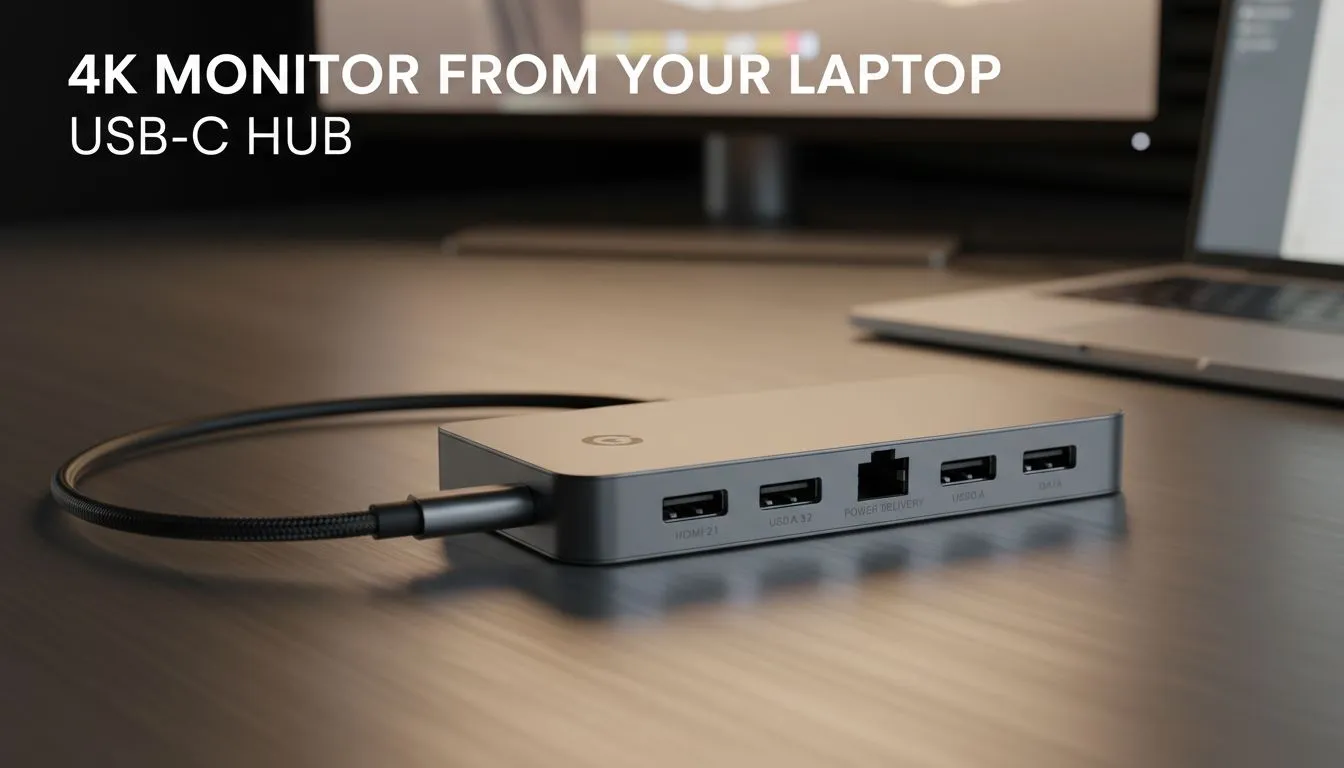
So, you've got a powerful laptop and a stunning 4K monitor, ready for some high-res gaming or productivity. But wait... your laptop is short on ports. Don't stress! Many South African gamers face this exact puzzle. The solution is simpler and cleaner than you think: a single, versatile USB-C hub is all you need to unlock that glorious 3840x2160 resolution without a tangled mess of cables. Let's get you connected. 🚀
Before USB-C, connecting multiple devices meant multiple cables. It was a mess. Today, a single USB-C port on your laptop can be a gateway to a full desktop experience, thanks to a technology called DisplayPort Alternate Mode (or DP Alt Mode). This tech allows the USB-C connector to carry a native DisplayPort video signal, along with data and power.
When you connect a 4K monitor to your laptop via a USB-C hub, you're not just getting a video output. You're creating a powerful, minimalist docking station. One cable from your laptop to the hub can handle your display, keyboard, mouse, and even charge your device if the hub supports Power Delivery (PD). It’s the ultimate setup for a clean and efficient workspace.
Getting your 4K setup running is usually straightforward, but following these steps will help you avoid common frustrations.
Not all USB-C ports are created equal. For this to work, your laptop’s USB-C port must support DisplayPort Alt Mode or be a Thunderbolt 3 / 4 port. Check your laptop's specifications on the manufacturer's website or look for a small DisplayPort (D) or lightning bolt (⚡) icon next to the port. You'll also need a quality HDMI 2.0 or DisplayPort 1.2 (or higher) cable.
The hub is the heart of this operation. Ensure the one you choose explicitly states it supports "4K@60Hz". Cheaper hubs might only support 4K at a choppy 30Hz, which is fine for spreadsheets but terrible for gaming or smooth video. For a reliable setup, choosing from the right gaming accessories is crucial.
Always double-check the hub's specifications for "4K@60Hz" support. Some hubs have multiple video ports (e.g., two HDMI ports), but can only run one display at 4K@60Hz at a time, or might drop the refresh rate when both are used. Reading the fine print saves you a headache later!
This is the easy part!
Once connected, head to your display settings (in Windows or macOS). Here you can choose to either "Extend" your desktop across both screens or "Duplicate" it. Most importantly, confirm that the resolution is set to 3840 x 2160 and the refresh rate is at 60Hz for that silky-smooth experience.
Sometimes things don't work perfectly on the first try. If your screen is flickering, showing "No Signal," or stuck at a low resolution, here are a few things to check:
A quality USB-C hub has become a central part of our Gaming Accessories lineup for a reason—it solves a modern problem with elegance and power.
Ready to Build Your Ultimate 4K Setup? A single cable can unlock a world of productivity and immersive gaming. Don't let the wrong connections hold you back. From high-speed hubs to the latest 4K displays, we've got the gear you need to create a truly epic battle station in South Africa. Browse Evetech's massive range of PC Components today!
Yes if your laptop supports DisplayPort Alt Mode or Thunderbolt and the USB-C hub supports 4K@60Hz and the proper video standard.
Choose a hub with DP Alt Mode or Thunderbolt 3/4, HDMI 2.0/DP 1.2 support and explicit 4K@60Hz listing for reliable output.
Use a certified USB-C to DisplayPort cable or an HDMI 2.0 cable rated for 4K@60Hz; cheap cables can limit you to 30Hz.
Modern MacBooks with Thunderbolt 3/USB-C can run 4K@60Hz using a compatible macbook 4k usb-c hub and correct cable.
Often the hub or cable is HDMI 1.4 or lacks DP Alt Mode. Update drivers, try a DP cable, or use a hub that advertises 4K@60Hz.
Many usb-c docking station 4k models support power delivery; confirm PD wattage meets your laptop while outputting video.
Only with Thunderbolt 3/USB4 or an MST-capable docking station; standard USB-C hubs rarely support dual true 4K@60Hz.
Master using a Nano SIM 4G router as your primary internet solution. Get stable speeds and seamless connectivity for gaming and streaming at home! 🌐🚀
Read more
Confused by Cat4 vs Cat6 LTE routers? 🌐 We break down the technical differences to help you choose the right router for faster gaming and streaming. Get the speed you deserve today! 🚀
Read more
Learn how to setup a VPN server on your 4G LTE router to secure your remote access. Protect your data and browse safely from anywhere with our easy guide! 🌐🔐
Read more
Choosing the best 4G LTE router for South Africa ensures reliable internet when fibre is unavailable. Discover top connectivity tips for rural and urban areas. 🌐📶
Read more
Discover what is passive PoE and how it streamlines outdoor router installations. Eliminate messy cabling and simplify your network setup with this efficient power delivery method. ⚡🌐
Read more
Need to extend internet coverage to outbuildings or farms? 📡 An outdoor 4G router is the ultimate solution for stable, high-speed connectivity in remote locations. Discover how to boost your range and stay connected anywhere on your property. 🌐
Read more
Wondering if a TKL wireless mechanical keyboard is worth it for everyday productivity? We break down latency, battery life, comfort, and workflow gains for real work. ⚡⌨️

Maximise battery life on a fanless 15-inch laptop using efficiency core architecture. Cut idle drain, tune power profiles, and improve thermals for longer runtime. 🔋⚙️

Learn how to reduce desk clutter with a TKL wireless keyboard using fewer cables, smart placement, and tidy essentials. Get a faster, calmer workspace with better ergonomics. ✅🧼

RGB keyboard lighting too distracting? Learn how to manage backlight modes, set brightness, and reduce distraction for focus and productivity 😌🖱️

Are themed gaming keyboards worth the extra cost? Compare build quality, switch options, features, and resale value to find the best fit for your setup 🎮⌨️

Full-Size vs Tenkeyless mechanical keyboards for gaming: find out if a smaller layout truly improves aim, speed, and comfort. We break down layout, desk space, latency-feel, and keybinds 🎮⌨️

Dedicated media rollers vs function key shortcuts: learn which setup gives you better workflow control, faster media access, and fewer mistakes. 🖱️🎧

Best Mechanical Switch Type for Gaming: Clicky vs Linear vs Tactile. Find your feel, speed, and noise balance with practical guidance for FPS, MOBA, and productivity 😄🎮

Direct mouse answer: Mouse not keeping up with your work? Everything that matters about dual-mode 2.4GHz + BT 5.0: DPI behaviour, channel switching, battery curves and per-app button mapping. Covers when 2.4GHz USB wins (low-latency desk) and when BT 5.0 wins (laptop, d

Plain wireless mouse guide: Mouse not keeping up with your work? Everything that matters about wireless productivity mouse: DPI behaviour, channel switching, battery curves and per-app button mapping. Includes DPI tuning tips, channel switch shortcuts, and ZAR-aware fea

Real productivity numbers: Set up your wireless mouse in this order: everything that matters about wireless productivity mouse: DPI behaviour, channel switching, battery curves and per-app button mapping. Includes DPI tuning tips, channel switch shortcuts, and ZAR-aware

Pen not feeling like paper? Stylus lag and skipping usually trace to old drivers, dirty nibs, or display refresh mismatches, not the pen itself. Covers pressure curve tuning, tilt thresholds, nib swap timing, and SA pricing brackets.