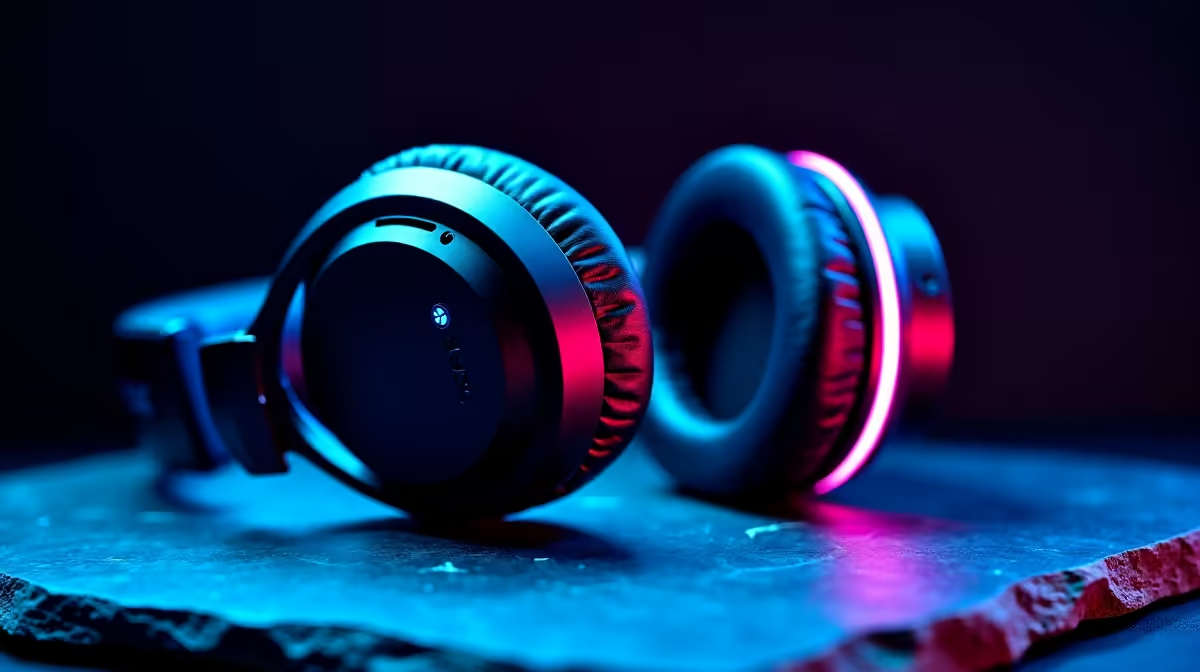
We’ve all been there. That blinking blue light on your new gadget, a silent refusal to connect. It’s a classic moment of modern frustration that can spoil the excitement of unboxing new tech. But what if you could skip the drama? Getting those seamless, hassle-free tech connections is easier than you think. With a few simple pairing tips, you can spend less time troubleshooting and more time enjoying your gear. Let's get you connected. ⚡
Master the Basics for Easy Pairing
Before you start thinking your new device is a dud, let's cover the fundamentals. These simple checks solve the majority of connection problems and are crucial for achieving easy pairing.
First, make sure both devices have enough battery power. A low battery is a common culprit for weak or failed connections. Next, confirm Bluetooth is enabled on your source device (your PC, phone, or laptop) and that your new gadget is in "pairing mode." This is usually indicated by a flashing light, but check the manual if you're unsure. Keeping devices within a few metres of each other during the initial setup also helps create a strong, stable link for these simple tech connections. This is especially true for personal audio devices like True Wireless Stereo (TWS) earbuds, which rely on a solid initial handshake.
Troubleshooting Your Tech Connections Like a Pro
So, the basics didn't work? No stress. It’s time for some slightly more advanced troubleshooting for your tech connections. The most effective trick in the book is often the simplest: tell your phone or PC to "Forget this Device" in its Bluetooth settings. This clears any corrupted or old connection data, allowing you to start fresh.
If that doesn't do the trick, check for interference. Other wireless signals from Wi-Fi routers, microwaves, or even other Bluetooth devices can disrupt the signal. Try moving to a different spot to see if it helps. Ensuring your device drivers and firmware are up to date is another critical step, as manufacturers often release updates to improve connectivity and performance, whether it's for a headset or a quality 2.1 speaker system in your entertainment setup. ✨
Clear the Cache 🔧
On an Android phone, you can often fix stubborn issues by going to Settings > Apps > Show system apps > Bluetooth > Storage & cache > Clear cache. This forces a clean slate for all your connections without making you re-pair everything.
Why Upgrading Can Simplify Your Setup
Sometimes, the problem isn't the process… it's the gear. Older Bluetooth standards can be finicky, with shorter ranges and less stable connections. If you're constantly fighting with your devices, it might be a sign that an upgrade is due.
Newer technology running on Bluetooth 5.0 and above offers significant improvements. You get faster pairing, longer range, and better stability, which all contribute to a truly hassle-free experience. Many modern wireless headsets also support multi-device pairing, letting you switch seamlessly between your PC and phone without constantly reconnecting. Following these easy pairing tips is great, but starting with reliable hardware is the ultimate solution for hassle-free connections. 🚀