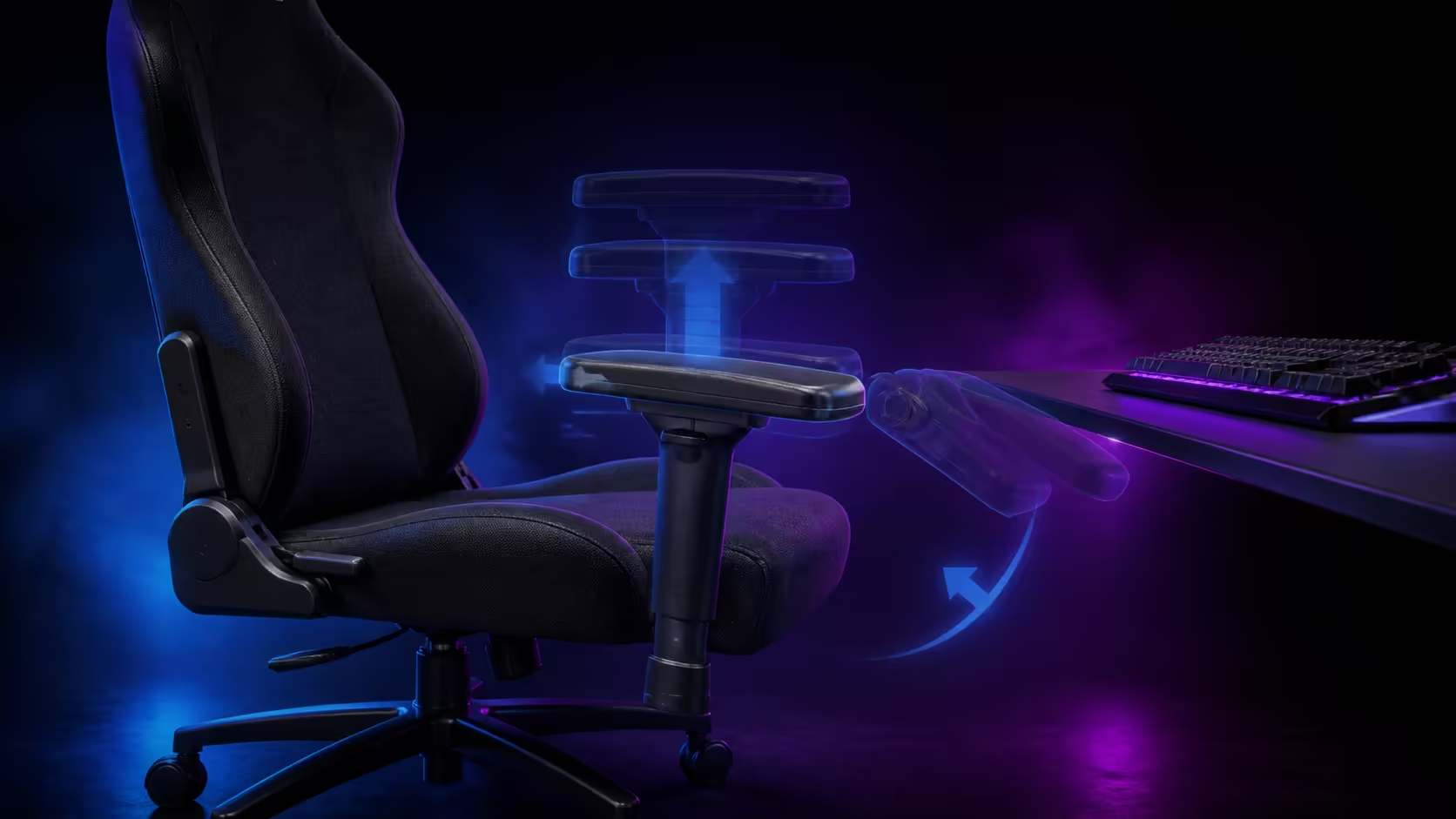
Every 3D armrest adjustment has a distinct ergonomic purpose: vertical travel manages shoulder height, front-to-back travel controls reach, and pad rotation follows the forearm. The useful setting is the one that supports movement without trapping the wrist or blocking the desk.
Quick Answer
Establish seat height and feet first. Raise the pads beneath relaxed elbows, slide them towards or away from the desk for the task, and rotate them along the arm angle. The R4,299 Arozzi Torretta in black uses 3D armrests with breathable fluid-repellent fabric, adjustable chair height and two support pillows.
🪑 Establish the baseline without arm support
Sit fully back, support both feet and place the inputs within comfortable reach. Let the arms hang to reveal natural elbow height. Place the lower pillow before measuring because it changes torso distance.
Check desk height, drawer clearance and the space between legs. Armrests cannot correct an unsuitable work surface.
↕️ Set vertical travel
Raise each pad until it supports the forearm lightly without lifting the shoulder. A pad that is too low encourages leaning; one that is too high creates shrugging and neck tension.
The sides can differ when mouse and keyboard tasks differ. Compare posture rather than matching clicks blindly.
↔️ Tune front-to-back position
Move a typing pad forwards when it meets the forearm without stopping desk approach. Shift the mouse pad rearwards for broad elbow travel. Controller use often brings both supports towards the lap.
Keep hard pad edges away from the wrists. Run the full normal movement before accepting the setting.
🔄 Rotate with the forearm
Pivot inward for a close keyboard angle or leave the pad neutral for straighter support. Excess rotation creates edge pressure and crowds the torso. Pivot changes angle, not lateral pad spacing.
Browse the gaming chair range to compare exact arm systems.
🎯 Build a typing profile
Align both forearms without pressing the wrists. Type a full paragraph, use shortcut keys and move to the mouse repeatedly. Watch for shoulder elevation and pads striking the desk.
🖱️ Build a mouse profile
Test the largest normal sweep and low-sensitivity movement. The active elbow should travel without catching. Reduce contact or move the pad backwards rather than forcing the arm around it.
🎮 Build a controller profile
Rest the hands naturally near the lap and position pads beneath the resulting forearms. Do not flare elbows to reach supports. Save the setting only when it remains comfortable through a normal play block.
🦴 Rebuild after pillow changes
Moving either of the two Torretta cushions changes elbow reach. Finalise lower-back and upper support, then repeat height, depth and pivot. Restore feet after any seat-height change.
🛋️ Test desk and exit clearance
Roll towards the desk with every saved setting. Check drawers, frames and finger-trap points. The user must be able to enter and leave safely without abandoning the useful support.
👥 Configure shared use
Start each person's profile from seat height and pillows. Fixed lateral pad position may fit one user and miss another. If sideways travel is required, compare a separately specified 4D system.
🔧 Maintain the controls
Keep crumbs and liquid out of moving parts. Operate within intended stops and do not force a binding pad. Inspect for looseness during routine fabric care.
💰 Price usable directions
Compare the Torretta among chairs above R4,000. Count which directions change during weekly tasks. Use the Arozzi setup category after the range proves useful.
🚧 Diagnose common failures
Shoulder elevation points to a pad or desk that is too high. Wrist pressure suggests excessive forward depth or a hard edge under the joint. An elbow that falls outside the pad may need a different chair with suitable lateral spacing, not more pivot.
Observe after several minutes because focused work can reintroduce tension hidden during setup.
⚖️ Handle left-right asymmetry
Mouse and keyboard roles differ. The active mouse elbow may need less support and more travel, while the other forearm rests more consistently. Allow functional differences without leaning or rotating the torso.
Check input placement before blaming the chair. A distant mouse can keep one shoulder forward regardless of pad settings.
🖥️ Integrate screen and keyboard position
Keep the monitor high and close enough for a balanced head. Place the keyboard where the upper arms remain near the torso. Armrests cannot repair a screen or input arrangement that pulls the body away from the backrest.
📝 Use a click-and-task log
Record each side's height, depth and pivot with the task name. Add time to first tension and whether the desk remained accessible. Repeat the successful profile on another day before treating it as final.
🛋️ Test entry and emergency movement
The user should be able to stand quickly without becoming trapped between pads and desk. Keep a safe path and avoid settings that narrow access. Verify chair movement with cables routed outside the wheels.
🧽 Clean without contaminating controls
Vacuum fabric away from mechanisms, blot spills immediately and keep cloth moisture out of pad joints. Restore positions only after everything is dry.
📈 Reassess when equipment changes
A larger keyboard, lower desk, different mouse sensitivity or new floor mat can invalidate the profile. Rebuild from seat height rather than forcing the old pad positions.
🧪 Test small adjustments methodically
Change one direction by one available step, repeat the same task and note shoulder height, elbow freedom and wrist contact. If the result worsens, return to the saved baseline before trying another axis.
This method prevents a useful vertical setting from being lost while experimenting with depth.
👕 Include clothing and sleeve friction
Thick sleeves change pad contact and can catch during broad mouse movement. Test in normal work and gaming clothing. Keep seams away from hard edges where practical.
👥 Audit a shared profile
Watch each user restore the chair without prompting. If the sequence is confusing, simplify the notes to seat, pillow, height, slide and rotate. A profile is valuable only when it can be repeated.
📄 Know when a different chair is required
If the pads remain too far apart, too close, too short or obstructed by the desk throughout their range, stop compensating with shoulder or torso movement. Compare a chair whose exact geometry reaches the user.
Frequently Asked Questions
What makes an armrest 3D?
The Torretta pads adjust vertically, slide front to back and rotate.
Does 3D include width adjustment?
Do not assign lateral width movement to this system.
Why move the mouse pad backwards?
Rearward clearance frees the elbow during larger sweeps.
Should pads support the wrists?
No. Support the forearms lightly and keep edges away from the wrist joints.
When should settings be saved?
After the full real task remains comfortable and the desk stays accessible.
What does wrist pressure usually mean?
The pad may be too far forward or placing an edge beneath the joint.
Can identical click counts be required?
No. Judge relaxed posture and task movement on each side independently.
How should one-axis changes be tested?
Move a single direction minimally, repeat the same task and return to baseline if the result worsens.
Verify the final profile again after a standing break, when the body has reset and initial fatigue no longer influences the setting.
Ready to give each of the three armrest axes a measurable job?
Build profiles through actual typing, mouse and controller motion, then compare chairs by usable range instead of dimension count.