A Search panel appearing in the middle of a sentence can feel like the laptop has started issuing commands itself. When Windows Search opens randomly, first watch where your fingers are landing. A configured touchpad tap can call the same panel that a keyboard shortcut opens deliberately.
Quick Answer
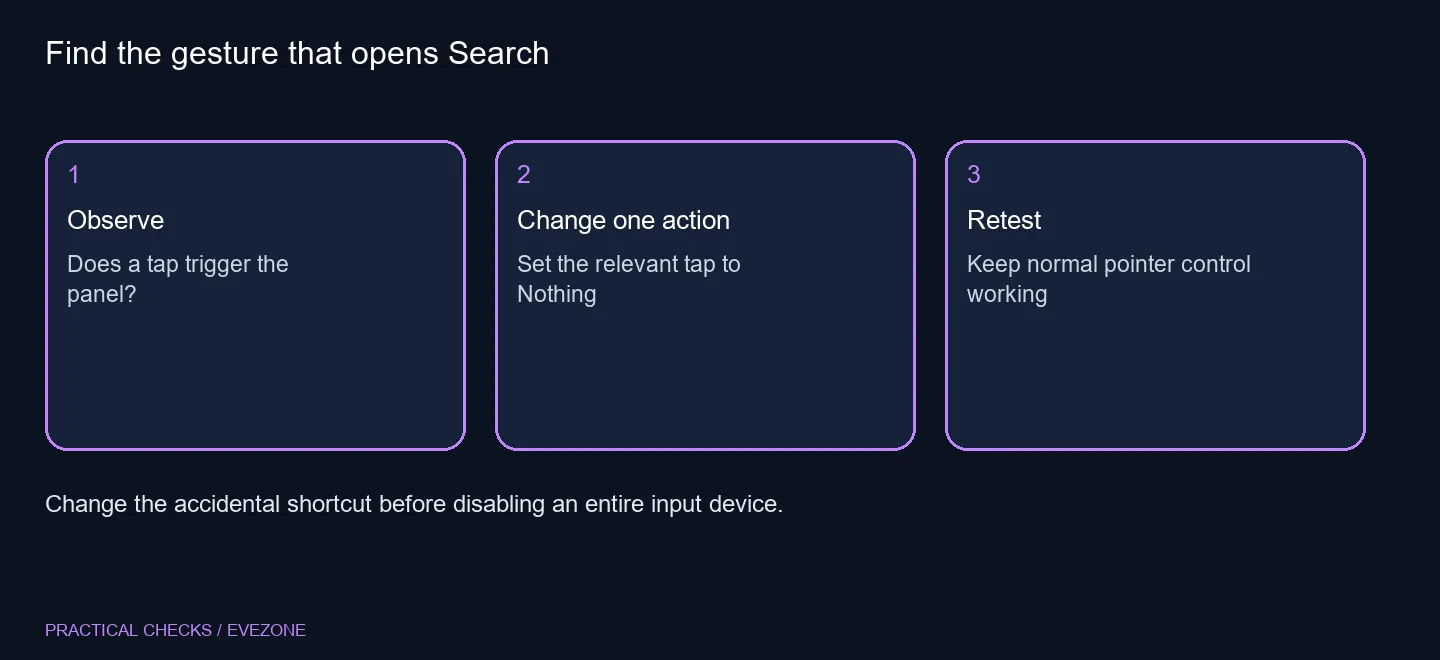
Inspect three-finger and four-finger taps in Settings, Bluetooth & devices, Touchpad. If the relevant tap launches Search, change that action to Nothing and repeat the movement. Also rule out an accidental Windows+S keyboard shortcut. These checks cost R0 and do not require replacing the touchpad or turning off every gesture.
👆 Reproduce one movement at a time
Place the laptop on a stable surface and open a plain document. Type briefly, then deliberately test the taps you suspect. Notice whether Search appears after a specific gesture or even when you stop touching the input devices. A consistent trigger is more useful than changing several preferences after each interruption.
Keep keyboard input separate during the test. If you meant to save and pressed the wrong key combination, the panel can appear without a touchpad fault. Check whether an external keyboard produces the same result. You are looking for the action that calls Search, not trying to make every shortcut on the PC stop working.
⚙️ Change the assigned tap
Supported precision touchpads expose three-finger and four-finger gesture choices. Inspect the tap action, select Nothing when appropriate, and leave scrolling or pointer movement alone. Test again using the same fingers and position. Changing a single action makes it possible to tell whether that action explains the interruption.
Manufacturer software can manage gestures on other touchpads. If Windows does not show the expected controls, inspect the laptop's input utility or its documented settings. Avoid registry edits copied from another model. A missing menu is a compatibility question to resolve, not proof that the pad must be replaced.
💻 Keep the useful input features
This problem differs from a pointer pausing while you type. That behaviour involves sensitivity and accidental-input suppression, whereas this guide concerns a tap deliberately assigned to open Search. Keeping those tasks separate avoids trading one irritation for another.
Browse asus laptops when you are already comparing a laptop for broader needs, and all mouse if a separate pointer device suits the desk. A gesture setting can be checked with the hardware already in front of you. If Search still appears with the suspected tap disabled and hands away, note the timing, connected devices and apps involved. That narrower report gives support a better starting point than saying the whole touchpad is broken.
Frequently Asked Questions
Why might Search appear unexpectedly?
A touchpad tap can be assigned to Search. Windows+S can also open the panel.
Where are Windows 11 gestures?
Open Settings, Bluetooth & devices, Touchpad and inspect the supported three-finger and four-finger options.
Can I disable just the tap?
On supported touchpads, choose Nothing for the relevant tap action while keeping other input features.
What if the options are missing?
Your touchpad may use manufacturer software. Check its gesture controls rather than assuming the hardware is faulty.
Is this the same as typing sensitivity?
No. A Search tap shortcut is distinct from input suppression during typing.
Must I replace the laptop?
No. This is an R0 settings check; replacement needs separate evidence of a hardware problem.
Keep the gestures that help.
Choose Evetech input options around comfort after removing the shortcut you trigger by accident.