A laptop broadcasts information while looking for nearby Wi-Fi, even before you open a browser. Windows random hardware addresses can reduce one way that physical Wi-Fi identity is used for tracking. The feature deserves a deliberate choice, particularly when the same PC moves between public spaces and a managed network.
Quick Answer
If the adapter supports it, inspect Random hardware addresses under Settings, Network & internet, Wi-Fi. Windows has an all-network control and a preference for individual known networks. The preference needs no hardware purchase: R0. It will not make you anonymous online or replace a secure Wi-Fi password, and managed access may depend on a recognised device identity.
📡 Understand what is changing
The hardware address helps identify a device on a local network. Randomising that identity can make following the same device across Wi-Fi scanning and connections harder. It is a narrower feature than changing everything a website or signed-in account knows about you.
Keep those boundaries clear when deciding what privacy improvement you want. A browser account can still identify its user, and the network still needs valid connection details. The preference is useful on its own terms without being sold as a complete privacy service or a cure for slow wireless coverage.
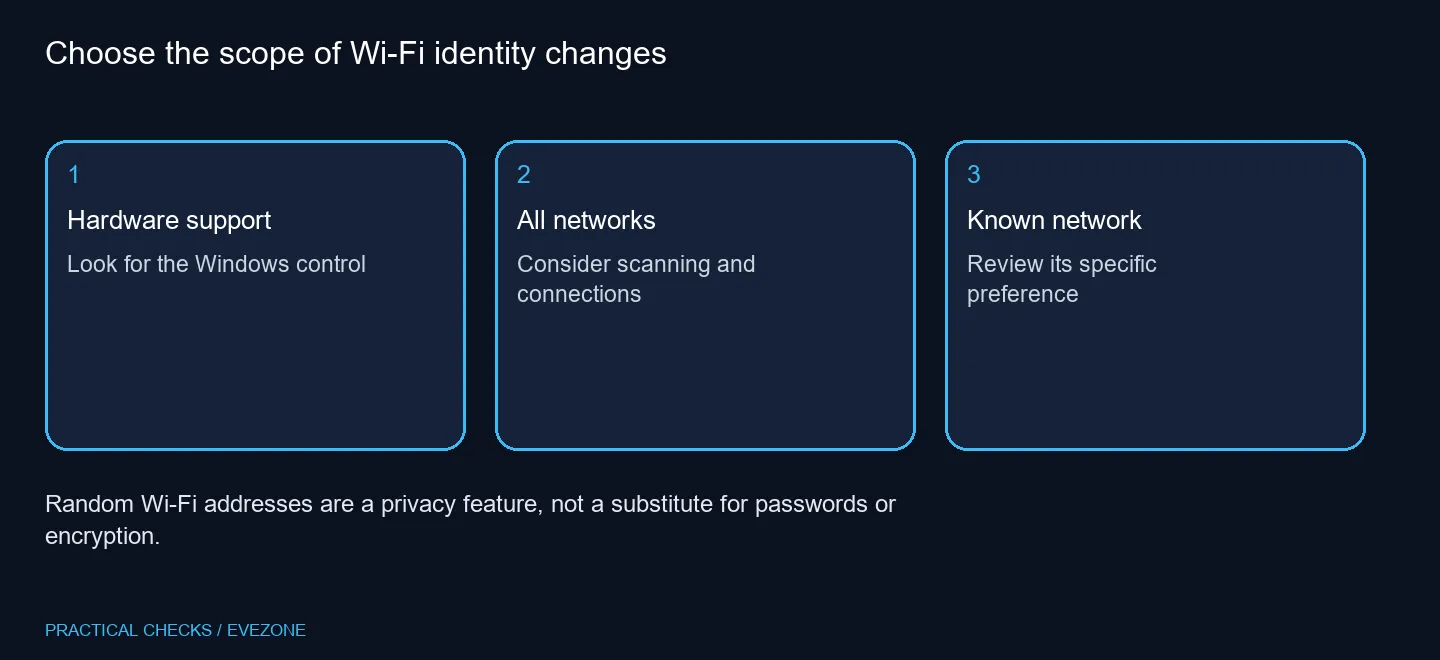
⚙️ Choose the scope carefully
The general Wi-Fi page and the properties of a known network expose different scopes. Inspect both before concluding that one switch describes every connection. For a specific network, the documented preference applies when you next connect, so compare behaviour at the next ordinary connection rather than repeatedly changing unrelated settings.
Support depends on the adapter and driver. If the option is absent, identify the hardware and supported Windows controls first. Do not install a spoofing tool or copy an unrelated registry change simply to imitate another PC's menu. A missing optional feature is different from an adapter that cannot connect at all.
🏢 Keep managed access predictable
A school, office or household network may register devices by identity. Coordinate any change with whoever manages it, and keep a note of the preference you altered if access behaves differently afterwards. The objective is a useful privacy choice that works with authorised access, not a way to evade network rules.
Use network adapters if a supported adapter capability is a real purchasing requirement, or wireless routers when the router itself no longer meets your needs. Neither purchase is automatically required here. Try the built-in preference where supported and judge coverage separately. Before buying, confirm exactly which feature is missing and whether a driver or settings explanation resolves the question on the equipment you already own.
Frequently Asked Questions
What is the feature for?
It makes tracking by a device's physical Wi-Fi address harder when scanning and connecting on supported hardware.
Where is the general control?
Open Settings, Network & internet and Wi-Fi, then inspect Random hardware addresses if available.
Can I choose a single network?
Yes. Inspect the chosen entry under Manage known networks and its random-address preference.
Why is the option missing?
Support depends on Wi-Fi hardware and its driver. A missing control is not by itself proof of a failed adapter.
Does this hide everything online?
No. It changes Wi-Fi hardware identity behaviour, not every account, website or internet address.
Should I change a managed network?
Check with its administrator first, especially if access or registration depends on identifying the device.
Make Wi-Fi privacy a deliberate choice.
Compare Evetech adapters and routers around confirmed compatibility and the networks you are authorised to use.