Carefully grouped shortcuts are less useful when Windows keeps pulling them back into rows. Windows desktop auto arrange is the first preference to inspect when manual placement will not stick. It is different from making icons visible, changing their size or deciding which files belong on the desktop.
Quick Answer
Right-click an empty part of the desktop, open View and clear Auto arrange icons if you want manual placement. You can leave Align icons to grid enabled for tidy spacing. This costs R0. If the layout changes only after reconnecting a monitor, capture that separate trigger before treating the setting as a complete fix.
🗂️ Understand which layout is being controlled
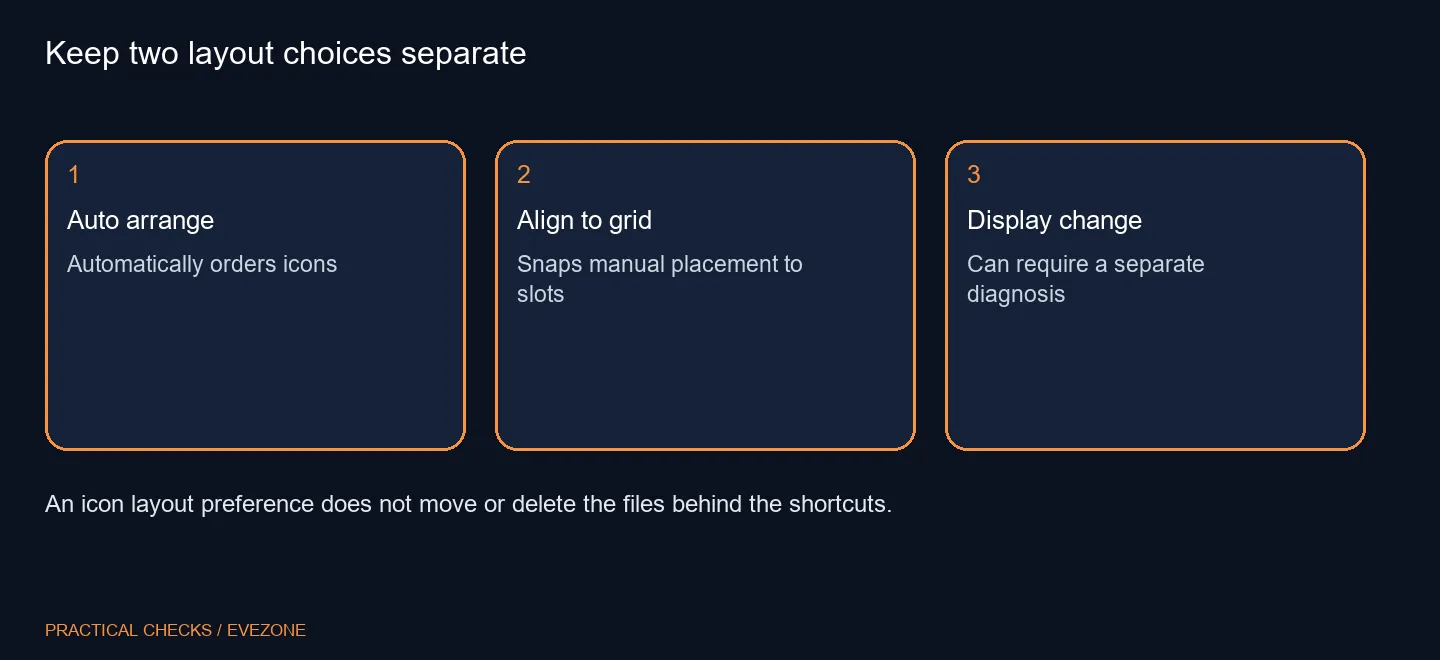
Automatic arrangement manages the placement order across the desktop. Grid alignment helps a manually moved icon land in a regular slot. Someone who wants small groups can prefer grid alignment while leaving automatic arrangement off. Test with two harmless shortcuts so the difference is clear before moving a crowded screen.
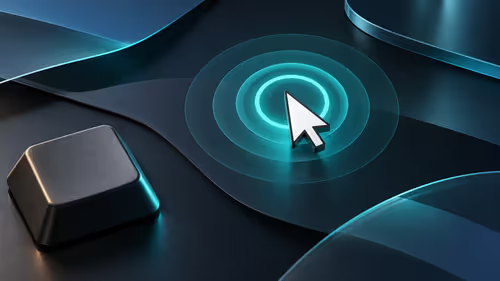
Use an empty desktop area for the context menu. Right-clicking a file instead opens actions for that file and can send you into the wrong options. After changing the preference, move one shortcut to the intended position and click away. Confirm the visible result before reorganising everything else.
🖥️ Note what happens around display changes
A layout that changes after a monitor disconnects needs a more specific description than one that rearranges immediately after a drag. Write down the display arrangement, resolution and moment of the change. A laptop docked to an external monitor has more than one desktop environment to account for.
Do not delete shortcuts or rebuild the desktop just to test a layout preference. The file behind an icon and its screen position are different things. If you have important working files on the desktop, keep their normal backup arrangements intact while adjusting where the icons sit.
🧭 Organise for the way the desk is used
A few visible groups may be easier to scan than one large alphabetical block. Keep space for the applications you use often and use folders when the desktop becomes hard to navigate. The purpose is quicker recognition, not a promise that a particular layout makes the computer run faster.
Look at monitors on special if the real problem is insufficient workspace, and all keyboards if shortcut access and desk input need improvement. Those are separate choices from automatic icon placement. If the preference changes back after sign-in on a managed PC, report the behaviour to the administrator. Identify the setting and trigger first, then decide whether a display or policy investigation is warranted.
Frequently Asked Questions
Where is Auto arrange?
Right-click an empty desktop area, open View and inspect Auto arrange icons.
Does grid alignment do the same thing?
No. Grid alignment snaps placement to an orderly grid; automatic arrangement controls the overall ordering.
Will disabling it delete files?
No. This changes the layout preference, not the contents of the files represented by the icons.
Can I keep a tidy grid?
Yes. Leave Align icons to grid enabled if you prefer manual groups with regular spacing.
Why do icons still move?
A monitor or resolution change may be a separate trigger. Record when it happens before applying other fixes.
Is a new monitor required?
No. The menu check costs R0. A monitor purchase should address a real display requirement.
Put shortcuts where they make sense.
Compare Evetech workspace options after setting a desktop layout you can navigate easily.