A laptop can connect successfully while staying invisible to the other computers on the same Wi-Fi. Windows network profile is one of the settings that explains that difference. Choosing Public or Private is a decision about trust and discovery, not a quick way to improve download speed.
Quick Answer
Keep Public for general use, especially around unfamiliar devices. Choose Private only for a trusted network where you need local file or printer sharing. Inspect the connected network in Settings, Network & internet. This is an R0 configuration check; buying a router does not automatically choose an appropriate trust profile for your PC.
🏠 Decide who shares the network
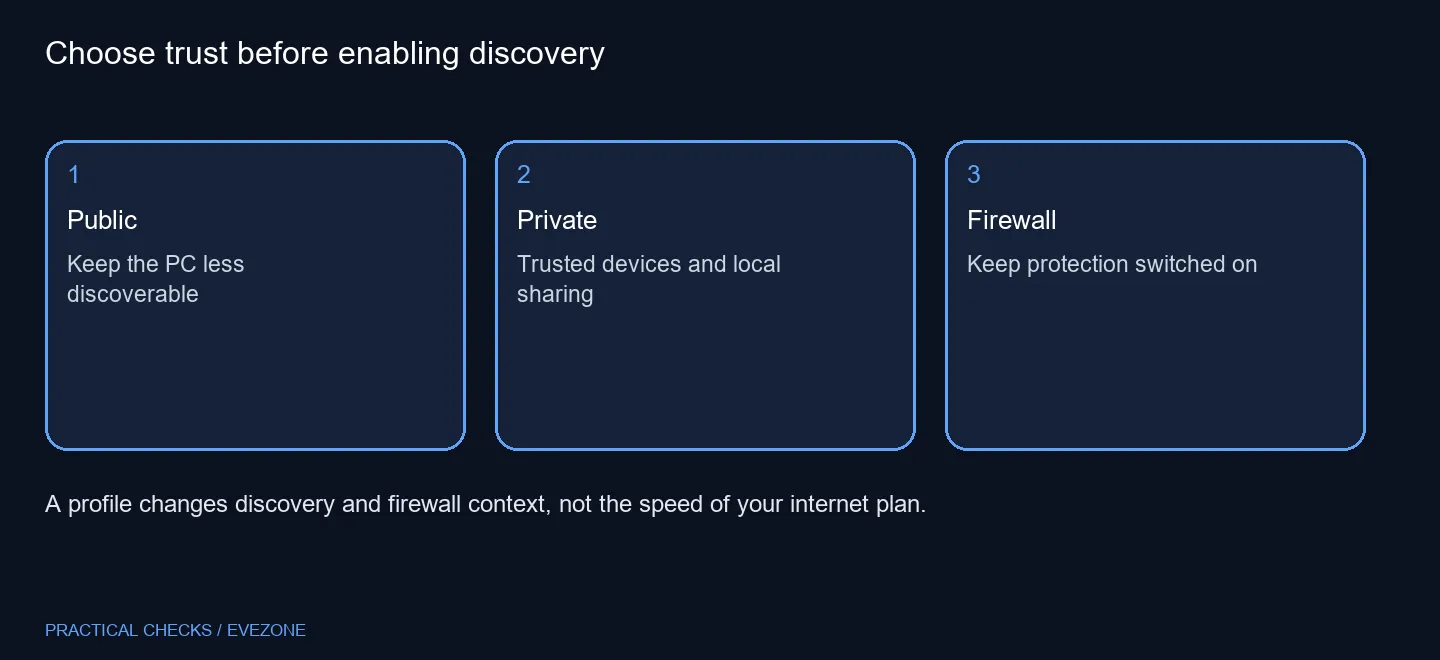
A familiar network name does not prove that every connected device is yours. Think about visitors, a shared building or a work-managed connection before enabling discovery. The useful question is whether you trust the people and equipment that can reach the same local network. Home use alone is not a requirement to select Private.
Public is the recommended default and can be suitable even at home when you simply browse and play online. Private is useful when a trusted printer or another PC needs to participate in local sharing. Choosing it does not grant every folder to everyone, but it changes an important part of the network context.
⚙️ Check the connection you are actually using
Open Network & internet and select the connected Wi-Fi network or Ethernet connection. Inspect its profile before changing anything. A laptop using a cable at the desk and Wi-Fi elsewhere can have different connection contexts; do not assume the label you saw yesterday belongs to today's active network.
If a shared printer is missing, test discovery on the intended trusted connection and keep the printer's own setup in view. Internet access and local device visibility are different checks. A website loading successfully does not prove that the printer's sharing permissions are correct or that its network configuration matches your PC.
🛡️ Preserve firewall protection
Keep the firewall enabled. If one app is blocked, identify the app and relevant rule rather than removing protection from the entire connection. Managed PCs may have policies you cannot change; ask the administrator about the intended profile instead of working around it.
Browse wireless routers when coverage or router capability is the real limitation, and network cables when a practical wired connection would suit the desk. Neither purchase is required to inspect this setting. Test trust, discovery and the specific shared device first, then decide whether any physical network change would solve a separate problem.
Frequently Asked Questions
What does Public mean?
It keeps your PC hidden from other network devices by default and is the recommended general setting.
When is Private appropriate?
Use it on a network whose people and devices you trust when local sharing is needed.
Where is the setting?
Open Settings, Network & internet, then the connected Wi-Fi network or Ethernet connection and its profile options.
Does Private speed up gaming?
The profile is not a broadband speed control. Investigate connection quality separately.
Should I turn the firewall off?
No. Keep firewall protection enabled and troubleshoot any specific blocked app or sharing rule.
Does changing it cost money?
The Windows setting costs R0. A new router or cable is a separate hardware decision.
Match sharing to a network you trust.
Choose Evetech networking equipment for coverage and connections after checking the Windows profile.