


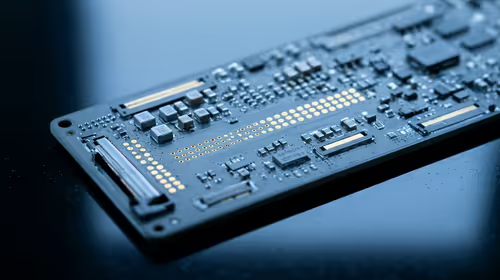
Hot-Swappable PCB Architecture in Modern Keyboards: Guide
Learn hot-swappable PCB architecture in modern keyboards—what it is, how sockets and traces work, and how to pick the right board. Speed up swaps, reduce risk, and upgrade faster 🔧⚡
Read moreExperiencing Lenovo gaming laptop screen flickering? Don't let a shaky display ruin your game. This guide provides easy, step-by-step solutions to fix the flicker, from driver updates to hardware acceleration tweaks. Get your smooth visuals back and dominate the game! 💻✨
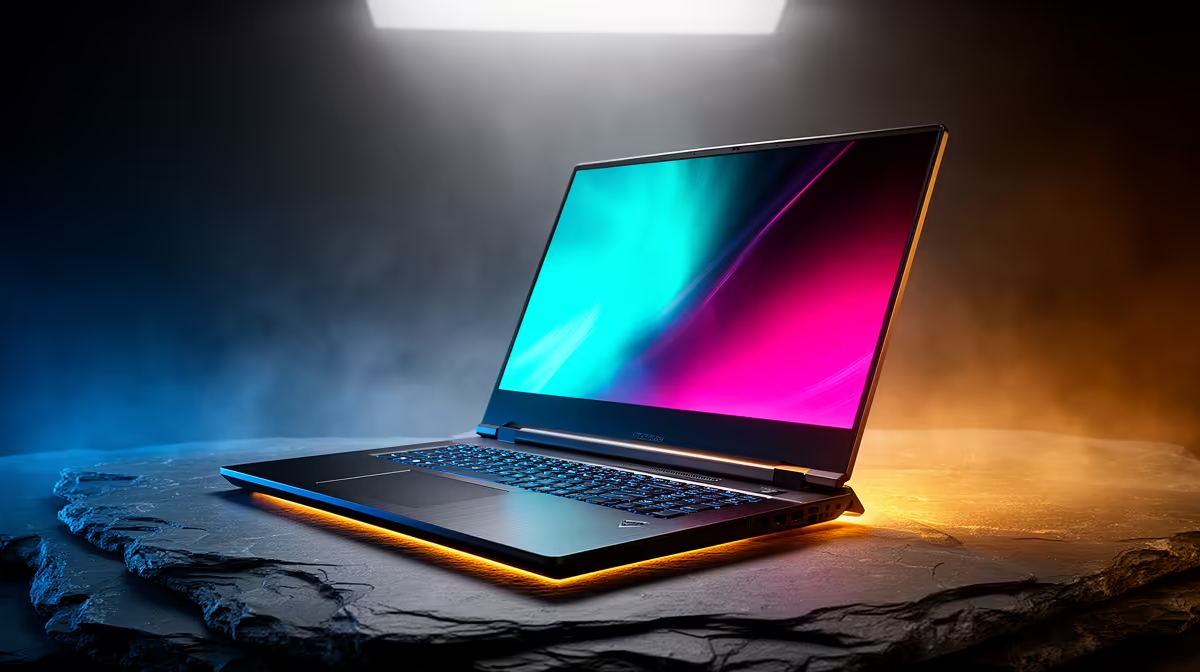
You’re locked in, final circle, the tension is electric… and then your screen starts strobing like a dodgy disco light. A flickering Lenovo gaming laptop screen is more than just annoying; it’s a mission-killer. Whether it’s a subtle pulse or a full-blown graphics meltdown, this issue can ruin your flow. But don’t stress, we’ve got your back. This guide will walk you through the most common causes and fixes for that frustrating screen flicker.
Before you dive into complex settings, let's start with the basics. Often, the solution to a Lenovo gaming laptop screen flickering issue is simpler than you think. These initial checks can save you a ton of time and frustration. 🔧
First, check if the flicker happens in your BIOS/UEFI menu (usually accessed by pressing F1, F2, or Del on startup). If the screen flickers here, before Windows even loads, it strongly suggests a hardware problem. If it's stable in the BIOS but flickers in Windows, it’s almost certainly a software or driver issue.
Next, update your graphics drivers. Both NVIDIA and AMD frequently release updates that optimise performance and squash bugs. Head to their official websites, download the latest driver for your specific graphics card, and perform a "clean installation" if the option is available. An outdated driver is one of the top culprits for screen flicker on gaming laptops.
If the quick fixes didn't solve the Lenovo screen flicker, it's time to investigate your software settings. Windows and third-party apps can sometimes have conflicting settings that cause display problems, especially on high-refresh-rate gaming screens.
A mismatch between your game's expected refresh rate and your display's setting can cause flickering.
Apps like Discord, Chrome, or Wallpaper Engine use hardware acceleration to run smoothly. Sometimes, this can conflict with your graphics driver, causing a flicker. Try disabling "Hardware Acceleration" in the settings of any apps you have running in the background. It's a surprisingly common and easy fix!
Think about any new software you recently installed. Some older applications or even certain desktop customisation tools aren't fully compatible with modern versions of Windows or the latest graphics drivers, leading to display glitches. Try uninstalling recent apps one by one to see if the problem disappears.
If you've exhausted all the software fixes and your Lenovo gaming laptop screen flickering persists, it might be time to consider a hardware fault. This is especially likely if the flickering changes when you move the laptop's lid or apply gentle pressure to the chassis. ✨
A loose or damaged internal display cable is a classic cause. Over time, the simple act of opening and closing your laptop can wear out this crucial connection. Another possibility is a failing display panel or a GPU that's on its last legs. While a cable replacement can sometimes be a DIY job for the brave, fixing a panel or GPU is a task for professionals. For many, the cost of repair might not be worth it, especially when compared to the performance and value offered by the new Lenovo LOQ series.
So, you've tried everything. Drivers are updated, settings are tweaked, and you're still facing that dreaded flicker. What now? You have two paths: repair or upgrade.
Getting a quote for a professional repair is a smart first step. It will give you a clear idea of the cost in ZAR. Now, weigh that cost against the age and performance of your current machine. If you're running an older model, sinking a few thousand Rand into it might not make sense when that money could be a down payment on a brand new, more powerful machine. Sometimes, a fresh start with a reliable and budget-friendly IdeaPad Gaming laptop is the best long-term solution for a flicker-free gaming experience. 🚀
Ultimately, a persistent screen flicker is a clear sign that something needs attention. By working through these steps, you can diagnose the problem and decide on the best path forward for your gaming setup.
Ready for a Flicker-Free Future? If your current laptop is beyond a simple fix, don't let it hold you back. A screen should immerse you in the game, not pull you out of it. Explore our massive range of Lenovo gaming laptops and find the perfect machine to conquer your world.
Screen flickering on a Lenovo Legion is often caused by outdated graphics drivers, incorrect display refresh rates, or conflicting background applications. Updating your GPU drivers is the first and most common fix.
Start by checking for Windows updates and updating your graphics drivers. You can also try adjusting the screen's refresh rate or disabling hardware acceleration in apps like Chrome or Discord.
Yes, sometimes a faulty battery or power adapter can cause inconsistent power delivery, leading to 'lenovo screen flickering on battery'. Check if the issue persists on AC power.
Compatibility issues after a Windows 11 update can cause screen flickering. This is usually due to incompatible display drivers. Rolling back or clean-installing the latest drivers often solves the problem.
If flickering starts after an update, the new driver may be unstable. Use Device Manager to roll back to the previous driver version or use Display Driver Uninstaller (DDU) for a clean reinstall.
Press Win + Ctrl + Shift + B simultaneously. Your screen will go black for a moment and you'll hear a beep, which indicates that your graphics driver has been reset. This can temporarily fix a flicker.
Learn hot-swappable PCB architecture in modern keyboards—what it is, how sockets and traces work, and how to pick the right board. Speed up swaps, reduce risk, and upgrade faster 🔧⚡
Read more
Mechanical switch lifespan explained—what the 50 million keystroke rating really means, plus tips to extend switch life and reduce double-press issues 🔧⌨️
Read more
60-percent vs full-size mechanical keyboard layouts—learn what each layout includes, who it suits, and how to choose the right fit 🧩⌨️ for typing, gaming, and productivity.
Read more
Double injection keycaps last far longer than standard printed keycaps in most setups. Learn typical lifespan ranges, what shortens them, and how to maximize durability for smoother daily typing and gaming 😊⌨️
Read more
Full-key anti-ghosting: does it stop missed inputs during fast-paced gaming? We break down latency, polling, and key matrix limits so you can buy smarter 🎮⚡
Read more
Protect mechanical keyboard switches from South African dust and summer humidity with practical cleaning and storage habits. Keep your switches smooth, reduce failures, and extend lifespan. 🌬️💧
Read more
Wondering if a TKL wireless mechanical keyboard is worth it for everyday productivity? We break down latency, battery life, comfort, and workflow gains for real work. ⚡⌨️

Maximise battery life on a fanless 15-inch laptop using efficiency core architecture. Cut idle drain, tune power profiles, and improve thermals for longer runtime. 🔋⚙️

Learn how to reduce desk clutter with a TKL wireless keyboard using fewer cables, smart placement, and tidy essentials. Get a faster, calmer workspace with better ergonomics. ✅🧼

RGB keyboard lighting too distracting? Learn how to manage backlight modes, set brightness, and reduce distraction for focus and productivity 😌🖱️

Are themed gaming keyboards worth the extra cost? Compare build quality, switch options, features, and resale value to find the best fit for your setup 🎮⌨️

Full-Size vs Tenkeyless mechanical keyboards for gaming: find out if a smaller layout truly improves aim, speed, and comfort. We break down layout, desk space, latency-feel, and keybinds 🎮⌨️

Dedicated media rollers vs function key shortcuts: learn which setup gives you better workflow control, faster media access, and fewer mistakes. 🖱️🎧

Best Mechanical Switch Type for Gaming: Clicky vs Linear vs Tactile. Find your feel, speed, and noise balance with practical guidance for FPS, MOBA, and productivity 😄🎮

Direct mouse answer: Mouse not keeping up with your work? Everything that matters about dual-mode 2.4GHz + BT 5.0: DPI behaviour, channel switching, battery curves and per-app button mapping. Covers when 2.4GHz USB wins (low-latency desk) and when BT 5.0 wins (laptop, d

Plain wireless mouse guide: Mouse not keeping up with your work? Everything that matters about wireless productivity mouse: DPI behaviour, channel switching, battery curves and per-app button mapping. Includes DPI tuning tips, channel switch shortcuts, and ZAR-aware fea

Real productivity numbers: Set up your wireless mouse in this order: everything that matters about wireless productivity mouse: DPI behaviour, channel switching, battery curves and per-app button mapping. Includes DPI tuning tips, channel switch shortcuts, and ZAR-aware

Pen not feeling like paper? Stylus lag and skipping usually trace to old drivers, dirty nibs, or display refresh mismatches, not the pen itself. Covers pressure curve tuning, tilt thresholds, nib swap timing, and SA pricing brackets.