Quick Answer
To calibrate a 95% DCI-P3 gaming monitor for better colour accuracy, set the colour profile in Windows to the monitor's ICC profile (if one is provided by the manufacturer), set white balance to D65 in the OSD, reduce saturation from the default boosted level, and use the built-in Windows colour calibration tool to set gamma to 2.2. Hardware calibration with a colorimeter gives the most accurate result.
Understanding What 95% DCI-P3 Means for Gaming 🖥️
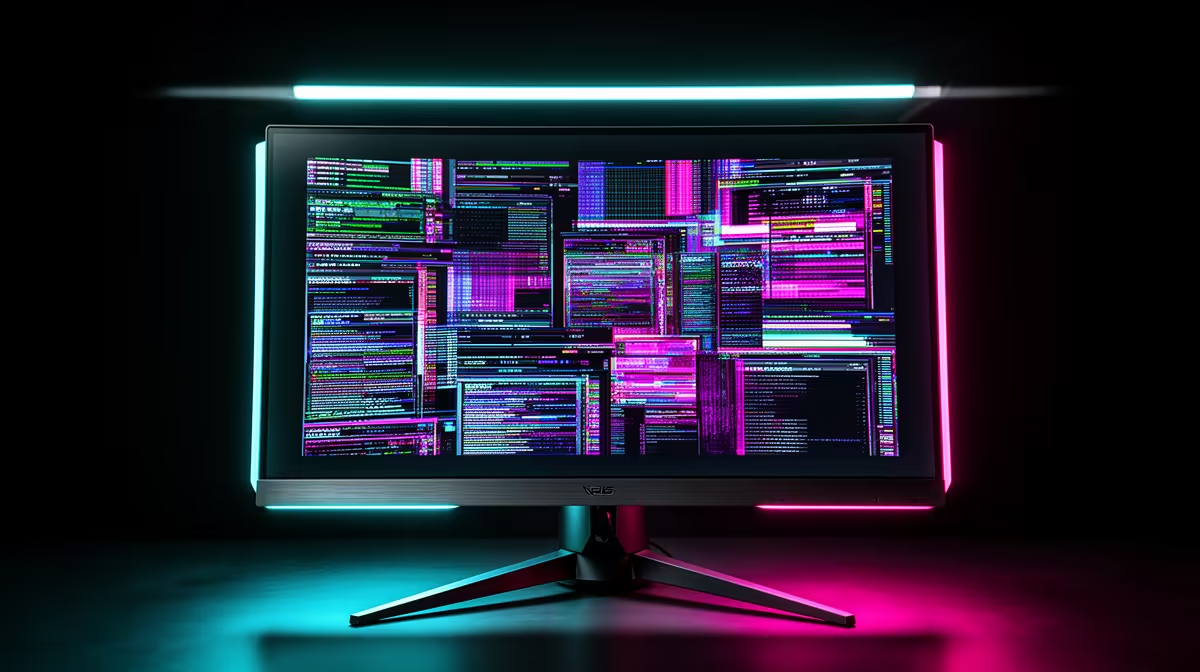
DCI-P3 is a wide colour gamut standard used in cinema production. A monitor covering 95% of DCI-P3 reproduces a significantly larger range of reds, greens, and blues than the standard sRGB gamut used for most PC content. This is an advantage for photo editing, video work, and HDR gaming, but it requires correct setup. Without calibration, a wide-gamut monitor running in its native mode will oversaturate colours in sRGB content like Windows desktop apps and most SDR games, making reds look artificially vivid and skin tones look unnatural. The goal of calibration is to tell Windows and your GPU which colour space the monitor is displaying so the operating system can apply the correct colour management.
Setting Up the ICC Profile and Windows Colour Management 🎨
Check the monitor manufacturer's support page for an ICC profile specific to your monitor model. Download it and install it by right-clicking the .icm or .icc file and selecting Install Profile. Then open Windows Settings, go to System, Display, and open Advanced Colour Settings or Colour Management (accessible via the search box). Assign the monitor's ICC profile as the default profile for your display. Once this is done, Windows-managed applications use the profile to compensate for the monitor's wide gamut, displaying sRGB content accurately. Note that most games bypass Windows colour management entirely and render directly to the display; for those titles, the OSD settings are what matter.
OSD Settings for Accurate Colour in Gaming 🔧
In the OSD, set colour temperature to 6500K or D65 to align white point with sRGB and Rec.709 standards. If the OSD includes an sRGB mode, enable it for SDR gaming to prevent oversaturation. For HDR gaming, switch to native or DCI-P3 mode. Reduce saturation from any boosted default to neutral. Set gamma to 2.2 via the OSD preset or the Windows display calibration wizard.
Use sRGB Mode for SDR Gaming, Native for HDR ⚡
Many 95% DCI-P3 monitors include an sRGB emulation mode in the OSD that clamps the colour output to the standard gamut. Activate this for everyday Windows use and SDR gaming, then switch to native mode when launching an HDR-enabled title. This two-mode workflow gives you accurate SDR colours without manually recalibrating between sessions.
FAQ
Do I need a hardware colorimeter to calibrate a gaming monitor in SA?
Not for basic accuracy. The ICC profile plus OSD adjustments described above produce a usably accurate result for gaming without hardware tools. A colorimeter (typically R1,500 to R4,000 for entry-level options) is worthwhile if you do professional colour work where accuracy within 1 to 2 delta-E matters.
Will calibration reduce the visual impact of the monitor's colours?
Calibrated sRGB mode will look less vivid than the factory boosted mode, which is intentional. Factory-boosted modes oversaturate the image to look impressive on the shop floor. Calibrated output looks natural and accurate, which is correct for content that was graded in a standard colour space.
Does calibration affect the monitor's refresh rate or response time?
No. Colour calibration adjustments are independent of the panel's timing. Your 165Hz or 300Hz refresh rate and fast pixel response time remain unchanged after any colour or gamma adjustment in the OSD.
Looking for a wide-gamut gaming monitor with solid colour performance out of the box?
Evetech stocks gaming monitors including wide-gamut Fast IPS and OLED panels. Browse the monitor section to find a display that suits both gaming and colour-accurate work.