Quick Answer
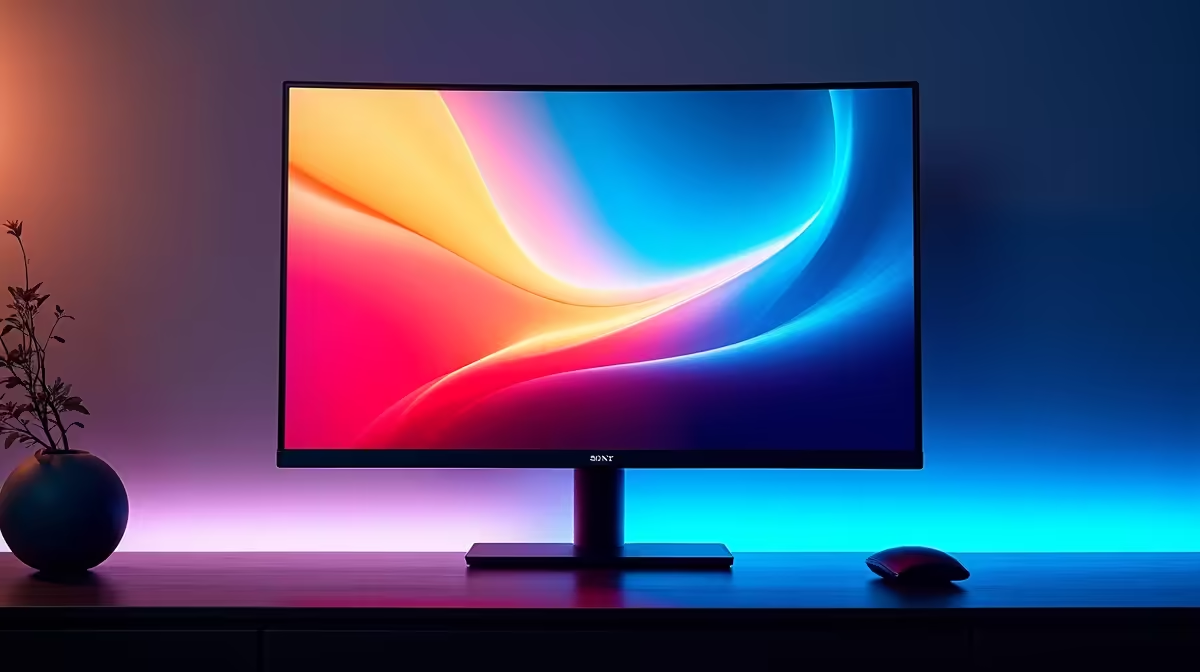
Fix 4K screen flickering caused by EMI by replacing the display cable with a triple-shielded DP 1.4 or HDMI 2.1 cable, rerouting it away from power cables, and moving any nearby wireless router or power strip at least 30cm from the cable run. These three steps resolve most EMI-induced flickering without hardware replacement.
Diagnosing EMI as the Cause of Flickering 🔍
Not all 4K flickering comes from EMI. Before acting, rule out driver issues (update GPU drivers via Windows Device Manager), cable seating (firmly re-seat both connector ends), and refresh rate mismatch (confirm the display is set to 60Hz or the target rate in Display Settings). EMI-specific flickering has a distinct pattern: it correlates with nearby device activity such as a microwave running, a phone ringing near the cable, or a Wi-Fi router transmitting. It often appears as single-frame black flashes rather than gradual dimming or rolling lines. If moving the cable by 20cm changes the frequency of flicker, EMI is almost certainly the cause.
Step-by-Step Fix 🔧
Step one: replace the cable. A single-shielded or unbranded cable is the most common source of EMI vulnerability. A triple-shielded DisplayPort 1.4 or HDMI 2.1 cable costs R180 to R380 at Evetech and eliminates 40 to 60 dB more interference than a standard cable. Step two: reroute the cable. Run display cables perpendicular to power cables rather than parallel. Maintain at least 15cm separation where parallel runs are unavoidable. Step three: move EMI sources. A 2.4 GHz Wi-Fi router placed directly under or beside a monitor and cable run is a common cause of 4K 60Hz instability in South African home offices. Moving it 30 to 50cm away from the cable path often eliminates the problem immediately. Step four: if flickering persists after these steps, test with a different GPU port (most RTX 40-series and RX 7000-series cards have two or three DisplayPort outputs) to rule out a failing port.
Longer-Term Prevention 🛡️
For permanent cable runs in a home office or studio, use cable management channels that route display cables separately from power cables. Velcro ties that bundle all cables together create a dense EMI environment around the data cables. In open-plan offices in Sandton or Rosebank where dense Wi-Fi and Bluetooth infrastructure is unavoidable, triple-shielded cables are the only practical mitigation beyond physical rerouting.
Quick EMI Test with a Phone ⚡
a mobile phone making a call within 5cm of your display cable. If the flickering increases during the call, EMI from the 4G or 5G signal is penetrating the cable shielding. This confirms the fix: a better-shielded cable and increased separation from wireless devices.
FAQ
Can a faulty GPU cause the same flickering symptoms as EMI?
Yes. A failing GPU output stage produces identical flicker symptoms. Distinguish between the two by testing the monitor with a different PC or laptop. If the flicker disappears on a different source, the issue is the cable or the original GPU, not EMI.
Does screen refresh rate affect EMI sensitivity?
Yes. Higher refresh rates require higher sustained bandwidth, which makes the signal more sensitive to interference. A 4K 144Hz signal is significantly more EMI-vulnerable than a 4K 60Hz signal on the same cable.
Should I use a ferrite core on my display cable for EMI suppression?
Ferrite cores suppress conducted emissions from the cable but do not address radiated EMI picked up along the cable length. They help most with USB and power cables. For display cables, proper shielding is more effective than a ferrite clamp.
Dealing with persistent 4K screen flickering?
Evetech stocks triple-shielded DisplayPort and HDMI cables that address EMI-related signal instability. Browse the cable section to find a certified replacement for your current setup.