


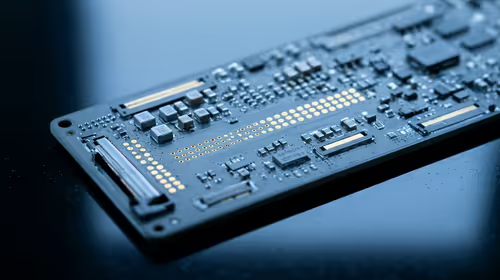
Hot-Swappable PCB Architecture in Modern Keyboards: Guide
Learn hot-swappable PCB architecture in modern keyboards—what it is, how sockets and traces work, and how to pick the right board. Speed up swaps, reduce risk, and upgrade faster 🔧⚡
Read moreMotion Blur: 250Hz panels with 0.5ms Fast-VA pixels deliver competitive smoothness when paired with a tuned overdrive setting. Pricing, fit and feature trade-offs sit alongside straight technical answers. Read the spec-by-spec notes, then the buying picks.
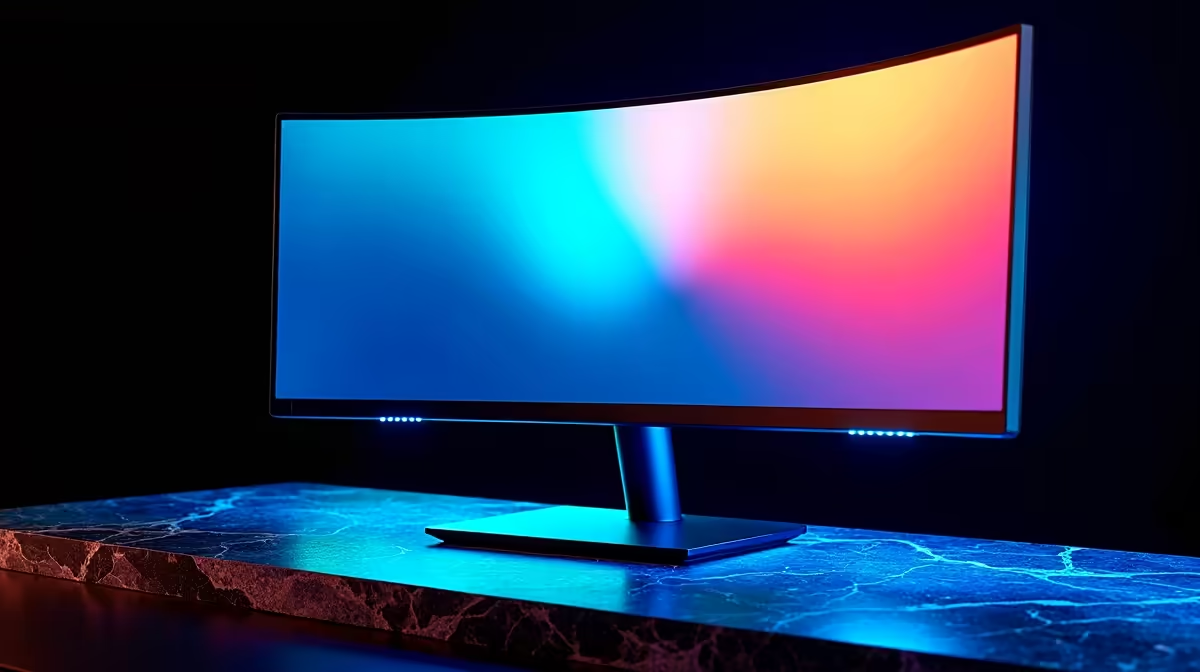
Fix motion blur and ghosting on a high-refresh-rate curved display by setting overdrive to the second-fastest preset, enabling FreeSync or G-Sync in the GPU driver, and confirming the refresh rate is at the monitor's maximum in Windows Display Settings. For VA curved panels, dark-scene ghosting is also reduced by slightly raising the black level and lowering gamma from 2.2 to 2.0 in the OSD.
Overdrive applies extra voltage to liquid crystal cells to speed pixel transitions. At the Fastest preset most monitors introduce inverse ghosting: bright halos on the trailing edge of moving objects. At Normal, dark smear trails persist. The correct setting is almost always the second-highest preset, labelled Faster, Fast, or Level 3 out of 4. To test: drag a browser window slowly across the display and observe the edge for halos (too much OD) or dark smear (too little). VA curved panels generally need a higher OD notch than equivalent IPS panels because dark pixel transitions are intrinsically slower.
Motion blur is often caused by the system delivering fewer frames than the panel's rated refresh. Open Display Settings, Advanced Display, and confirm the refresh rate reads the monitor's maximum. Open a frame rate overlay and confirm fps stays within the VRR operating range (typically 48 to 165Hz or 48 to 250Hz). If fps drops below the minimum FreeSync threshold, LFC doubles the frame rate, which can look stuttery. For SA gamers with an RTX 5070 Ti, medium-high settings in demanding titles at 1440p keeps fps above 80 and prevents VRR range drops.
Beyond overdrive, three additional steps help with VA dark ghosting. Raise the monitor's black level setting by one or two OSD steps, lifting the black floor and shortening dark pixel transition distance. In game, lower gamma correction from 2.2 to 2.0 to brighten dark tones. Enable Shadow Boost or Black Equalizer if available, which lifts shadow visibility and incidentally makes dark trailing less perceptible. Combined, these reduce VA ghosting below distraction threshold in most titles.
Open the Blur Busters UFO Motion Test in a browser at your monitor's native refresh rate, choose the Ghosting test, and observe for dark trails (underdrive) or bright halos (overdrive). This 60-second test gives a visual baseline before and after OD changes so you confirm improvements objectively rather than relying on general gaming impressions.
Almost always a configuration issue. Check in Windows Display Settings that the monitor is running at 165Hz, not 60Hz. Windows sometimes defaults to a lower rate after a driver reinstall.
No. G-Sync Compatible enforces VRR within the rated FreeSync range and reduces judder-related blur. If ghosting worsens after enabling it, test at Normal overdrive first: the OD setting may be interacting poorly with VRR.
Cable type does not cause ghosting, which is a panel characteristic. However, an HDMI 2.0 cable on a 250Hz monitor may prevent 250Hz from being selectable, causing the system to run at 144Hz, which subjectively looks like blur compared to expected 250Hz performance.
Shopping for a high-refresh curved monitor with minimal ghosting? Browse Fast-IPS and Fast-VA curved gaming monitors at Evetech, stocked locally in South Africa with full warranty.
Learn hot-swappable PCB architecture in modern keyboards—what it is, how sockets and traces work, and how to pick the right board. Speed up swaps, reduce risk, and upgrade faster 🔧⚡
Read more
Mechanical switch lifespan explained—what the 50 million keystroke rating really means, plus tips to extend switch life and reduce double-press issues 🔧⌨️
Read more
60-percent vs full-size mechanical keyboard layouts—learn what each layout includes, who it suits, and how to choose the right fit 🧩⌨️ for typing, gaming, and productivity.
Read more
Double injection keycaps last far longer than standard printed keycaps in most setups. Learn typical lifespan ranges, what shortens them, and how to maximize durability for smoother daily typing and gaming 😊⌨️
Read more
Full-key anti-ghosting: does it stop missed inputs during fast-paced gaming? We break down latency, polling, and key matrix limits so you can buy smarter 🎮⚡
Read more
Protect mechanical keyboard switches from South African dust and summer humidity with practical cleaning and storage habits. Keep your switches smooth, reduce failures, and extend lifespan. 🌬️💧
Read more
Wondering if a TKL wireless mechanical keyboard is worth it for everyday productivity? We break down latency, battery life, comfort, and workflow gains for real work. ⚡⌨️

Maximise battery life on a fanless 15-inch laptop using efficiency core architecture. Cut idle drain, tune power profiles, and improve thermals for longer runtime. 🔋⚙️

Learn how to reduce desk clutter with a TKL wireless keyboard using fewer cables, smart placement, and tidy essentials. Get a faster, calmer workspace with better ergonomics. ✅🧼

RGB keyboard lighting too distracting? Learn how to manage backlight modes, set brightness, and reduce distraction for focus and productivity 😌🖱️

Are themed gaming keyboards worth the extra cost? Compare build quality, switch options, features, and resale value to find the best fit for your setup 🎮⌨️

Full-Size vs Tenkeyless mechanical keyboards for gaming: find out if a smaller layout truly improves aim, speed, and comfort. We break down layout, desk space, latency-feel, and keybinds 🎮⌨️

Dedicated media rollers vs function key shortcuts: learn which setup gives you better workflow control, faster media access, and fewer mistakes. 🖱️🎧

Best Mechanical Switch Type for Gaming: Clicky vs Linear vs Tactile. Find your feel, speed, and noise balance with practical guidance for FPS, MOBA, and productivity 😄🎮

Direct mouse answer: Mouse not keeping up with your work? Everything that matters about dual-mode 2.4GHz + BT 5.0: DPI behaviour, channel switching, battery curves and per-app button mapping. Covers when 2.4GHz USB wins (low-latency desk) and when BT 5.0 wins (laptop, d

Plain wireless mouse guide: Mouse not keeping up with your work? Everything that matters about wireless productivity mouse: DPI behaviour, channel switching, battery curves and per-app button mapping. Includes DPI tuning tips, channel switch shortcuts, and ZAR-aware fea

Real productivity numbers: Set up your wireless mouse in this order: everything that matters about wireless productivity mouse: DPI behaviour, channel switching, battery curves and per-app button mapping. Includes DPI tuning tips, channel switch shortcuts, and ZAR-aware

Pen not feeling like paper? Stylus lag and skipping usually trace to old drivers, dirty nibs, or display refresh mismatches, not the pen itself. Covers pressure curve tuning, tilt thresholds, nib swap timing, and SA pricing brackets.