


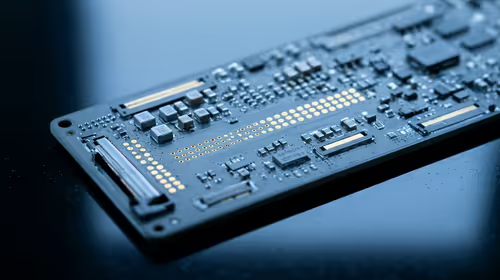
Hot-Swappable PCB Architecture in Modern Keyboards: Guide
Learn hot-swappable PCB architecture in modern keyboards—what it is, how sockets and traces work, and how to pick the right board. Speed up swaps, reduce risk, and upgrade faster 🔧⚡
Read moreStraight up: a lightweight dual-wireless mouse handles office and gaming alike. For the install or setup runs faster than it reads, with three or four real steps. DPI, weight, and wireless-mode notes walked through.
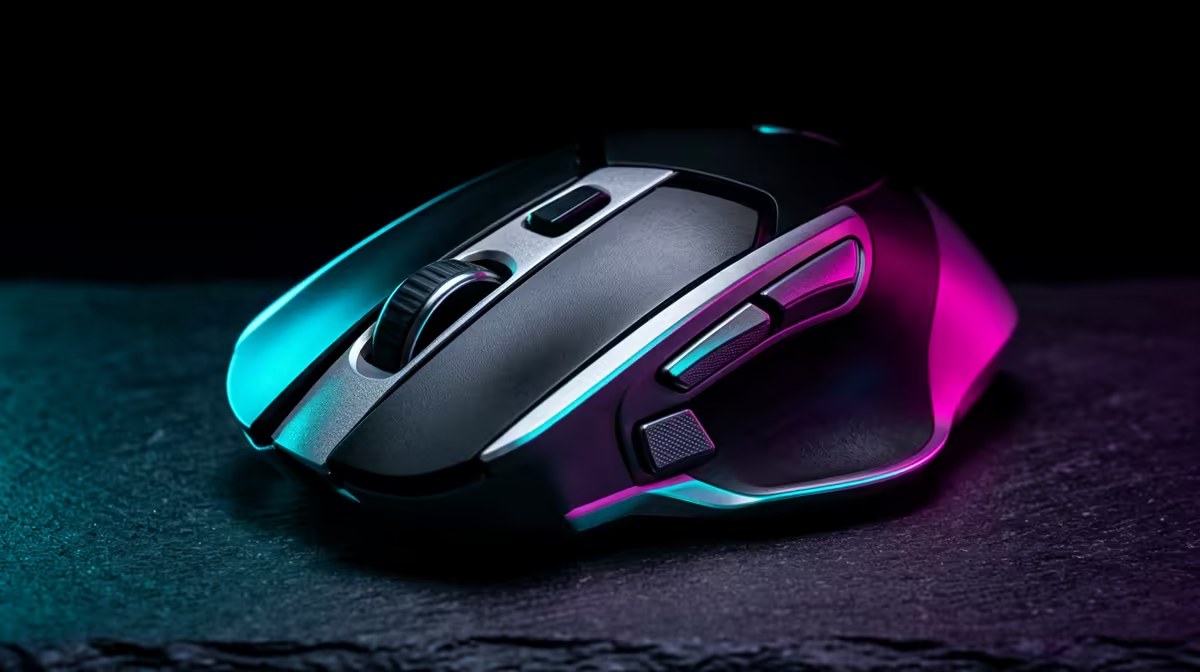
Most mouse lag, skipping, and poor tracking problems are caused by a dirty sensor lens, an incompatible surface, low USB polling rate, or wireless interference. Clean the sensor, use a proper mouse pad, confirm USB polling rate in the driver, and relocate the wireless receiver to fix 90% of cases.
Before changing settings, identify which type of problem you have. Lag (delayed cursor response) is usually a polling rate or USB power management issue. Skipping (cursor jumping to a different position) is almost always a dirty sensor or incompatible surface. Poor tracking (cursor drifts or accelerates inconsistently) is typically caused by a highly reflective, glossy, or glass surface that confuses the optical sensor. Understand which symptom you have, then apply the relevant fix rather than changing everything at once.
Optical sensors track by photographing surface texture thousands of times per second. Highly reflective or plain single-colour surfaces like glass desks, white melamine boards, or glossy plastic confuse the sensor into reporting movement that did not happen. Use a fabric or hard-surface mouse pad with a consistent texture. Budget options from Redragon or basic Evetech-branded pads cost R80 to R250 and resolve reflective surface problems immediately. Clean the sensor lens monthly with a dry cotton swab, or gently with a microfibre cloth. Dust, skin oil, and carpet fibres on the lens cause skipping regardless of surface quality. Do not use compressed air directly into the sensor cavity as it can force debris deeper.
Polling rate determines how often the mouse reports its position to Windows, measured in Hz. Most mice default to 125 Hz but gaming mice support 500 Hz or 1,000 Hz, reducing lag from 8 ms to 1 ms. In Windows Device Manager, right-click your mouse under Human Interface Devices and open Power Management: disable Allow the computer to turn off this device to save power. Windows USB power management is a frequent lag cause that does not show as a hardware fault. For wireless mice, move the nano receiver to a front USB port rather than a rear panel port, which is shielded by the PC case and reduces signal strength by 20 to 40%. If your 2.4 GHz receiver and wireless router are on the same channel, interference is possible in dense SA apartment buildings.
Open your mouse's companion software (Razer Synapse, Logitech G HUB, SteelSeries GG) and locate the Report Rate or Polling Rate setting. Set it to 1,000 Hz for the lowest possible input lag. Some budget mice only support 125 Hz via their driver app even though the hardware can go higher , in that case, switch to a USB HID driver and test at 500 Hz.
Your desk surface is likely too reflective or too uniform in texture for the optical sensor to lock onto. Wood grain, dark fabric, and light-coloured coarse textures work well. Smooth varnished or glass surfaces do not.
Yes. Wireless mice with below 15% battery drop their radio transmission power to extend life, which causes connection dropouts and cursor skipping. Charge or replace the battery and retest before doing more complex troubleshooting.
Size affects comfort and desk coverage but not tracking accuracy. A larger pad keeps the mouse on a consistent surface during fast movements. For desk setups in smaller SA student accommodation rooms, an extended pad from R150 to R350 covers keyboard and mouse on a single consistent surface.
Need a proper mouse pad to fix tracking issues or upgrade your setup? Browse the full mouse pad and gaming peripheral range at Evetech for options across all sizes and budgets.
Learn hot-swappable PCB architecture in modern keyboards—what it is, how sockets and traces work, and how to pick the right board. Speed up swaps, reduce risk, and upgrade faster 🔧⚡
Read more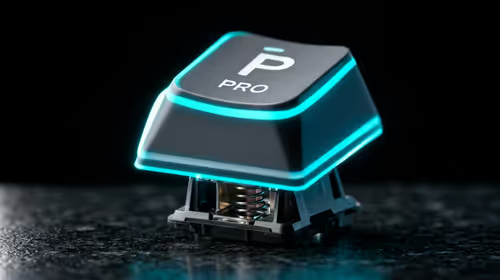
Mechanical switch lifespan explained—what the 50 million keystroke rating really means, plus tips to extend switch life and reduce double-press issues 🔧⌨️
Read more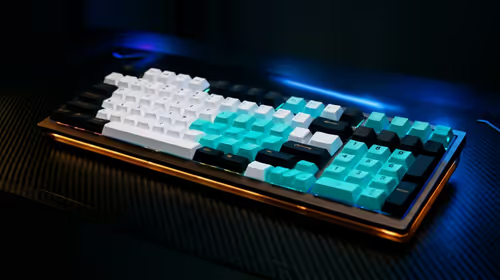
60-percent vs full-size mechanical keyboard layouts—learn what each layout includes, who it suits, and how to choose the right fit 🧩⌨️ for typing, gaming, and productivity.
Read more
Double injection keycaps last far longer than standard printed keycaps in most setups. Learn typical lifespan ranges, what shortens them, and how to maximize durability for smoother daily typing and gaming 😊⌨️
Read more
Full-key anti-ghosting: does it stop missed inputs during fast-paced gaming? We break down latency, polling, and key matrix limits so you can buy smarter 🎮⚡
Read more
Protect mechanical keyboard switches from South African dust and summer humidity with practical cleaning and storage habits. Keep your switches smooth, reduce failures, and extend lifespan. 🌬️💧
Read more
Wondering if a TKL wireless mechanical keyboard is worth it for everyday productivity? We break down latency, battery life, comfort, and workflow gains for real work. ⚡⌨️

Maximise battery life on a fanless 15-inch laptop using efficiency core architecture. Cut idle drain, tune power profiles, and improve thermals for longer runtime. 🔋⚙️

Learn how to reduce desk clutter with a TKL wireless keyboard using fewer cables, smart placement, and tidy essentials. Get a faster, calmer workspace with better ergonomics. ✅🧼

RGB keyboard lighting too distracting? Learn how to manage backlight modes, set brightness, and reduce distraction for focus and productivity 😌🖱️

Are themed gaming keyboards worth the extra cost? Compare build quality, switch options, features, and resale value to find the best fit for your setup 🎮⌨️

Full-Size vs Tenkeyless mechanical keyboards for gaming: find out if a smaller layout truly improves aim, speed, and comfort. We break down layout, desk space, latency-feel, and keybinds 🎮⌨️

Dedicated media rollers vs function key shortcuts: learn which setup gives you better workflow control, faster media access, and fewer mistakes. 🖱️🎧

Best Mechanical Switch Type for Gaming: Clicky vs Linear vs Tactile. Find your feel, speed, and noise balance with practical guidance for FPS, MOBA, and productivity 😄🎮

Direct mouse answer: Mouse not keeping up with your work? Everything that matters about dual-mode 2.4GHz + BT 5.0: DPI behaviour, channel switching, battery curves and per-app button mapping. Covers when 2.4GHz USB wins (low-latency desk) and when BT 5.0 wins (laptop, d

Plain wireless mouse guide: Mouse not keeping up with your work? Everything that matters about wireless productivity mouse: DPI behaviour, channel switching, battery curves and per-app button mapping. Includes DPI tuning tips, channel switch shortcuts, and ZAR-aware fea

Real productivity numbers: Set up your wireless mouse in this order: everything that matters about wireless productivity mouse: DPI behaviour, channel switching, battery curves and per-app button mapping. Includes DPI tuning tips, channel switch shortcuts, and ZAR-aware

Pen not feeling like paper? Stylus lag and skipping usually trace to old drivers, dirty nibs, or display refresh mismatches, not the pen itself. Covers pressure curve tuning, tilt thresholds, nib swap timing, and SA pricing brackets.