Quick Answer
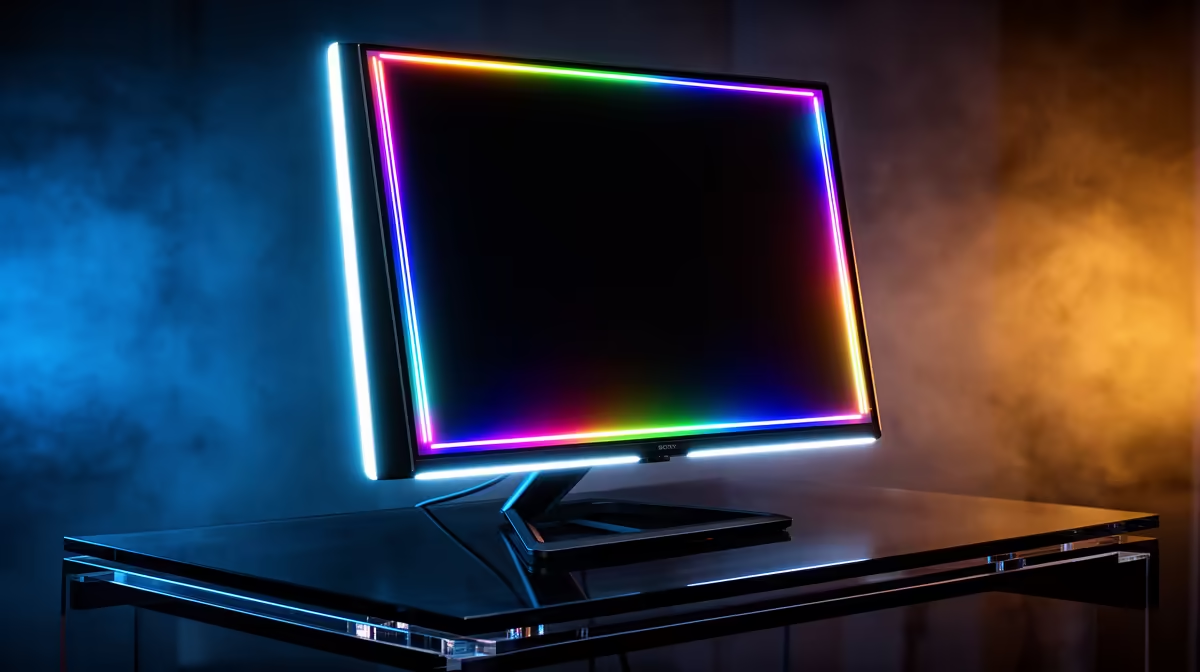
Setting up a 27-inch 4K QD-OLED monitor for gaming, streaming, and creative work requires configuring three separate display profiles: a game mode with adaptive sync active and HDR enabled, a streaming profile with balanced brightness and correct colour space output for your encoder, and a creative profile calibrated to DCI-P3 for video or sRGB for photo editing.
Initial Hardware Setup and Port Selection 🔧
Connect the monitor to your GPU via DisplayPort 2.1a if your card supports it, for example an RTX 5080 or RX 9070 XT. This gives full bandwidth for 4K at 240Hz without compression. Run HDMI 2.1 as the secondary port for a console if needed. Set the monitor to its maximum refresh rate in Windows Display Settings immediately after connection, as Windows often defaults to 60Hz. Enable Windows HD Colour in the Display Settings panel for HDR output. On the monitor's OSD, select the "Cinema" or "Creator" preset as your baseline and build from there, as these presets default to the wider DCI-P3 colour volume that QD-OLED panels are capable of.
Configuring Your Gaming Profile 🎮
For gaming, enable G-Sync Compatible or FreeSync Premium Pro in the NVIDIA or AMD driver. Set the OSD to Game mode or the manufacturer's equivalent (ROG Fast or LG Game, for example). Keep HDR enabled in Windows and in-game where supported: a 27-inch 4K QD-OLED panel like the LG 27GS95QE or ASUS ROG Swift OLED PG27UCDM delivers around 1,000 nits peak on highlights with infinite black depth, making HDR visually impactful rather than a gimmick. Set overdrive to Normal to avoid inverse ghosting on QD-OLED.
Streaming and Creative Calibration 📡
For streaming via OBS or Streamlabs, check that your OBS colour space is set to sRGB or BT.709, not DCI-P3, as your viewers' displays are SDR sRGB by default. If you stream in HDR, use OBS's HDR-to-SDR tone mapping option to preserve visual quality for SDR viewers. For creative work in Adobe Premiere or DaVinci Resolve, set the monitor's colour space to DCI-P3 in the OSD and calibrate with a colorimeter if colour accuracy is critical. SA freelancers and video creators working with international clients should target sRGB for delivery since most web and social platforms convert to sRGB regardless.
OLED Screen Saver Settings ⚡
Enable the panel's built-in pixel refresh cycle, usually found in the OSD under OLED Care or similar. Set the screen saver timeout to 3 to 5 minutes of inactivity and enable the pixel shift setting. These built-in measures significantly reduce the risk of temporary image retention during long static-content work sessions like spreadsheets or web browsing.
FAQ
Do I need a hardware calibrator for creative work on QD-OLED?
For casual content creation, the factory calibration on premium QD-OLED monitors is typically accurate enough, often within Delta E 2 out of the box. For professional colour grading where deliverables are colour-critical, a hardware calibrator like the X-Rite i1Display Pro or Datacolor Spyder is recommended to profile the monitor to a specific white point and gamma curve.
Can I run gaming and streaming simultaneously on one QD-OLED monitor?
Yes. Running a game while OBS captures and encodes the desktop output works without any monitor-specific issues. The GPU handles both the game rendering and the encoding, so the monitor simply displays the output. A second monitor for OBS and chat monitoring is helpful ergonomically but not required.
How much does a 27-inch 4K QD-OLED monitor cost in South Africa?
Expect to pay between R14,000 and R22,000 for a 27-inch 4K QD-OLED model from LG or ASUS. The price varies based on refresh rate, where 240Hz models are at the higher end, and whether the unit includes additional features such as USB-C power delivery.
Ready to set up a 27-inch QD-OLED workstation?
Evetech stocks QD-OLED gaming monitors suited to gaming, streaming, and content creation. Visit the Evetech monitor section to find the right 27-inch 4K panel for your workflow.