Quick Answer
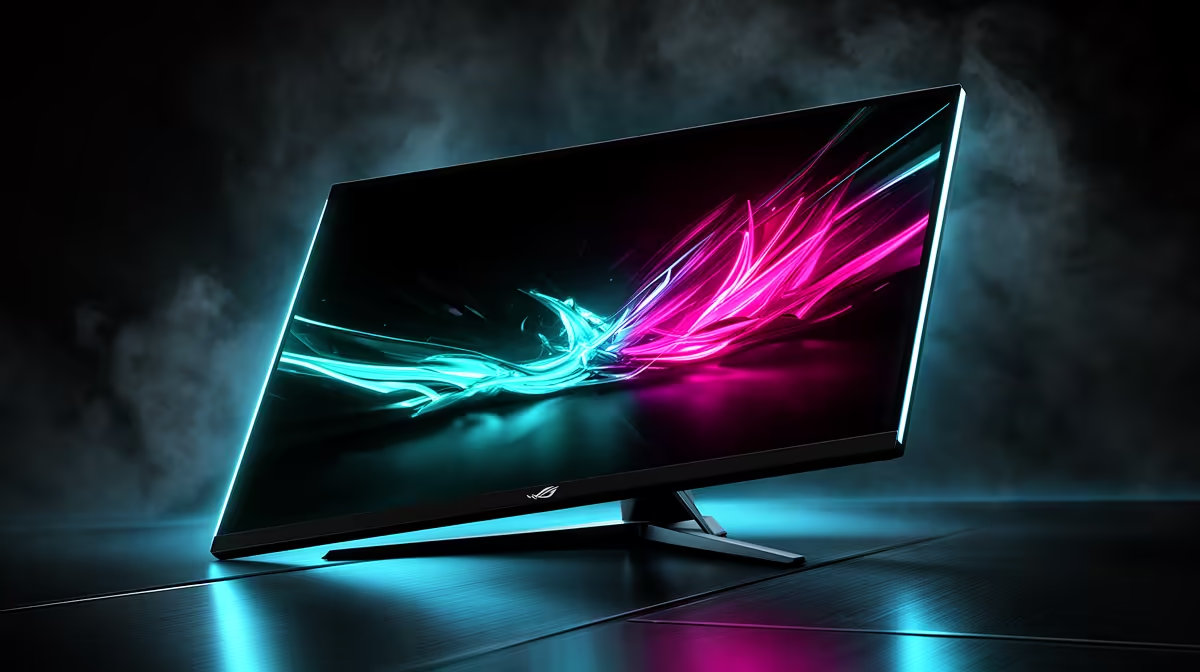
To set up a 300Hz QHD monitor for competitive play, connect via DisplayPort 1.4 (HDMI 2.1 if your GPU supports it), set the resolution to 2560x1440 in Windows display settings, manually enable 300Hz in the advanced display settings, and disable any image-enhancement modes like motion blur reduction that conflict with VRR. Confirm the refresh rate is active in the OSD before launching a game.
Connecting and Enabling 300Hz in Windows 🖥️
DisplayPort 1.4 is the correct cable for a 300Hz QHD signal. An HDMI 2.0 cable physically cannot carry 2560x1440 at 300Hz; it tops out at 144Hz at that resolution. HDMI 2.1 can carry the signal but is only available on newer GPUs. Start with the cable, then open Windows Settings, navigate to System, Display, and choose Advanced Display Settings. Under Refresh Rate, select 300Hz from the dropdown. If 300Hz does not appear, your cable is limiting the signal or the monitor's OSD has the input set to a lower refresh rate mode. Many monitors ship with a power-saving default of 60Hz or 144Hz active; check the OSD under the display settings menu and enable the maximum refresh rate option before adjusting Windows.
GPU and Driver Settings for 300Hz QHD Competitive Play 🎮
At 2560x1440, reaching 300 fps consistently in competitive titles requires serious GPU headroom. An RTX 5080 or RX 9070 XT delivers 300-plus fps in games like CS2 and Valorant at 1440p on low to medium settings. For more demanding titles, consider dropping to a render resolution of 1080p upscaled via DLSS 4 or FSR 4, which lets you maintain high frame rates while the monitor's native panel runs at its full 2560x1440 resolution. In your NVIDIA or AMD driver panel, confirm that G-Sync or FreeSync is enabled for the monitor, then set the in-game frame rate cap 3 to 5 fps below the monitor's maximum refresh rate. This prevents the frame rate from exceeding the VRR range and causing tearing at the ceiling.
Fine-Tuning the OSD for Competitive Settings 🔧
Once the refresh rate is active, spend five minutes in the OSD to disable features that add input lag. Sharpness enhancement, contrast boost, and motion blur reduction (ELMB or MPRT modes) typically disengage when VRR is active anyway, but confirm each is off. Set brightness to a comfortable level for your room lighting; SA gaming setups in north-facing rooms often deal with afternoon direct sunlight that washes out the panel, so a brightness setting of 60% to 75% with the room light on is a reasonable starting calibration. Set the response time (overdrive) to the manufacturer's recommended setting for your target frame rate. For 300Hz use, the medium overdrive setting on most Fast IPS panels avoids inverse ghosting while keeping motion sharp.
Confirm 300Hz Is Actually Active Before Your First Session ⚡
After all settings are applied, open the monitor's OSD and look for the current refresh rate readout, or install a small utility like RTSS that overlays the current display refresh rate. It is common to believe 300Hz is active only to find the OSD still reports 144Hz due to a cable or driver setting that was not saved correctly.
FAQ
Does 300Hz QHD require a specific GPU power target in SA?
No specific power target is required. Just ensure your PSU has sufficient headroom for your GPU under full load. An RTX 5080 draws up to 320 W under gaming load, requiring at least a 750 W PSU with quality rails.
Can I use DSC (Display Stream Compression) to run 300Hz at QHD?
Yes. DSC allows DisplayPort 1.4 to carry 300Hz at 2560x1440 with visually lossless compression. It is enabled automatically by the driver and monitor when required. No manual configuration is needed.
Should I use full RGB or Limited colour range for a 300Hz gaming monitor in Windows?
Use Full RGB for PC monitors. Limited range is designed for TV inputs and will produce washed-out blacks on a gaming monitor. Set this in the NVIDIA Control Panel under Display, Change Resolution, Output Colour Range.
Need a 300Hz QHD monitor for your competitive gaming setup?
Evetech stocks high-refresh QHD gaming monitors. Browse the monitor section to find a panel that gives your GPU the frame rates it can deliver.